
Our readers keep the lights on and the weekend projects moving. As an Amazon Associate, I earn from qualifying purchases.
An architect’s mouse is a precision tool, not a peripheral. Hours of CAD modeling, layer toggling, and precision snapping demand a device that eliminates wrist fatigue and delivers pixel-perfect cursor control. Standard office mice force repetitive forearm motion that leads to strain; the right trackball or programmable CAD mouse keeps your hand stationary and your workflow fluid.
I’m Rikta — the co-founder and writer behind FitlyFast. I’ve spent countless hours analyzing ergonomic hardware and mapping the specific specs that matter for sustained professional use, from DPI granularity to button programmability and connectivity versatility.
After evaluating dozens of models on compatibility, comfort for long sessions, and precision tracking, I’ve compiled the definitive list of the best mouse for architecture to help you make an informed choice that protects your wrist and boosts your productivity.
How To Choose The Best Mouse For Architecture
Architecture software demands both rapid navigation and precise, steady input. A standard mouse causes you to drag your wrist across the desk, leading to repetitive strain injuries over time. The right choice centers on three pillars: ergonomic design to minimize movement, button programmability for shortcuts, and sensor precision for accurate cursor placement.
Ergonomics: Trackball vs. Vertical vs. Standard
The biggest decision is whether to keep your hand still (trackball) or tilt your wrist (vertical). Trackballs like the Logitech MX Ergo S let you move the cursor without moving your arm, reducing muscle strain by up to 27%. Vertical mice promote a handshake posture, ideal for those who prefer a familiar grip but need wrist alignment. For pure architectural drafting, a trackball often wins because it eliminates the arm sweeping necessary for large monitor setups.
Programmable Buttons and DPI Control
Repetitive commands in Revit or AutoCAD (like “Zoom Extents,” “Pan,” or “Measure”) should live on your mouse. A mouse with 6 or more programmable buttons saves you hundreds of keystrokes per day. Additionally, adjustable DPI lets you switch between fast panning and micro-precision for snapping to grid points. Look for models with dedicated DPI cycle buttons or software-driven customization via Logi Options+ or native drivers.
Connectivity and Build Quality
Architects often work across a desktop and a laptop. A mouse that supports multi-device switching (Bluetooth and 2.4GHz dongle) allows seamless transitions. Build quality matters for longevity — look for metal baseplates, robust scroll wheels, and responsive buttons rated for hundreds of thousands of clicks. Rechargeable batteries via USB-C are preferred over disposable AAs for sustainability and convenience.
Quick Comparison
On smaller screens, swipe sideways to see the full table.
| Model | Category | Best For | Key Spec | Amazon |
|---|---|---|---|---|
| Logitech MX Ergo S | Premium Trackball | All-day CAD precision & comfort | 20° tilt, 27% less muscle strain | Amazon |
| 3Dconnexion CadMouse Compact Wireless | CAD-Specialized | Dedicated CAD workflow optimization | 7 programmable buttons, Bluetooth | Amazon |
| ELECOM Huge Plus | Finger Trackball | Maximum precision with large ball | 52mm ball, 10 programmable buttons | Amazon |
| Logitech Ergo M575S | Mid-Range Trackball | Budget-friendly ergonomic entry point | 25% less muscle strain, 18-month battery | Amazon |
| ProtoArc EM05 NL Vertical Trackball | Vertical Trackball | Natural wrist posture & multi-device use | 62° vertical tilt, 5 DPI levels | Amazon |
| CITLLA Ergonomic Bluetooth Mouse | Vertical Mouse | Spreadsheet & document navigation | 4800 DPI, flying scroll wheel | Amazon |
| Nulea M511 Wireless Trackball | Entry-Level Trackball | First trackball experience on a budget | 21.7° tilt stand, 4 DPI levels | Amazon |
In‑Depth Reviews
1. Logitech MX Ergo S Advanced Wireless Trackball

The MX Ergo S is the gold standard for architects who want to eliminate wrist strain while keeping precision control. Its 20-degree adjustable tilt realigns your forearm posture, reducing muscle strain by 27% compared to a standard mouse. The thumb-controlled trackball lets you navigate complex 3D models without dragging your arm across the desk. The USB-C rechargeable battery provides up to 120 days of use per charge, and a one-minute charge gives you 24 hours of power — critical for all-day drafting sessions.
Six programmable buttons via Logi Options+ software allow you to assign Revit shortcuts like “Zoom to Fit” or “Measure” directly to the mouse. The precision mode button instantly reduces cursor speed for micro-adjustments when aligning components. Users with medium to large hands will find the sculpted rubber grip comfortable for extended periods, though those with smaller hands may find the open palm position fatiguing. The metal baseplate ensures it stays planted, and the 80% quieter clicks are a welcome improvement for shared studio spaces.
This model builds on the legendary MX Ergo lineage with a refined sensor and improved durability. The easy-switch button lets you toggle between three connected devices (desktop, laptop, tablet) without re-pairing, making it ideal for architects who move between workstations. While the premium price reflects top-tier engineering, the ergonomic payoff and build quality make it a long-term investment in your health.
Why it’s great
- 27% less muscle strain with 20° adjustable tilt
- 120-day battery life with quick USB-C charging
- Six programmable buttons for software shortcuts
Good to know
- Best suited for medium-to-large hands
- USB-C cable not included in box
- No dongle storage slot built into mouse
2. 3Dconnexion CadMouse Compact Wireless
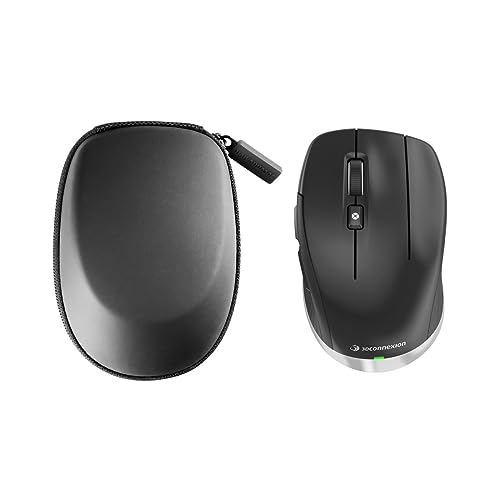
Unlike general-purpose mice, the 3Dconnexion CadMouse is engineered specifically for CAD environments. Its seven programmable buttons are pre-configured with essential commands for software like AutoCAD, Revit, SolidWorks, and SketchUp. The compact form factor fits naturally in the hand without forcing an aggressive grip, reducing strain during extended modeling sessions. Bluetooth connectivity keeps your workspace cable-free, and the optical sensor delivers smooth, dependable cursor tracking that holds up to demanding precision work.
The biggest advantage is the dedicated middle-mouse button implementation — in CAD software, the middle mouse is used constantly for pan and orbit. The CadMouse optimizes this with a high-quality scroll wheel that provides tactile feedback without accidental clicks. The battery life spans several weeks on a single charge, and the device is lightweight enough to slip into a laptop bag for mobile work. Build quality is solid, with a durable plastic enclosure that withstands daily use in professional environments.
Where the CadMouse truly shines is workflow speed: the pre-assigned buttons for “Undo,” “Delete,” and “Properties” eliminate the need to reach for the keyboard. However, it lacks the vertical or trackball ergonomics of other options, so users prone to wrist strain may still benefit from a trackball. For architects who prioritize native CAD integration over ergonomic gimmicks, this is the most efficient tool available.
Why it’s great
- Seven buttons pre-configured for CAD software
- Compact and highly portable design
- Reliable Bluetooth connectivity
Good to know
- No trackball or vertical ergonomic tilt
- Battery life lasts weeks, not months like some competitors
3. ELECOM Huge Plus Wireless Trackball Mouse
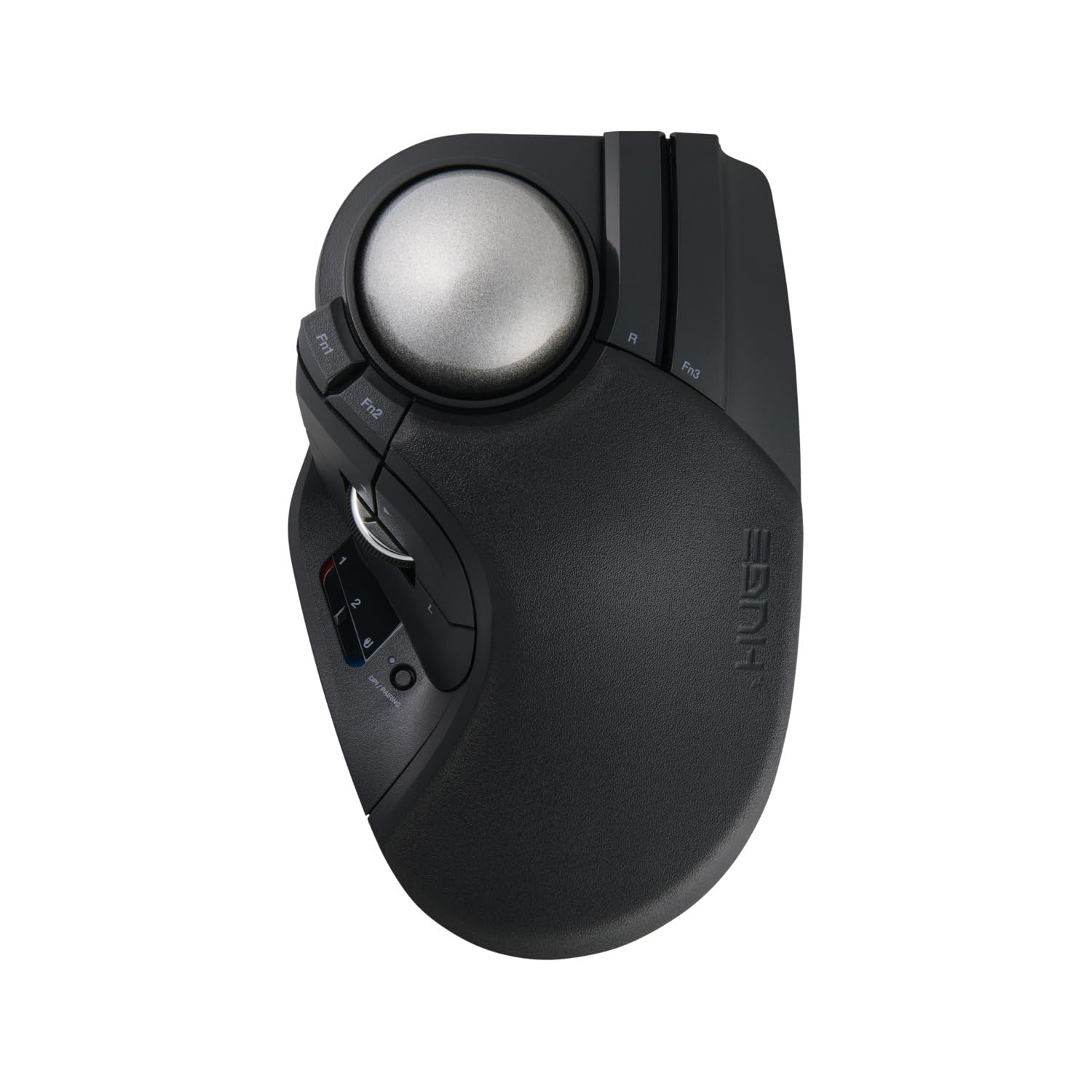
The ELECOM Huge Plus uses a 52mm finger-controlled trackball, which gives you more precise micro-movements than thumb-operated balls — a major advantage for tasks like tracing complex curves or snapping to exact coordinates. Its ten fully programmable buttons can be mapped to any key combination or macro, allowing you to build a customized workflow for Revit families or AutoCAD blocks. The tri-mode connectivity (Bluetooth, 2.4GHz, and wired USB-C) ensures compatibility with any setup, and the included high-performance MinebeaMitsumi steel bearings eliminate stiction for buttery-smooth tracking.
The ergonomic design features a gentle palm slope that supports various hand positions, though some users with larger hands may find it slightly awkward without a custom palm rest. The silent clicks are appreciated in shared offices, and the rechargeable battery lasts up to five months per charge. The 1000Hz polling rate in wired mode delivers zero-latency response for detailed modeling, while wireless mode at 125Hz remains adequate for general use.
Installation is plug-and-play on Windows and macOS, with the option to use the proprietary software for advanced button assignments. The included bearing removal tool allows you to swap the steel bearings for optional ruby units, further reducing friction. While the initial learning curve for a finger trackball is steeper than a thumb version, the long-term precision payoff is unmatched for architectural drafting.
Why it’s great
- 52mm large ball for micro-precision control
- 10 fully programmable buttons for workflow automation
- Swappable steel bearings for smooth, stiction-free tracking
Good to know
- Finger-controlled trackball has a learning curve
- Ergonomics may feel awkward for very large hands without a 3D-printed palm rest
4. Logitech Ergo M575S Wireless Trackball

The Logitech Ergo M575S is the entry point into premium trackball ergonomics without the premium price tag. It offers 25% less muscle strain in the forearm compared to a standard mouse, making it a solid option for architects who want to test a trackball workflow before committing to a flagship model. The sculpted shape supports your hand and realigns your forearm into a better posture throughout the day. The thumb-operated trackball is intuitive for most users, and the cursor moves without any arm or wrist motion.
Battery life is exceptional — up to 18 months on a single AA battery, which is included. The connectivity options include Bluetooth and the Logi Bolt USB receiver, though note that the Bolt receiver is not backward-compatible with older Logitech Unifying receivers. The Logi Options+ app allows you to customize the two additional buttons and adjust cursor speed, though it has fewer customization options than the MX line. The quiet clicks and smooth ball tracking make it suitable for focused work sessions without distracting coworkers.
For architects working in tight spaces or on cluttered desks, the trackball design eliminates the need for mouse room entirely. The M575S works on any surface — including your leg or a sofa — giving you flexibility in varied work environments. While it lacks the adjustable tilt of the MX Ergo S, its lower cost and proven ergonomic credentials make it a smart choice for beginners and budget-conscious professionals alike.
Why it’s great
- 25% less forearm muscle strain
- 18-month battery life from one AA battery
- Works on any surface, ideal for small desks
Good to know
- Uses Logi Bolt receiver, not compatible with older Unifying receivers
- Fewer programmable buttons than higher-tier models
5. ProtoArc EM05 NL Vertical Trackball Mouse

The ProtoArc EM05 NL combines two ergonomic principles — vertical handshake posture and thumb-controlled trackball — into one device. The 62-degree vertical tilt keeps your forearm and wrist in a relaxed neutral position, while the trackball eliminates the need to move your arm. This dual approach can significantly reduce shoulder and wrist fatigue for architects who spend 8+ hours at a drafting station. The frosted plastic finish feels premium and provides a secure grip without being sticky.
Connectivity is versatile, supporting 2.4GHz and dual Bluetooth connections for switching between three devices (desktop, laptop, tablet) with a single button press. The rechargeable USB-C battery lasts about two months per charge, and the silent clicks keep noise to a minimum. Five DPI levels (200/400/800/1200/1600) let you adjust sensitivity on the fly, though the limited range caps out at 1600 DPI, which may feel slow for high-resolution 4K monitors. The scroll wheel is functional but noticeably looser than Logitech offerings, and some users report squeaking after several months.
The biggest trade-off is the lack of button programmability — all seven buttons are fixed in their functions, and the forward/back buttons do not work on macOS. For architects who rely on custom shortcuts, this limitation is significant. However, if your workflow is straightforward and you value a natural wrist angle above all else, this is the most affordable vertical trackball on the market that actually works.
Why it’s great
- 62° vertical tilt for neutral wrist posture
- Tri-mode connection for three devices
- Silent, quiet clicking operation
Good to know
- Buttons are not programmable; forward/back not compatible with Mac
- Max DPI of 1600 may feel slow on high-resolution displays
6. CITLLA Ergonomic Bluetooth Mouse
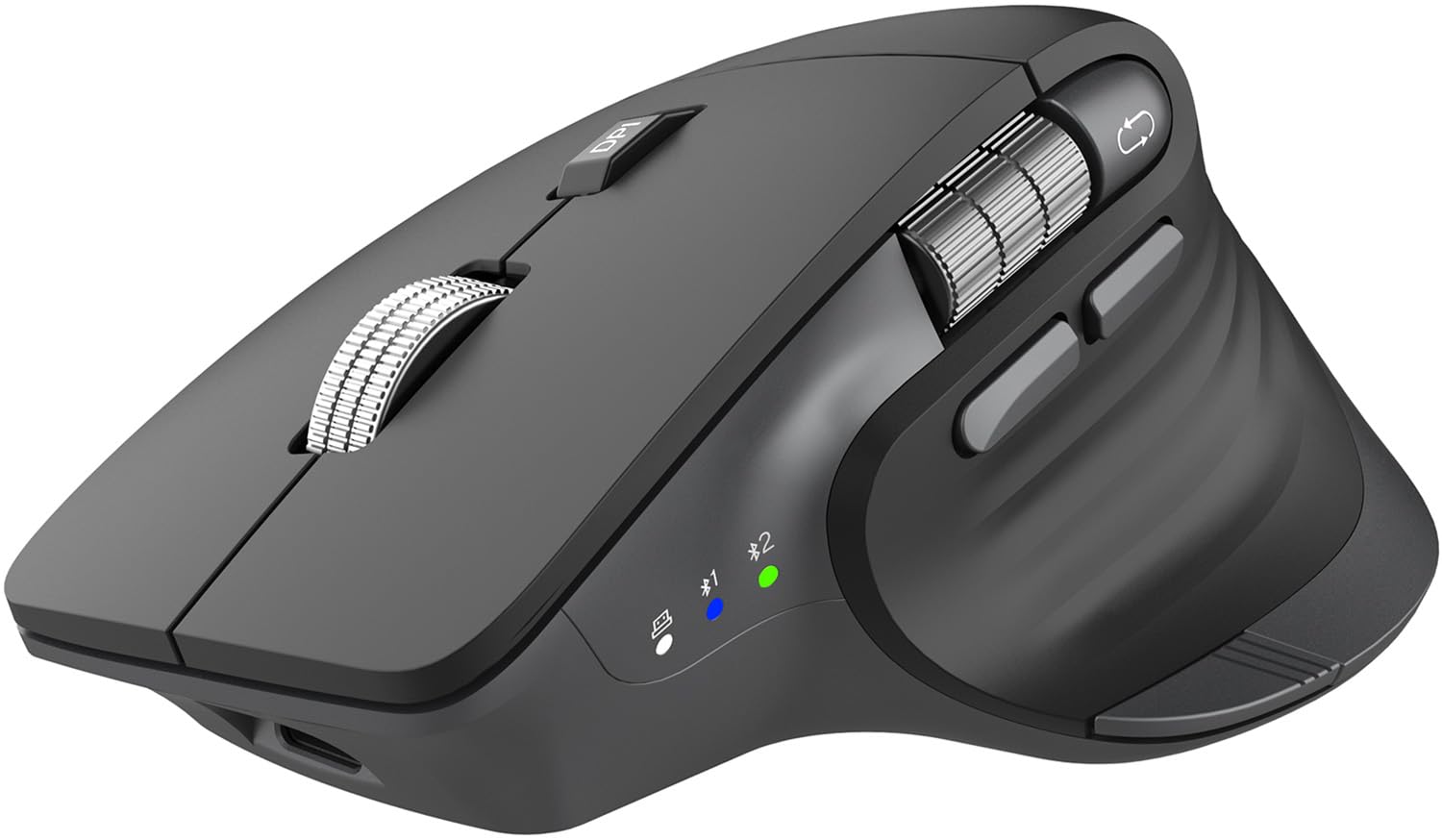
The CITLLA Ergonomic Mouse is a solid entry-level vertical mouse designed for general office productivity, including architectural drafting. Its standout feature is the “flying scroll” wheel — a metal notched wheel that lets you fly through long specification documents, spreadsheets, and layered CAD files with a single flick. The dedicated horizontal thumb wheel adds another dimension of navigation for side-scrolling in Revit or Excel. With up to 4800 DPI across five adjustable levels, the sensor delivers smooth tracking for most tasks.
The ergonomic shape naturally positions your hand in a handshake orientation, reducing wrist strain for users transitioning from a standard mouse. The quiet clicks are genuinely near-silent, and the USB-C rechargeable battery lasts up to 60 days per charge. Multi-device connectivity supports three devices (dual Bluetooth plus 2.4GHz), making it easy to switch between a workstation and laptop. The Windows-specific “Return to Desktop” button is a nice touch for multitaskers.
Build quality reflects the lower price point — the plastic body is lightweight and feels less dense than premium alternatives. The scroll wheel is notched rather than infinite, which some CAD users prefer for tactile feedback but others find slower for rapid scrolling. macOS users should note that the forward/back buttons send Left Alt+Arrow commands instead of browser navigation, which may require third-party software to remap. For architects on a strict budget who need ergonomic relief, this mouse offers strong value.
Why it’s great
- Flying scroll wheel for rapid document navigation
- Dedicated horizontal thumb wheel
- 4800 DPI for smooth tracking on large monitors
Good to know
- Plastic build feels lightweight and less durable
- Button mapping issues on macOS require third-party software
7. Nulea M511 Wireless Trackball Mouse
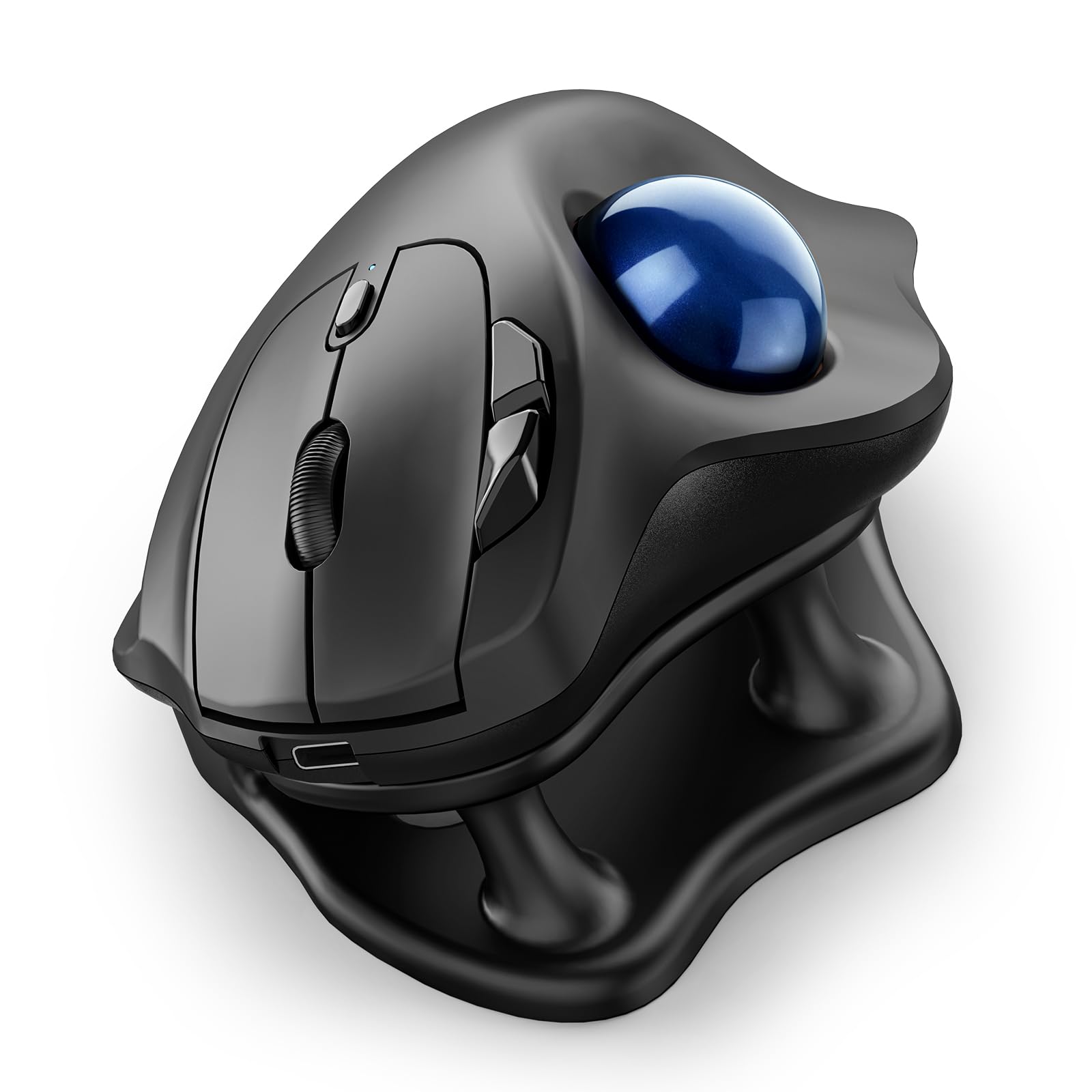
The Nulea M511 is an affordable entry into thumb-controlled trackball ergonomics, making it a tempting option for architects curious about trackball workflows without a major financial commitment. It features a 21.7-degree tilt stand that elevates the mouse for a more natural wrist angle, and the rechargeable battery eliminates the need for disposable AAs. The thumb-operated trackball reduces hand and arm movement, helping to minimize strain during long hours at the drafting table. Four adjustable DPI levels (400/800/1200/1600) provide basic sensitivity control for different tasks.
The matte finish and contoured grooves for ring and pinky fingers improve comfort over extended sessions, though the thumb ball requires a learning curve for precise cursor control. The silent clicks are genuinely quiet, making it suitable for shared studio environments. Multi-device connectivity supports up to three devices via Bluetooth or the included USB receiver, with instant switching via a single button. The build quality is respectable for the price, though it lacks the premium heft and refined bearings of Logitech trackballs.
Some users report initial stickiness with the trackball that improves with use or by coating the bearings with graphite. The tilt stand is fixed at 21.7 degrees and may feel too elevated for some users. While it is not a primary tool for intensive CAD modeling, it works well as a backup mouse for browsing, email, and light design work. For architects on a tight budget, this is a functional bridge into the world of trackball computing.
Why it’s great
- Affordable entry into trackball ergonomics
- Rechargeable battery with USB-C charging
- Multi-device switching for three devices
Good to know
- Trackball may feel sticky initially; requires break-in period
- Fixed 21.7° tilt stand may feel too high for some users
- Not ideal for high-precision CAD work
FAQ
Is a trackball mouse better for AutoCAD than a standard mouse?
How many programmable buttons do I need for Revit or SketchUp?
Final Thoughts: The Verdict
For most users, the mouse for architecture winner is the Logitech MX Ergo S because it combines proven ergonomic science (20-degree tilt, 27% less muscle strain) with robust button customization and premium build quality. If you want dedicated CAD integration with pre-configured shortcuts, grab the 3Dconnexion CadMouse Compact Wireless. And for maximum precision with finger-controlled tracking, nothing beats the ELECOM Huge Plus.