
Our readers keep the lights on and the weekend projects moving. As an Amazon Associate, I earn from qualifying purchases.
A school 3D printer can’t be a tinkerer’s project. It needs to survive a dozen students, deliver parts on time for a science fair, and never, ever jam mid-lesson. Every minute of troubleshooting is a minute lost from teaching design, physics, or creativity.
I’m Rikta — the co-founder and writer behind FitlyFast. I’ve spent years analyzing hardware categories where reliability and safety trump raw specs, and school 3D printers demand the same rigorous, spec-first approach.
Whether you’re outfitting a STEM lab or buying for a home classroom, the right machine frees students to focus on making, not fixing.finding the best 3d printer for schools means prioritizing safety, speed, and a low-frustration setup above all else.
How To Choose The Best 3D Printer For Schools
Not every printer labeled “beginner” belongs in a classroom. A school environment demands machines that are safe for unsupervised use, fast enough to finish a project within a class period, and backed by reliable support when something goes wrong. Here are the three pillars to evaluate.
Safety and Enclosure Design
An open-frame printer with exposed hot ends and moving belts is a liability near young hands. Look for a fully enclosed body that physically separates students from the print head and heated bed. A child-lock feature that pauses the print when the door opens is a bonus. Also verify the machine uses non-toxic PLA filament out of the box — some budget brands omit that detail.
Setup Speed and Maintenance Overhead
A printer that requires manual bed leveling, belt tensioning, or firmware tweaking will drain a teacher’s prep time. Prioritize models that come fully assembled with automatic bed leveling. Quick-swap nozzles and magnetic build plates cut cleanup time between classes. For a STEM lab, Wi-Fi connectivity and an app library let a student queue a print from their tablet without touching a slicer.
Print Speed and Build Volume
Print speed matters in a timed lesson. Machines capable of 200 mm/s or higher can produce small fidgets or name tags in 30–40 minutes instead of two hours. However, speed is useless if the build volume can’t fit the project. For schools, a print area of roughly 100 x 100 x 100 mm (4 x 4 x 4 in) handles most class projects; larger volumes like 220 mm cubed let advanced students print functional parts like robotics brackets or gears.
Quick Comparison
On smaller screens, swipe sideways to see the full table.
| Model | Category | Best For | Key Spec | Amazon |
|---|---|---|---|---|
| SainSmart PrintyGo | Premium | Independent Young Makers | 600 mm/s, Child-Lock | Amazon |
| Bambu Lab A1 | Premium | High-Speed Curriculum | 10,000 mm/s² Accel | Amazon |
| AOSEED X-Maker Joy AI+ | Premium | AI-Enabled Creativity | 8,000+ Model Library | Amazon |
| ELEGOO Centauri Carbon | Premium | Advanced Materials Lab | 500 mm/s, Enclosed | Amazon |
| FLASHFORGE AD5M | Mid-Range | One-Click Calibration | 600 mm/s, CoreXY | Amazon |
| Entina Tina2S | Mid-Range | Compact Budget Labs | 200 mm/s, Dual Z-Axis | Amazon |
| Entina Tina2 Plus | Mid-Range | Wi-Fi Cloud Classroom | 250 mm/s, Auto-Level | Amazon |
| Geeetech M1S | Mid-Range | Beginner STEM Starters | 250 mm/s, 1:5 Gear | Amazon |
| Geeetech M1 | Budget | Trial Classroom Pilot | 250 mm/s, 16-Point Level | Amazon |
In‑Depth Reviews
1. SainSmart PrintyGo
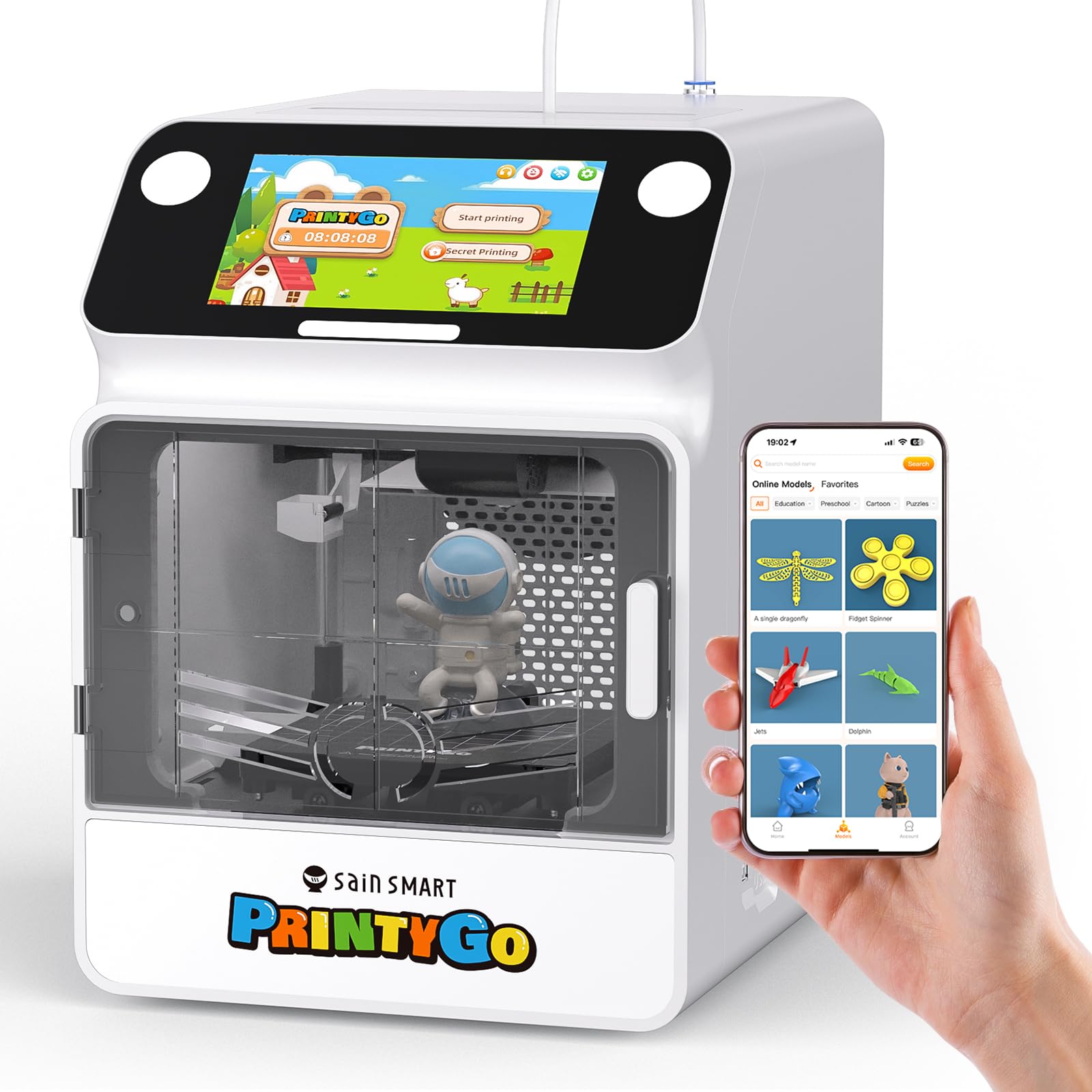
The PrintyGo is the only printer on this list that was engineered from the ground up for children aged 4–12, not just marketed to them. It packs a fully enclosed body with a child lock that retracts the nozzle when the door opens — a safety feature that should be mandatory in every school lab. The 600 mm/s top speed is class-leading, and the 5-inch touchscreen lets a kindergartner tap a design without needing a computer.
The Wi-Fi model library offers over 1,500 designs that update weekly, and the machine works independently right out of the box. No phone, no slicer, no teacher intervention. The non-toxic PLA filament and eco-friendly materials mean the print fumes are negligible, even in a closed classroom. Reviewers consistently note that kids as young as six can manage the entire workflow solo.
For a school, the price is an investment, but the trade-off is pure autonomy. The magnetic bed and auto-leveling system eliminate the two biggest points of friction for young users. The only catch is that the app has had occasional connection hiccups, and the included 250 g of filament runs out fast if a class prints daily. Stocking extra spools from the start is wise.
Why it’s great
- Fully enclosed with child-lock nozzle retraction for unmatched safety
- 600 mm/s speed and 5-inch standalone touchscreen
- Over 1,500 kid-safe models available via Wi-Fi
Good to know
- Premium price tier for school budgets
- Included filament is limited; bulk PLA orders recommended
- App connectivity had early reliability reports
2. Bambu Lab A1

Bambu Lab’s A1 redefined what a sub-500-dollar printer can do. With 10,000 mm/s² acceleration and active flow rate compensation, it prints detailed parts faster than many machines double its price. For a high school robotics or engineering curriculum, this speed translates to printing a functional gear in 20 minutes rather than an hour — keeping students engaged through a single class period.
The full-auto calibration handles bed leveling, Z-offset, and vibration compensation without any user input. That is a huge time saver for a teacher managing 20 students. The A1 also supports the AMS Lite add-on for multi-color prints, which opens up advanced design projects like color-coded anatomical models or multi-material stress tests.
The noise level is rated at ≤48 dB, so it won’t disrupt a lecture. However, the A1 is an open-frame design — there is no enclosed body. A school using this must supervise closely or place it in a dedicated lab with older students. The included filament sample is small, and the slicer software requires a laptop, not a tablet, which may be a barrier in younger grades.
Why it’s great
- Blazing 10,000 mm/s² acceleration with active flow compensation
- Full-auto calibration — zero teacher setup time
- Multi-color AMS Lite option for advanced STEM projects
Good to know
- Open-frame design requires supervised use
- Needs a computer for slicing; no tablet app
- Small included filament sample; buy extra immediately
3. AOSEED X-Maker Joy AI+
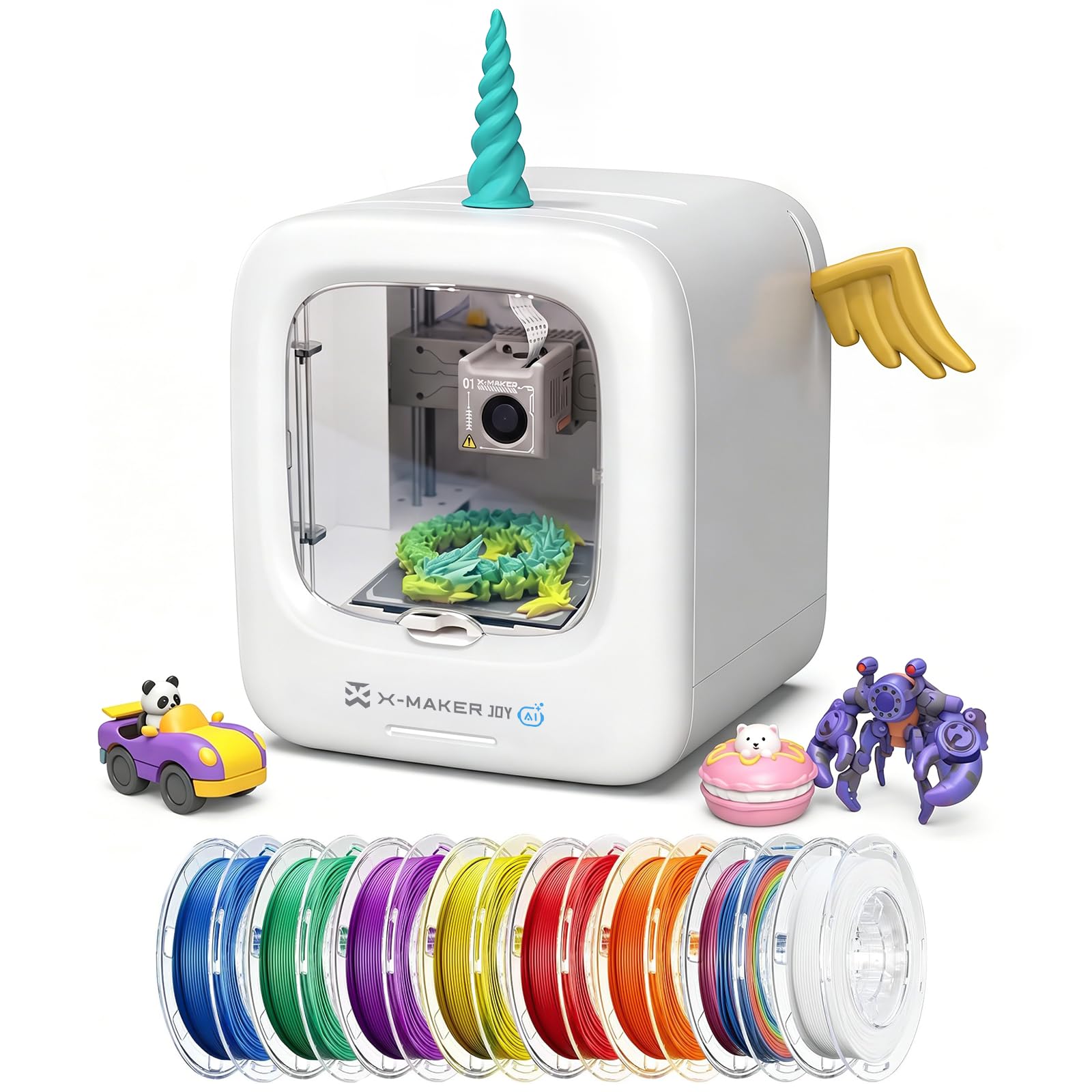
The X-Maker Joy AI+ leans into artificial intelligence as a creativity tool rather than a gimmick. The AI Doodle feature lets a child draw a rough sketch or describe an idea with voice, text, or photo, and the printer generates a 3D model ready to print. For a classroom with varied skill levels, this removes the CAD learning curve entirely and lets every student participate in the design process.
The enclosed design is TÜV Rheinland ISO 16000-tested for safety, and the machine ships with 8 rolls of PLA filament, a magnetic build plate, and essential tools — everything a school needs to run multiple projects without a second purchase. The built-in camera creates time-lapse videos of each print, which teachers can use to document the design-to-finished-object workflow for lesson plans.
Print speeds reach up to 400 mm/s peak, and the 0.05 mm precision holds up well for detailed toys and STEM models. Some reviewers noted that fragile prints with thin walls can break under light pressure, so the default slicer profiles may need adjustment for functional parts. The app library has 8,000+ models, but browsing them on a small phone screen can be overwhelming for younger users.
Why it’s great
- AI-driven model generation from text, voice, or photos
- Includes 8 rolls of PLA filament and essential accessories
- Built-in camera for time-lapse documentation
Good to know
- Thin-walled prints may be fragile; profile tweaking needed
- Model library is large but phone browsing is clunky
- Premium price relative to build volume
4. ELEGOO Centauri Carbon
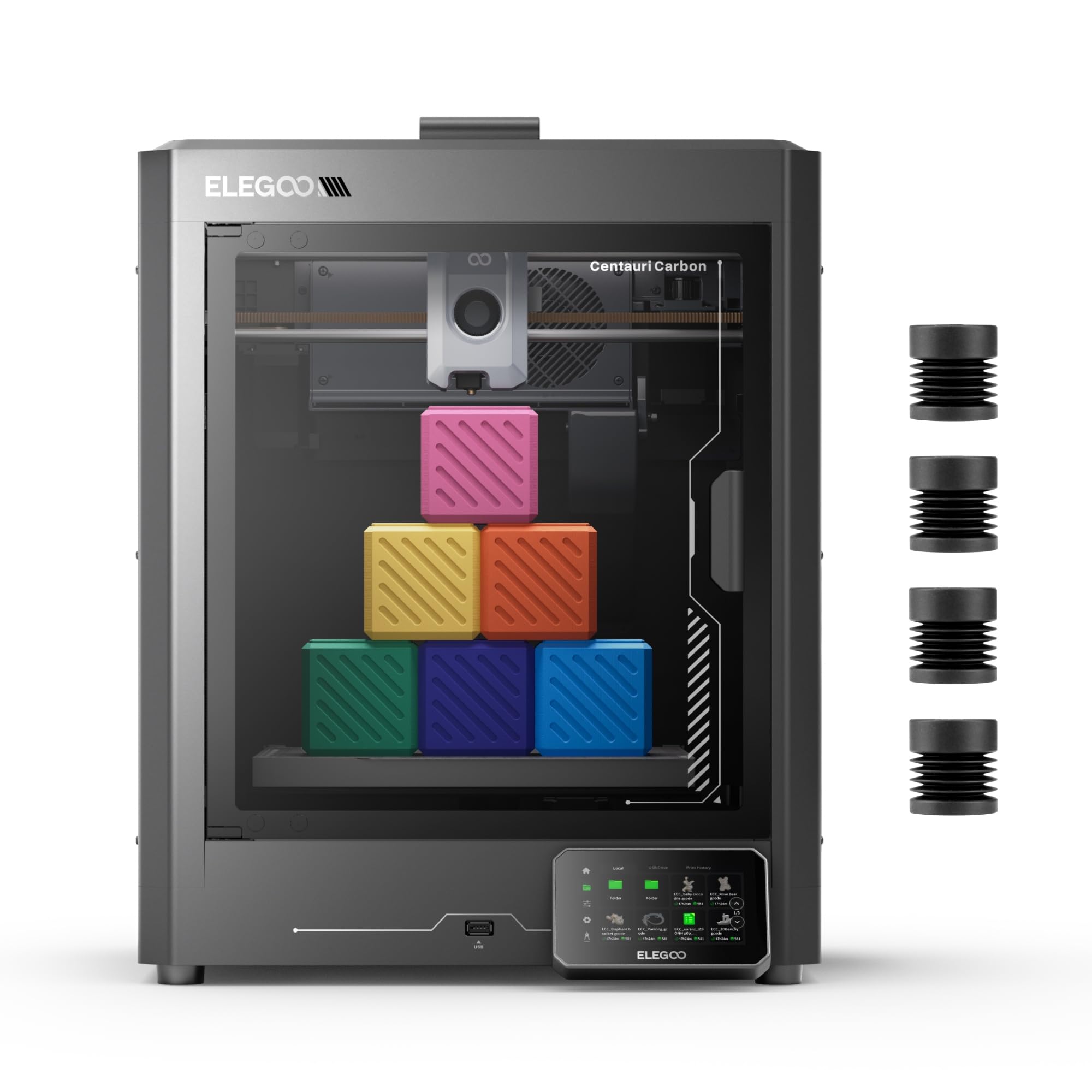
The Centauri Carbon is the only printer here that can handle carbon fiber reinforced PLA and other advanced composites, thanks to a 320°C brass-hardened steel nozzle. That makes it the right pick for a high school or college-level materials science lab where students need functional, heat-resistant parts for drone frames or robotics arms.
The CoreXY structure delivers 500 mm/s speeds with a rigid die-cast aluminum frame that suppresses vibration even at high acceleration. Auto-leveling, pressure advance compensation, and a built-in chamber camera with dual LED lighting give teachers full visibility into every print. The dual-sided build plate has a PLA-specific surface that minimizes warping without needing glue or tape.
The machine is heavy at 38.5 pounds, which adds stability but makes it a permanent lab fixture. Several early reviews reported hotend communication failures within the first week, though replacement units performed well. The slicer crashed on complex STL files when running on older laptops, so the school’s IT hardware should be verified beforehand.
Why it’s great
- 320°C nozzle supports carbon fiber and advanced filaments
- CoreXY with die-cast frame for high-speed stability
- Built-in camera and dual-side build plate
Good to know
- Heavy unit at 38.5 lb; not portable between classrooms
- Early units had hotend communication issues
- Slicer may struggle on older school laptops
5. FLASHFORGE AD5M

The AD5M from Flashforge is a CoreXY machine with a fully automatic one-click leveling system that eliminates the traditional Z-offset dance. That alone makes it a strong candidate for a school where different teachers may rotate through the same lab. The 600 mm/s speed and 220 mm cubed build volume handle everything from small classroom tokens to larger functional prototypes.
The patent quick-release nozzle can be swapped in three seconds without tools, and four nozzle diameters (0.25, 0.4, 0.6, 0.8 mm) give flexibility from high-detail miniatures to fast, thick-layer drafts. The Orca-Flashforge slicer supports one-click batch file transmission, and the Flash Maker app lets a teacher monitor all connected printers from a single screen — perfect for a lab with multiple units.
Several reviewers with kids aged 11 and up reported excellent out-of-box performance, but the printer relies on a PC connection — there is no standalone tablet or phone control. The included filament sample is tiny, and some users experienced clogging with the 0.4 mm nozzle after extended use. Budget for a spare nozzle set on day one.
Why it’s great
- One-click auto-leveling and tool-free 3-second nozzle swap
- Four nozzle sizes for detail or speed flexibility
- Multi-printer monitoring via Flash Maker app
Good to know
- Requires a PC for operation; no standalone tablet mode
- Small included filament sample; buy extra immediately
- Clogging reported with extended use of 0.4 mm nozzle
6. Entina Tina2S

The Tina2S is a refined, slightly quieter version of the popular Tina2 Plus. It keeps the same 3.9 x 4.7 x 3.9 inch build volume but adds a dual Z-axis structure that reduces vibration and improves layer alignment. For a school’s first 3D printer, this gives noticeably cleaner prints on small models like keychains, name tags, and simple animal figures.
It supports Wi-Fi, app control, USB, and TF card printing, and the Poloprint Cloud app includes access to 1,500+ ready-to-print models. The ceramic hotend heats up quickly, and the flexible spring steel build plate makes part removal a snap. Auto-leveling is standard, and the partially enclosed frame adds a layer of thermal safety.
Several reviews from educators and parents note that the printer is quiet enough to run in a classroom without distraction. The only friction point is that the free Wi-Fi app library has limited premium designs, and the printer’s small build volume prevents it from tackling larger curriculum projects like robotics chassis. It is best used as a individual student station for small-scale projects.
Why it’s great
- Dual Z-axis for improved print stability and alignment
- Quiet operation suitable for classroom environments
- Multiple connectivity options: Wi-Fi, USB, TF Card
Good to know
- Small build volume limits large STEM projects
- App model library has many premium-priced designs
- Partially enclosed, not a full safety cage
7. Entina Tina2 Plus

The Tina2 Plus is a step-up in speed from the Tina2S at 250 mm/s, and its Wi-Fi cloud printing via the Poloprint app is one of the smoothest mobile experiences in this segment. The printer arrives fully assembled — truly unbox-and-print — with a TF card preloaded with models. A 10-year-old with zero 3D printing background can start their first print within five minutes of opening the box.
The ceramic hotend reaches printing temperature in 40 seconds, and the auto-leveling system paired with a PEI spring steel bed keeps first-layer adhesion consistent. For a classroom, the remote monitoring and ability to start prints from a phone means a teacher can queue up next period’s project without walking back to the printer. The build volume is the same 3.9 x 4.3 x 3.9 inches as the Tina2S, so it fits the same small-scale projects.
The main drawback is the app’s reliability. Several reviews mention “registration failed” errors after two or three prints, effectively bricking the Wi-Fi control until a factory reset. The included spool holder is designed for 500 g spools, so a 1 kg spool requires a separate printed adapter. The printer also only comes with a tiny white filament sample, so ordering extra filament alongside is essential.
Why it’s great
- Truly unbox-and-print with preloaded TF card models
- 40-second ceramic hotend heat-up time
- Remote Wi-Fi printing and monitoring from a phone
Good to know
- App connectivity failures reported after a few prints
- Spool holder designed for 500 g spools; 1 kg needs adapter
- Only includes a small white filament sample
8. Geeetech M1S
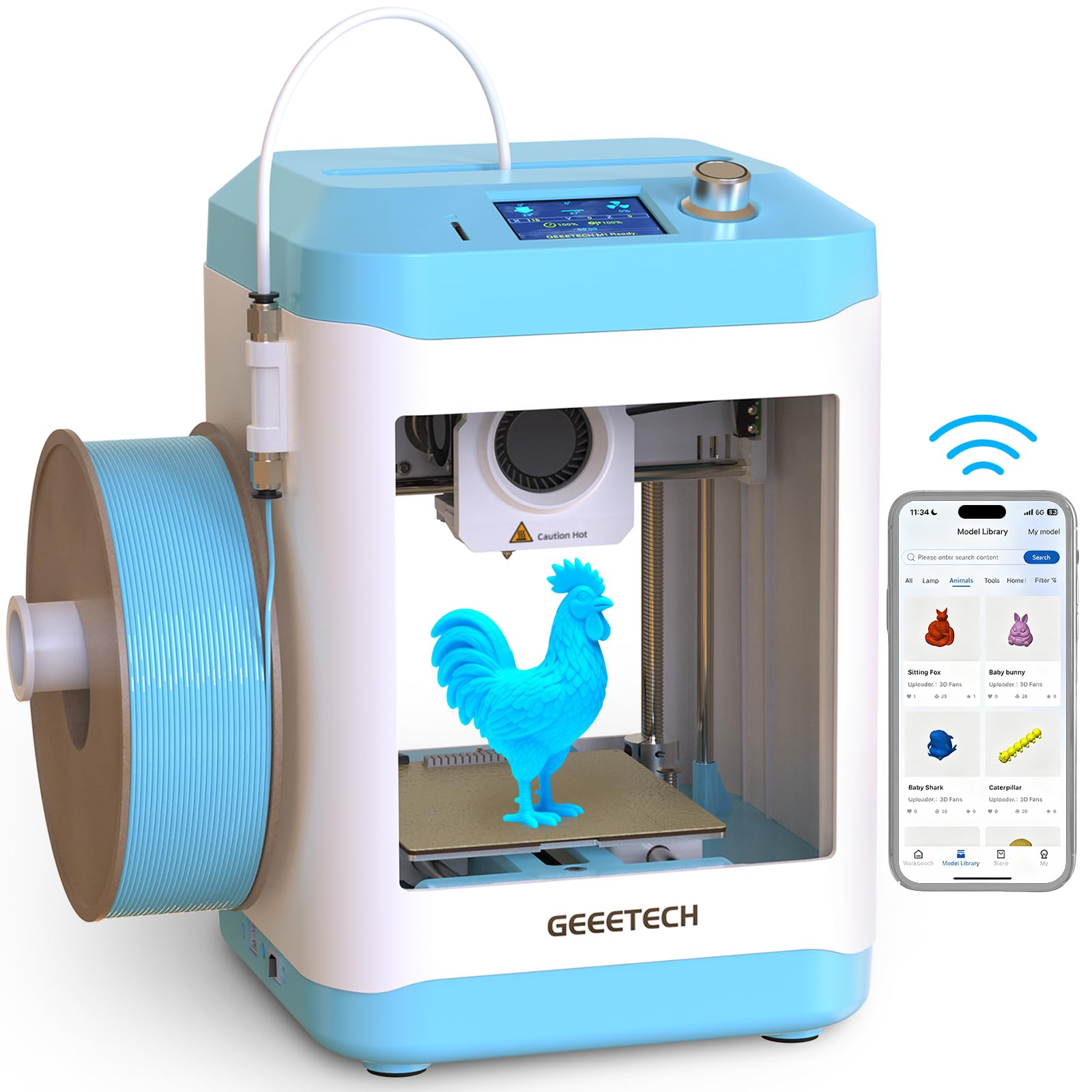
The Geeetech M1S is a direct iteration of the M1 with the addition of Wi-Fi and app control. It retains the same 250 mm/s print speed and the dual-drive metal gear extruder with a 1:5 gear ratio that delivers high torque for consistent extrusion, even with flexible TPU filaments. For a school, this means a single printer can handle both rigid PLA parts and soft, bendable projects.
The 16-point full-auto leveling and flexible magnetic build plate reduce the frustration that turns kids off from 3D printing. The 2.4-inch LCD color screen with knob operation is intuitive enough for an 8-year-old to navigate after a single demo. Several teacher reviews highlighted that the M1S prints “better out of box than upgraded budget printers” and that the Geeetech support team responded within 24 hours when issues arose.
Some units arrived with a disconnected wiring harness inside the print head, causing a power-up failure that required customer service diagrams to resolve. The filament spool holder is positioned awkwardly low near the power cable, which can cause tangles with 1 kg spools. As with many budget printers, the sample filament is minimal, and the 1 kg spool holder profile must be printed separately.
Why it’s great
- 1:5 dual-drive gear extruder for TPU and PLA versatility
- Wi-Fi and app control added over the base M1 model
- Responsive 24-hour customer support
Good to know
- Some units have loose internal wiring on arrival
- Filament spool holder placement causes tangles with 1 kg
- Sample filament is very limited; bulk order required
9. Geeetech M1
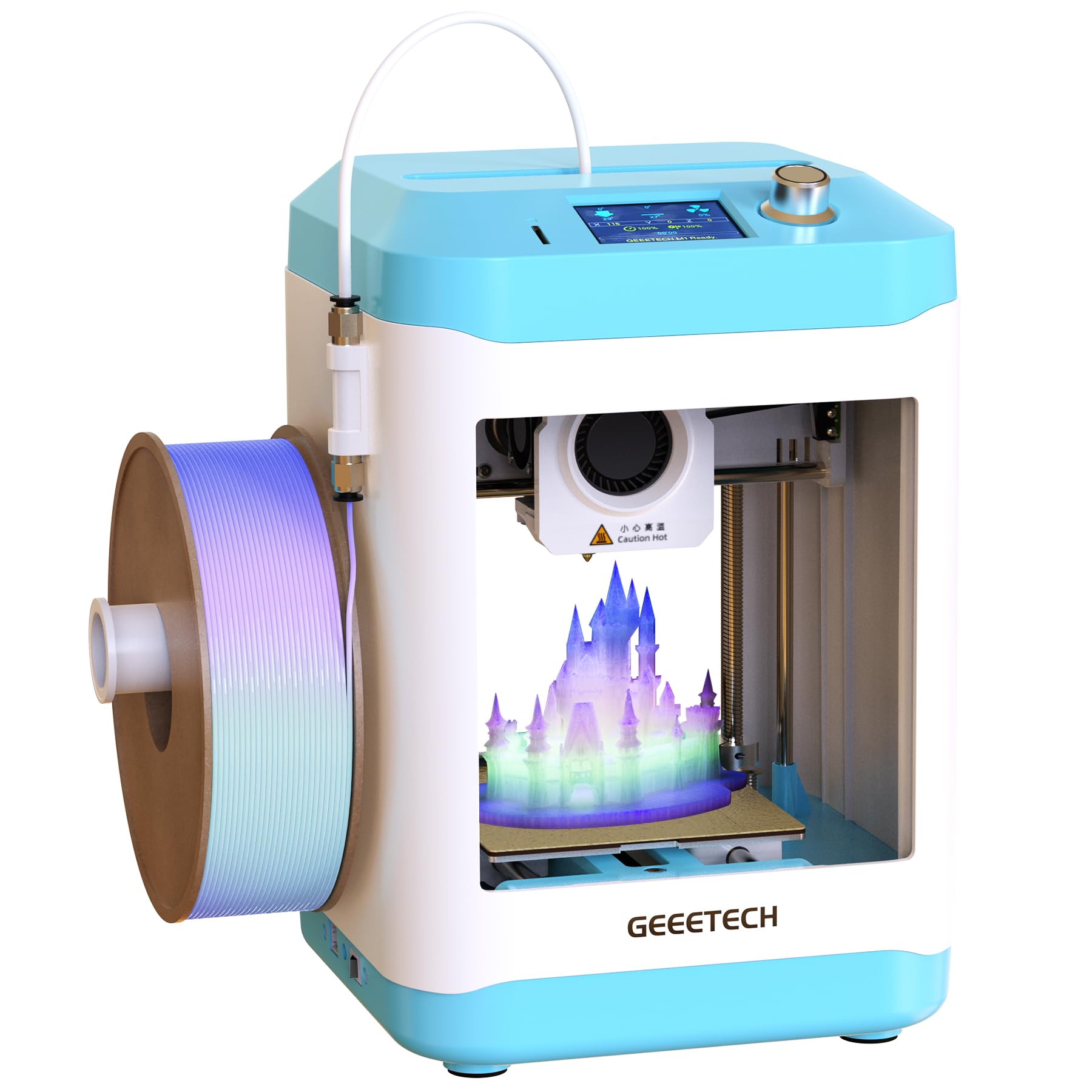
The Geeetech M1 is the most affordable entry point on this list, and for a school with a tight pilot budget, it delivers surprising value. It hits 250 mm/s out of the box and uses a 16-point auto-leveling system with a heated, flexible magnetic build plate. The 50W hot-end heating rod paired with a large-capacity nozzle ensures stable heat dissipation, which helps prevent the temperature fluctuations that cause layer shifting in budget printers.
The M1 is fully assembled and designed with a bright LED light and a 2.4-inch color screen. Beginners and young kids can load filament with a single button press. Customer reviews from parents note that the printer produces “fast, high-quality prints” for small toys and figures, and the 30-day return policy with 12-month free repair gives a school some safety net.
However, the M1 skips Wi-Fi entirely — printing is done via TF card or USB. That means a teacher must physically transfer files. The included filament spool holder is only designed for 500 g spools; the printer does not natively handle 1 kg spools without a printed adapter. A small number of negative reviews mention frequent clogs and unreliable layer skipping after a few weeks of use, so this is best viewed as a low-commitment trial machine rather than a long-term lab workhorse.
Why it’s great
- Most affordable entry point for school pilot programs
- Fully assembled with 16-point auto-leveling
- Single-button filament loading and bright LED lighting
Good to know
- No Wi-Fi or app control; TF card only
- Requires printed adapter for 1 kg filament spools
- Reports of clogs and layer skipping after extended use
FAQ
Is an open-frame 3D printer safe for a middle school classroom?
What is the ideal print speed for a school lesson plan?
Should I buy a printer with Wi-Fi or stick to SD cards for a classroom?
Do I need to buy separate nozzles for different projects?
How much filament does a school use in a typical semester?
Final Thoughts: The Verdict
For most users, the best 3d printer for schools winner is the SainSmart PrintyGo because it combines a fully enclosed, child-locked body with a 600 mm/s speed and a standalone touchscreen that lets kids as young as four print independently. If you want multi-color capabilities and blazing speed for a high school engineering lab, grab the Bambu Lab A1. And for a budget-friendly trial run in a single classroom, nothing beats the Geeetech M1.