
Our readers keep the lights on and the weekend projects moving. As an Amazon Associate, I earn from qualifying purchases.
An animation tablet needs to deliver on two fronts: a responsive, lag-free pen that translates every subtle change in pressure into a clean line, and a display that shows your work in accurate color without glare or parallax. Whether you are storyboarding, creating motion graphics, or polishing frame-by-frame illustrations, the wrong tablet can introduce jitter, missed strokes, or a color cast that throws off your entire pipeline.
I’m Rikta — the co-founder and writer behind FitlyFast. I have spent hundreds of hours analyzing the pressure sensitivity curves, laminated display technologies, and standalone versus tethered workflows that define today’s animation tablet market, so you can make a decision rooted in real specs rather than marketing buzzwords.
After evaluating nine models built for digital artists, from budget-friendly standalone units to premium professional pen displays, these are the top contenders for your search for the right animation tablet to match your creative process and budget.
How To Choose The Best Animation Tablet
Choosing an animation tablet is a balance of screen performance, pen technology, and workflow. The wrong choice can mean fighting with driver glitches or staring at a dim, glaring screen during a deadline. Here are the critical factors to weigh.
Standalone versus Tethered
A standalone tablet runs Android and does not need a computer, making it ideal for sketching on the go or for artists who want a dedicated device without a PC. A tethered pen display connects to a Mac or PC and offers more powerful software (Clip Studio Paint EX, Toon Boom Harmony) and faster processing for complex animation scenes with heavy layer counts.
Pressure Sensitivity and Initial Activation Force
Pressure level numbers (8192 versus 16384) are less important than the initial activation force (IAF), measured in grams. A lower IAF, like 2g, captures feather-light brush strokes, while a higher floor may cause thin lines to drop out entirely. Look for a tablet that offers adjustable pressure curves in its driver so you can tune the response to your hand weight.
Display Quality and Lamination
A fully laminated screen eliminates the air gap between the glass and the LCD panel, reducing parallax so the cursor sits directly under the pen tip. Anti-glare etched glass cuts reflections but can introduce a slight grain (the “sparkle” effect) that some artists dislike. For animation, sRGB coverage of at least 99% ensures your colors translate accurately to the screens of studios and clients.
Quick Comparison
On smaller screens, swipe sideways to see the full table.
| Model | Category | Best For | Key Spec | Amazon |
|---|---|---|---|---|
| Xencelabs Pen Display 16 Bundle | Premium | Professional color-critical pipelines | 4K OLED, 1.07B colors, 3g IAF | Amazon |
| XPPen Artist Pro 19 Gen2 | Premium | Large 4K canvas with dual pen workflow | 4K UHD 18.4″, 16384 levels, dual stylus | Amazon |
| Wacom Cintiq 16 (2024) | Premium | Reliable pen feel for studio use | 2.5K IPS, 8192 levels, 100% sRGB | Amazon |
| XPPen Magic Drawing Pad | Standalone | Travel-friendly digital sketching | 12.2″ 2K, 16384 levels, 8000mAh | Amazon |
| Wacom MovinkPad 11 | Standalone | Quick sketch to finished line art | 11.45″ anti-glare, 8192 levels, Android | Amazon |
| HUION Kamvas Pro 16 V2 | Mid-Range | High-precision drawing on a budget | 15.6″ 1080p, 16384 levels, 120% sRGB | Amazon |
| HUION Kamvas 13 Gen 3 | Mid-Range | Entry-level pen display for animators | 13.3″ 1080p, 16384 levels, 99% sRGB | Amazon |
| Frunsi RubensTab T11 Pro | Standalone Budget | Learning animation basics without a PC | 10.1″ FHD, 1024 levels, Android 13 | Amazon |
| Frunsi RubensTab T8 | Budget | Kids and absolute beginners | 8″ FHD, 2048 levels, 4000mAh battery | Amazon |
In‑Depth Reviews
1. Xencelabs Pen Display 16 Bundle with Quick Keys

The Xencelabs Pen Display 16 raises the bar for color-critical animation work with a 4K OLED panel that delivers true blacks and 1.07 billion colors across five gamut coverages. The Super AG Etching surface provides a consistent paper-like drag without the distracting grain (sparkle) common on other etched screens. Its 3g initial activation force ensures that even the lightest hairline stroke registers cleanly in programs like TVPaint or Harmony.
This bundle includes two battery-free pens—a full-sized 3 Button Pen and a slim Thin Pen—so you can switch between a palm-friendly grip and a weighty tool depending on the task. The Quick Keys remote adds an OLED display and an eight-button layout with a physical dial for zoom, brush size, and rotation, giving you up to 40 per-app shortcuts. The entire kit packs into a slim protective case, and the single USB-C connection (with an included hub) makes setup nearly instant.
The driver is intuitive, with customizable pressure curves and per-application pen-button mapping. Fanless operation means zero noise, and the 12mm thin body makes it genuinely portable. The main consideration is the OLED burn-in risk on static toolbars, though using a dark background mitigates this. For professional animators and illustrators who demand color accuracy and a refined pen feel, this is the top-tier choice.
Why it’s great
- 4K OLED with deep blacks and wide color gamut
- Two battery-free pens with erasers included
- Slim, fanless, and portable with single USB-C setup
Good to know
- Potential OLED burn-in with static UIs
- Driver can have occasional screen mapping issues
2. XPPen Artist Pro 19 Gen2

The Artist Pro 19 Gen2 brings a massive 18.4-inch 4K UHD canvas to your desk, allowing animators to view multiple layers and timelines side by side without zooming. The 16384 pressure levels are matched by a 3g initial activation force, and the dual-stylus system—one with a roller wheel and one ultra-slim—lets you swap between a textured grip for rough sketching and a lightweight pen for fine line work. The Calman verification with ΔE < 1.5 ensures your color is production-ready.
The full-laminated anti-glare glass (TÜV SÜD certified) minimizes reflections without washing out colors, and the 156% sRGB coverage (98% DCI-P3) is ideal for both web and cinematic deliverables. The included ACK05 wireless shortcut keyboard has a satisfying physical dial and ten customizable keys, plus Bluetooth 5.0 for a clutter-free desk. The dual USB-C reversible cables simplify switching between a MacBook and a Windows tower.
This is a tethered display—it requires a computer—so it is not a travel sketchpad. The weight and size also mean you need dedicated desk space. The pen holder stores both styluses and 23 replacement nibs, so you are set for months of heavy use. For any animator who needs a large, color-accurate second monitor that doubles as a drawing surface, this is a formidable workstation.
Why it’s great
- 18.4-inch 4K UHD display with Calman color accuracy
- Two styluses with 16384 levels and 3g IAF
- Wireless shortcut keyboard with physical dial
Good to know
- Requires computer; not standalone
- Heavy frame needs dedicated desk space
3. Wacom Cintiq 16 (2024)

The Wacom Cintiq 16 remains a benchmark for pen feel, and the latest version brings a 2.5K WQXGA resolution (2560 x 1600) that dramatically sharpens the 16-inch canvas over the old 1080p panel. The Pro Pen 3 offers 8192 levels of pressure with 60 degrees of tilt support, and the nib-to-cursor is zero-lag during fast panning in programs like Toon Boom Harmony. The anti-glare surface is among the least grainy in the industry, keeping line work crisp.
Color coverage hits 100% sRGB and 99% DCI-P3 with 8-bit depth, which is more than sufficient for most animation and illustration workflows. The built-in fold-out legs provide a single 20-degree angle, though you can purchase an adjustable stand separately. It uses USB-C with DisplayPort Alt Mode, so a single cable to a modern laptop is possible, but older computers without DP Alt will need extra adapters.
The biggest omission is the lack of customizable shortcut buttons on the screen itself—you will want a separate ExpressKey remote or keyboard for quick access to timeline and brush controls. Some users also find the Pro Pen 3 barrel slightly thinner than the older Pro Pen 2. For professionals who prioritize industry-standard pen tracking and minimal glare over added hardware features, this is a safe long-term investment.
Why it’s great
- Best-in-class pen tracking with low parallax
- 2.5K resolution on a 16-inch display
- Excellent anti-glare surface without sparkle
Good to know
- No onboard shortcut buttons or dial
- Requires separate adjustable stand for ergonomics
4. XPPen Magic Drawing Pad

The Magic Drawing Pad is a full standalone Android 14 tablet that eliminates the need for a computer, featuring the industry-first 16384 pressure levels from the X3 Pro Slim stylus. The 12.2-inch screen runs at 2160 x 1440 (3:2 ratio) with 115% sRGB coverage and a paper-like AG-etched surface that resists fingerprints. An 8000mAh battery delivers up to 13 hours of continuous drawing, making this a true mobile sketchbook for animation storyboards and concept art.
Under the hood, 8GB of RAM and 256GB of storage (expandable via microSD up to 1TB) handle Clip Studio Paint, ibis Paint X, and Krita without stuttering on mid-complexity files. The tablet includes a 3-month CSP membership and a 3-month ibis Paint X trial. It also features a 13MP rear camera and 8MP front camera, plus Bluetooth 5.1, dual-band Wi-Fi, and a headphone jack. The TÜV Rheinland certified screen with ten-step soft light treatment reduces eye fatigue during long sessions.
The main drawback is that Android lacks a direct ProCreate equivalent, and some users find Krita’s UI cramped on a tablet. The tilt recognition is less accurate than Wacom’s, and the included keyboard case is mediocre. However, for artists who want a dedicated, powerful drawing slate that works anywhere without a laptop, this delivers impressive value.
Why it’s great
- Standalone Android 14 with no computer needed
- 13-hour battery life on a single charge
- Matte, paper-like screen with TÜV Rheinland certification
Good to know
- Tilt response not as refined as Wacom options
- Android lacks a direct ProCreate replacement
5. Wacom MovinkPad 11
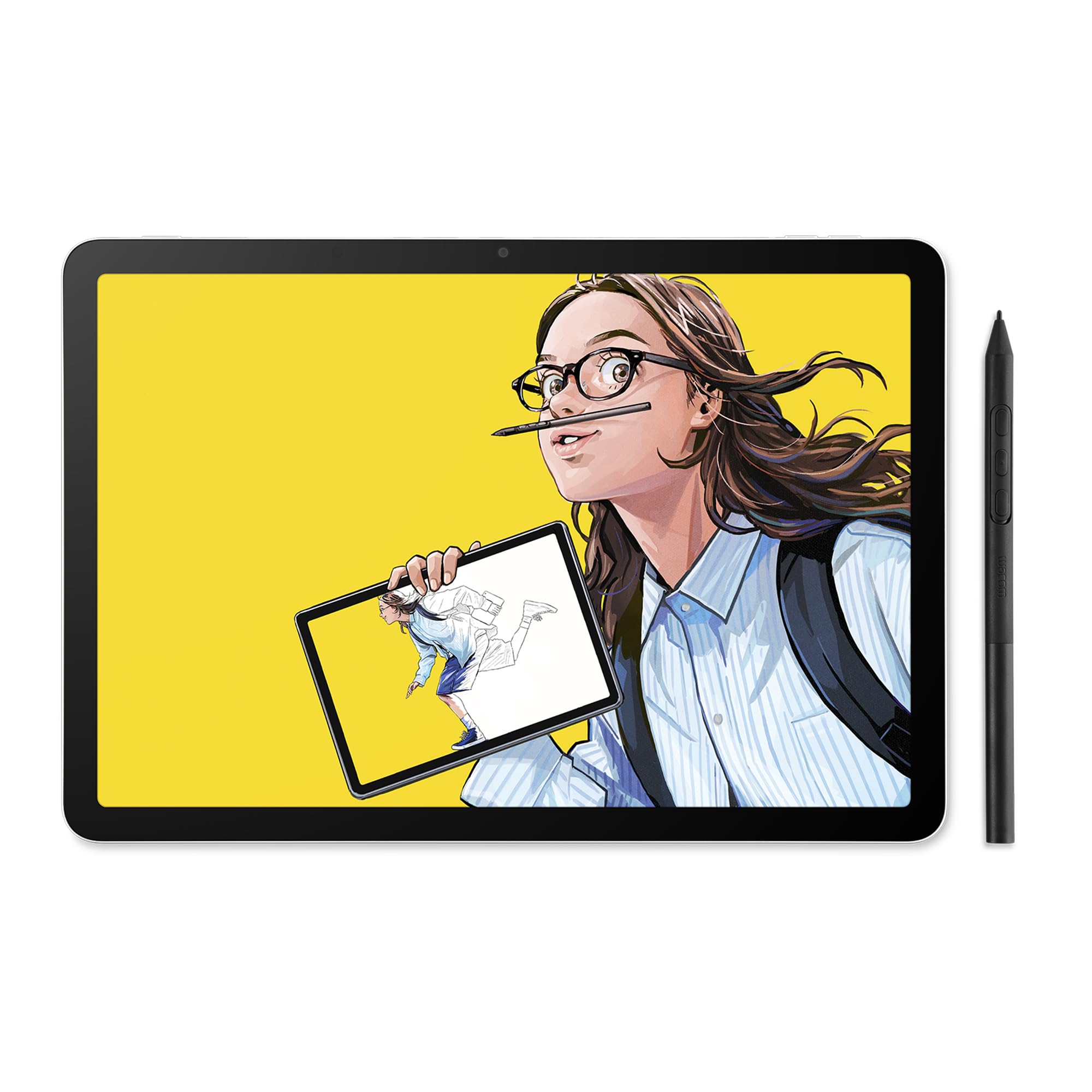
The MovinkPad 11 is Wacom’s entry into the standalone Android drawing tablet space, pairing the company’s renowned Pro Pen 3 (8192 pressure levels, battery-free) with an 11.45-inch etched matte glass screen. The “Quick Draw” feature taps and holds the pen on the screen to instantly open Wacom Canvas, acting like a physical sketchbook. It ships with a two-year license for Clip Studio Paint Debut, so you have a full animation and illustration tool out of the box.
At just 1.3 pounds and only slightly larger than a tablet sketchbook, it fits easily into a backpack. The Android 14 system (8GB RAM, 128GB storage) runs CSP and Krita well for frame-by-frame animation, though heavier effects like liquefy filters can cause lag. The pen supports third-party nibs from Dr. Grip, LAMY, and STAEDTLER, and the USB-C charging is standard. The screen’s anti-glare etched glass provides a consistent drag without the grain that sometimes reduces contrast.
The touchscreen is occasionally finicky, and there is no 3.5mm audio jack. The file transfer process (via USB-C or cloud) is less seamless than Apple’s ecosystem. For animators who want Wacom’s trusted pen feel in a portable, no-PC-required format, the MovinkPad is a refined, distraction-free tool ideal for sketching and line art on location.
Why it’s great
- Wacom Pro Pen 3 feel without a computer
- Ultra-light at 1.3 pounds for easy travel
- Anti-glare etched glass with paper-like drag
Good to know
- Touchscreen behavior can be inconsistent
- No 3.5mm headphone jack; relies on USB-C audio
6. HUION Kamvas Pro 16 V2

The Kamvas Pro 16 V2 uses HUION’s PenTech 4.0 with 16384 pressure levels and a 2g initial activation force, providing a fluid, responsive stroke that competes with far pricier displays. The 15.6-inch 1080p screen is fully laminated with anti-glare Canvas Glass 2.0, virtually eliminating parallax so your cursor sits directly under the nib. The color gamut reaches 120% sRGB (99% sRGB + 99% Rec.709), and the 16.7 million colors look punchy and accurate for animation color palettes.
The six customizable express keys plus the Smart Touch Bar give you quick access to zoom, brush size, and scroll, reducing reliance on a keyboard. The ST200 aluminum stand adjusts to six angles from 14.5° to 45°, and the recessed USB-C port locks cables in place to prevent accidental disconnects. At 2.65 pounds and 0.453 inches thick, it is slimmer than the previous generation and easy to pack alongside a laptop.
The 1080p resolution is sharp enough for detailed line work but falls short of 2.5K or 4K displays found on premium models. The screen brightness of 200 nits is adequate for indoor use but struggles in bright environments. Linux support works on a basic level, but the shortcut keys and touch bar lose multi-key assignment functionality. For animators on a mid-range budget who want a responsive, full-featured pen display, this is a strong contender.
Why it’s great
- Full-laminated screen with minimal parallax
- Six express keys plus Smart Touch Bar for shortcuts
- Included six-angle aluminum stand
Good to know
- 1080p resolution; not 4K
- 200-nit brightness may be low for bright studios
7. HUION Kamvas 13 Gen 3

The Kamvas 13 Gen 3 is the most affordable entry point into HUION’s new PenTech 4.0 ecosystem, offering 16384 pressure sensitivity with a 2g IAF on a 13.3-inch 1080p display. The full-laminated Canvas Glass 2.0 eliminates parallax, and the anti-sparkle coating reduces glare without the rainbow pixelation that plagued earlier etched screens. Color accuracy is factory-calibrated to an average ΔE<1.5 with 99% sRGB coverage, so your animation frames look consistent from creation to export.
The bezel houses five programmable shortcut keys and two physical dials, which can be customized for timeline scrubbing, zoom, or brush rotation. The included ST300 adjustable stand tilts between 20° and 60°, and the single USB-C connection (with the optional full-featured cable) keeps the desk clean. It works with Windows, macOS, Linux, and Android devices that support USB 3.1 Gen 1 and DP 1.2, opening up use with tablets as a secondary screen.
The 13-inch diagonal is tight for multi-window animation setups, and the 1080p resolution means you will occasionally need to zoom for fine line control. The pen is comfortable and the surface offers just enough drag to feel like paper, but the screen does not support touch gestures. For animators and illustrators moving from a screenless tablet to their first pen display, this is a natural upgrade that does not break the bank.
Why it’s great
- Full-laminated anti-glare screen at an accessible price
- Dual physical dials for intuitive shortcut control
- Factory-calibrated color (ΔE<1.5, 99% sRGB)
Good to know
- 1080p resolution requires frequent zooming
- No touch gesture support
8. Frunsi RubensTab T11 Pro
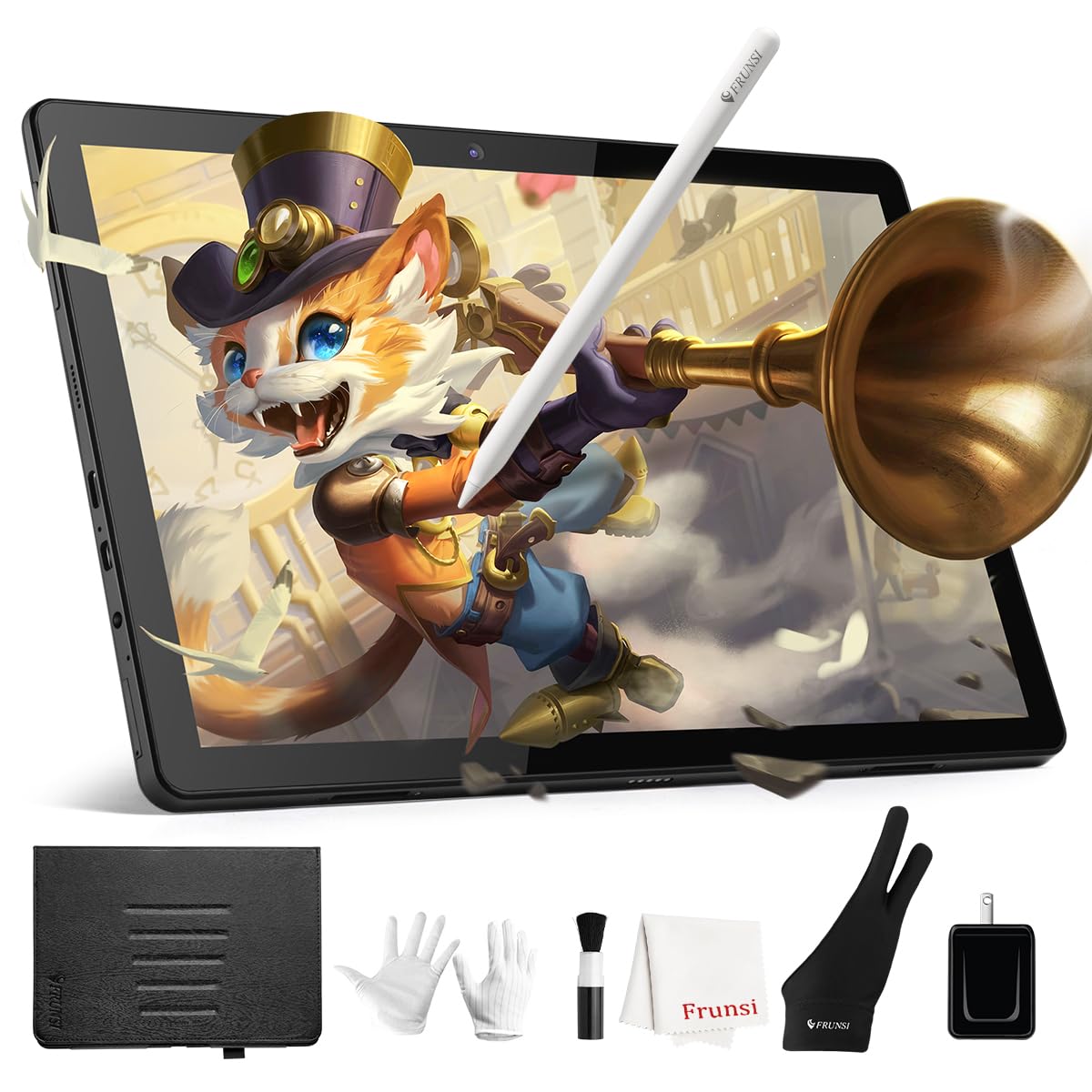
The RubensTab T11 Pro is a standalone Android 13 tablet designed for artists who want to explore digital animation without investing in a PC ecosystem. The 10.1-inch 1920 x 1200 IPS screen offers vibrant colors and wide viewing angles, and the battery-free pen senses 1024 pressure levels—adequate for basic line variation and shading. The 5800mAh battery provides around five hours of continuous use, and USB-C charging supports power bank top-ups for extended sessions.
Pre-installed drawing apps (SketchBook, Krita, ibis Paint X) get you started immediately, and the tablet supports Wi-Fi for downloading additional software and referencing tutorials. The included adjustable stand case holds the tablet at a comfortable angle, and the responsive customer service from Frunsi is frequently praised for handling issues quickly. There is a slight drawing lag when using heavy brushes, but it remains usable for learning the fundamentals of frame-by-frame animation.
The 1024 pressure levels lack the nuance of higher-end pens—subtle feathering transitions can appear stepped. The absence of a dedicated pressure sensitivity control app means you cannot fine-tune the curve to your hand. For kids, students, or hobbyists testing the waters before investing in a professional tool, this is a functional and affordable standalone option.
Why it’s great
- Standalone Android tablet—no computer required
- FHD IPS screen with good color reproduction
- Includes case, glove, and pre-installed drawing apps
Good to know
- 1024 pressure levels show stepped transitions
- Occasional lag with complex brushes
9. Frunsi RubensTab T8

The RubensTab T8 is an ultra-budget standalone tablet that packs a surprising feature set for its price point. The 8-inch 1280 x 800 display is small but adequate for learning animation basics, and the 2048 levels of pressure sensitivity outpace the T11 Pro in raw spec. The MTK quad-core CPU with 4GB RAM and 64GB storage (expandable to 256GB) runs SketchBook, ArtFlow, and ibis Paint X without major stutter, and the 4000mAh battery claims up to 20 hours of drawing time.
The tablet ships with a detachable keyboard, a screen protector, and a cleaning cloth, making it a full starter kit. Customer reviews highlight responsive pen feel and solid build quality for the price, with decent performance in apps like Clip Studio Paint (with minor lag). The unit is not ideal for complex animation timelines due to the small screen real estate and limited RAM, but it excels as a portable sketchpad for young artists and absolute beginners.
The main trade-offs are the lack of palm rejection, the absence of a pressure sensitivity configuration app, and the 8-inch screen, which makes detailed line work feel cramped. The drawing delay becomes noticeable as the battery drains below 30%. For anyone wanting a risk-free entry point into digital animation or a dedicated device for a child, this is the most budget-conscious option available.
Why it’s great
- 2048 pressure levels at the lowest price point
- Fully standalone Android OS, no PC needed
- Includes detachable keyboard and screen protector
Good to know
- 8-inch screen feels small for detailed animation work
- Lag increases as battery depletes
FAQ
Can I use an animation tablet without a computer?
What pressure sensitivity level do professional animators need?
Final Thoughts: The Verdict
For most users, the animation tablet winner is the Xencelabs Pen Display 16 Bundle because its 4K OLED, dual-pen system, and professional color calibration deliver a studio-ready experience without the Wacom price premium. If you want a portable, standalone setup for sketching on location, grab the XPPen Magic Drawing Pad for its 13-hour battery and 16384 pen levels. And for the best value in a tethered pen display, nothing beats the HUION Kamvas 13 Gen 3, offering full lamination, dual dials, and factory-calibrated color at a mid-range price.