
Our readers keep the lights on and the weekend projects moving. As an Amazon Associate, I earn from qualifying purchases.
Specs are compiled from manufacturer listings and verified buyer reviews and can change over time — please confirm the key details on the product page before buying.
Picking a 4K capture card can feel like a gamble — you pay for crisp footage, yet end up with audio crackle or drivers that vanish after an update. This guide cuts through the confusion by comparing how each card handles the actual pain points: latency, passthrough quality, and recording formats that actually work with your setup.
I’m Rikta — the founder and writer behind FitlyFast. This guide is built by comparing the manufacturers’ published specifications and the patterns across verified customer reviews, so you get each pick’s real strengths and trade-offs instead of marketing spin.
You want a 4k capture card that works with your console or DSLR without lag or glitches. That means matching the card’s HDMI version (the cable standard that determines speed), passthrough frame rates (how many frames per second your monitor sees), and supported compression formats (how the video is squeezed to save space) to your existing hardware.
Quick Picks
- AVerMedia Live Gamer ULTRA 2.1 GC553G2 — Best Overall
- Elgato 4K Pro Internal Capture Card — Pro Grade
- PORTTA DX20R HDMI Video Capture Card — Compact & Light
- GENKI ShadowCast 3 Pro — Portable Power
- UGREEN 4K@60Hz Capture Card — Budget Champion
- Blackmagic Design Intensity Pro 4K — Studio Workhorse
- Blackmagic Design DeckLink Quad HDMI — Multi-Camera Hub
How To Choose The Best 4K Capture Card
The right capture card starts with your streaming or recording goal. If you play competitive shooters, you need a card that passes the full 4K144 signal to your monitor with zero added lag. If you record gameplay for YouTube, raw video fidelity and color depth at 4K60 matter more.
HDMI Version and Passthrough
The HDMI standard on the card determines the maximum resolution and refresh rate it can pass through to your display while capturing. HDMI 2.0 tops out at 4K60, while HDMI 2.1 enables 4K144 passthrough — critical if you own a high-refresh-rate monitor and want to avoid screen tearing during play.
Capture Format and Compression
Cards encode video into formats like MJPEG, YUY2, or NV12 before sending it to your computer. MJPEG can handle 4K60 with lower CPU load but produces larger file sizes, while YUY2 preserves more color detail but demands more bandwidth. Check what your streaming software — OBS, Streamlabs, or vMix — accepts natively to avoid extra conversion steps.
Quick Comparison
| Model | Best For | Capture Resolution | Passthrough | Connection | Amazon |
|---|---|---|---|---|---|
| AVerMedia GC553G2 | High-refresh console gaming | 4K60 | 4K144 HDR/VRR | USB 3.2 Gen 2 | Amazon |
| Elgato 4K Pro | Dual PC streaming setups | 4K60 HDR10 | 8K60 | PCIe | Amazon |
| Portta DX20R | Ultra-low-weight travel rig | 4K60 | 4K60 | USB 3.0 | Amazon |
| GENKI ShadowCast 3 Pro | Portable iPad/laptop gaming | 4K60 | 4K60 | USB 3.0 | Amazon |
| UGREEN 25173 | Budget multi-console capture | 4K60 | 4K60 | USB 3.0 | Amazon |
| Blackmagic Intensity Pro 4K | Pro video on a PCIe card | 4K30 | — | PCIe | Amazon |
| Blackmagic DeckLink Quad HDMI | Multi-camera live production | 4K60 per port | — | PCIe 8-lane | Amazon |
In‑Depth Reviews
1. AVerMedia Live Gamer ULTRA 2.1 GC553G2

The external card that keeps your 4K144 monitor buttery smooth while you record.
This AVerMedia card gives you 4K144 HDR/VRR passthrough, meaning the gameplay you see on your monitor runs at the full refresh rate without tearing, while it simultaneously captures a 4K60 stream to your PC. It supports 5.1 channel audio capture and a 3.5mm headset jack for live party chat — no extra chat-link cable needed. The card weighs just 115 Grams, making it easy to toss into a laptop bag for off-site streams.
Buyers report that the card records 4K60 (3840×2160 at 60 frames per second) with clean 5.1 surround sound and works smoothly with OBS (Open Broadcaster Software, a free streaming app) after a few tweaks. The catch, some note, is that the 4K144 capture mode can produce broken videos — one reviewer called it “100% broken” with audio desync (sound out of sync with video) — so you are better off using it as a 4K60 capture device with high-refresh passthrough (your monitor sees the full 144Hz signal while the card records at 60Hz). It requires a USB 3.2 Gen 2 port (a fast USB standard that transfers up to 10Gbps) and a PC with Windows 10 x64 or later.
Unlike many USB cards that struggle with 1440p120, this one beats most externals on passthrough bandwidth thanks to its HDMI 2.1 interface.
Why It Stands Out
- 4K144 HDR/VRR passthrough eliminates screen tearing on high-refresh monitors
- 5.1 channel audio capture for rich playback
- Headset jack lets you mix party chat directly into the stream
Know Before You Buy
- 4K144 capture mode has known stability issues in OBS
- Requires USB-C 3.2 Gen 2 for full performance
- RGB lighting only configurable via Windows Dynamic Lighting
Ideal for: Console gamers with a 4K144 monitor who want lag-free passthrough and solid 4K60 recording.
Watch out for: Avoid the 144fps capture mode — stick to 4K60 capture and use the passthrough for your high-refresh gaming.
2. Elgato 4K Pro Internal Capture Card

An internal card that swallows a 4K60 HDR10 signal and spits out an 8K60 passthrough — no USB bottleneck.
The Elgato 4K Pro slides into a PCIe slot and delivers HDMI 2.1 connectivity with 8K60 passthrough while capturing in 4K60 HDR10. For dual-PC streamers, this means your gaming PC sees zero added latency because the card does not touch the CPU — it routes the game signal straight to your streaming PC over PCIe. It also supports VRR passthrough, so screen tearing disappears even during fast scene changes.
Buyers who run dual-PC setups say installation is simple — plug into an x4/x8/x16 PCIe slot (a slot on your motherboard that connects directly to the processor) and it works. One competitive Splatoon player noted the 4K Pro captures Switch gameplay at full quality with lag-free passthrough and calls it “true-to-console video signal.” The trade-off is the software: some users spent a day or two dialing in settings for OBS integration. The card also measures 2.2 x 4.76 x 0.75 inches and weighs 110 grams.
What Makes It Powerful
- 8K60 HDMI 2.1 passthrough future-proofs your setup
- PCIe connection eliminates USB bandwidth limits and driver conflicts
- VRR passthrough for tear-free gameplay on any monitor
Points to Consider
- Setup can take a couple days for dual-PC configurations
- Requires an available PCIe slot and Windows 10
- No external portability — built into your desktop
Who needs it: Streamers running a dedicated streaming PC who want rock-solid capture without USB handshake issues.
Bear in mind: Anyone who frequently moves their capture setup between computers should look at an external card instead.
3. PORTTA DX20R HDMI Video Capture Card
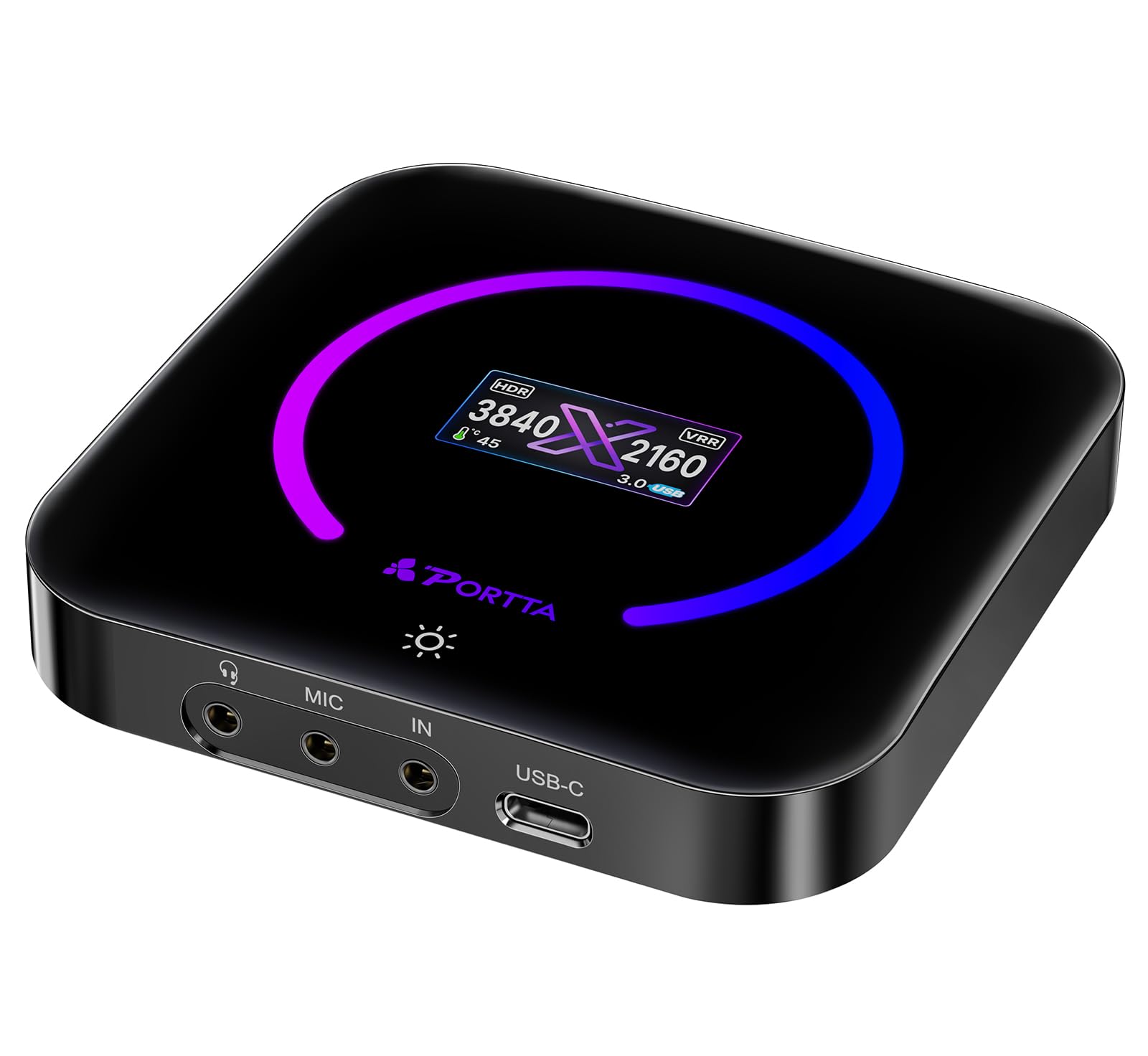
A featherweight 68-gram card that still delivers 4K60 capture with a handy status screen.
It has a built-in display that shows your current resolution, signal type, and internal temperature — a rare feature at this size. The card supports YUY2, NV12, and RGB24 formats, and includes utility software called PORTTA CapHub for adjusting audio mixing and EDID modes.
Owners mention that it captures 4K60 without dropped frames or audio sync issues, and the plug-and-play setup works with OBS, PS5, and Xbox. The slim 68-gram body does get warm after extended use, and some users noted minor PC recognition hiccups during initial setup. It includes an HDMI cable and a USB-C cable in the box.
Compared to the GENKI ShadowCast 3 Pro, the DX20R adds a physical control button and display, but it requires slightly more software configuration to open up HDR capabilities.
What We Like
- Built-in display shows signal status and temperature at a glance
- Ultra-light 68-gram design for mobile streaming kits
- PORTTA CapHub utility gives you fine-grained control over video settings
Consider This
- Gets warm during long capture sessions
- HDR support requires manual software configuration
- USB 3.0 bandwidth can limit simultaneous high-res capture and streaming
Best suited for: Traveling streamers who want a lightweight card with real-time feedback on signal status.
One drawback: If you plan to run multi-hour live streams, the heat buildup may be a concern.
4. GENKI ShadowCast 3 Pro
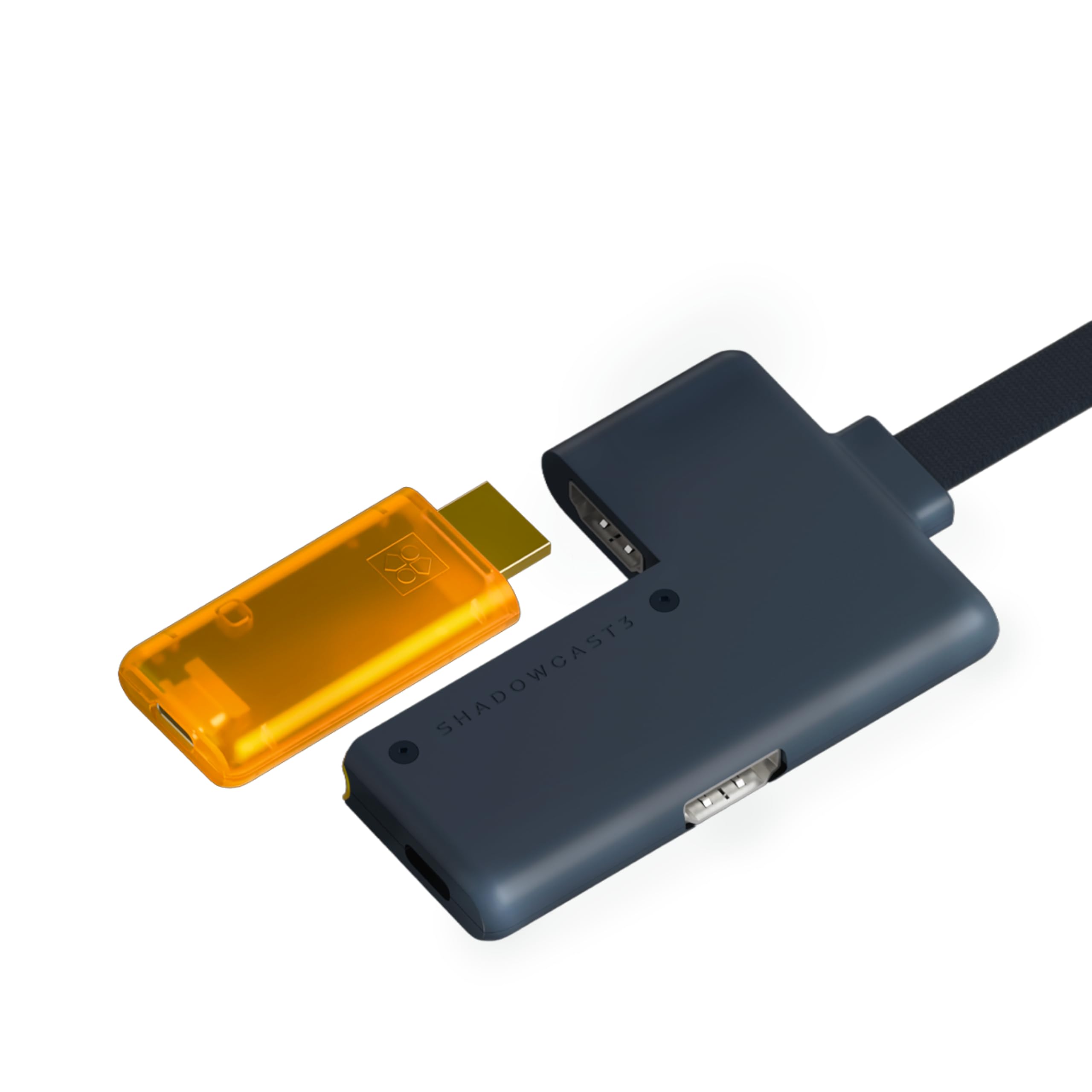
Turns your iPad or laptop into a portable gaming monitor with zero-lag passthrough.
The GENKI ShadowCast 3 Pro is built for on-the-go gaming. It captures 4K60 video and passes the signal through to a primary monitor with zero added latency, thanks to its integrated HDMI passthrough module. It supports 1440p at 120Hz and 1080p at 240Hz, and runs on USB-C with no drivers required. The Genki Studio app lets you use an iPad or laptop as a secondary gaming screen — a lifesaver for hotel room or cafe sessions. It also works with OBS, Streamlabs, Zoom, and Discord.
Customers note that it works from the start with the Switch 2 and offers “superior color accuracy and zero latency” compared to the Elgato 4K X. However, one reviewer flagged that MJPEG 4K60 is the main working mode — lossless YUYV422 at 4K25 shows artifacts above 30Hz input. The cable setup can feel messy (four separate cables, including a USB-powered splitter), and the LED blinks slowly when idle, which some find annoying in dark rooms.
What Makes It Unique
- Zero-latency HDMI passthrough for lag-free competitive play
- Works as a portable monitor solution with iPad via Genki Studio app
- Plug-and-play compatibility with Switch 2, PS5, Xbox, and DSLR cameras
Things to Note
- Lossless capture only works reliably at 4K25 — 4K60 uses compressed MJPEG
- Hardware setup involves four cables and a powered splitter
- Idle LED flash can be distracting in dark rooms
Perfect for: Gamers who want to set up a temporary rig in a hotel or coffee shop and play on an iPad with zero screen lag.
Heads up: If lossless 4K60 capture is non-negotiable, look at a card with full YUY2 support at 60fps.
5. UGREEN 4K@60Hz Capture Card

A budget card with three audio jacks that tries to do it all, but stumbles on sound quality.
The UGREEN card captures 4K60 in MJPEG format and offers loop-out passthrough at 4K60 with VRR and HDR support. Its standout feature is the triple 3.5mm ports: one for headphones, one for a microphone, and one for a line-in mixer — so you can route game chat and commentary through a single device without extra splitters. The aluminum housing with cooling holes and 7 RGB lighting modes adds a flashy touch to your desk.
Reviewers point out the video quality at 4K30 is “smooth and sharp,” and the card is easy to set up. The major complaint is audio: one reviewer measured the audio output at roughly 15dB down with modulated digital noise from the HDMI input, calling it a dealbreaker. Linux users also report that full resolution and format support is only available on Windows or macOS. The card weighs 155.1 Grams, making it more than double the weight of the PORTTA DX20R.
Strengths
- Three separate 3.5mm audio jacks for headphone, mic, and line-in
- RGB lighting with 7 modes for desk aesthetics
- Aluminum housing with cooling holes for stable long-session performance
Weaknesses
- Audio quality is poor — shoppers say noisy, 15dB-down sound
- Linux support is limited; full specs only on Windows and macOS
- Heavier than competitors at 155.1 grams
Good for: Budget-conscious streamers who already have a separate audio mixer and just need basic 4K30 video capture.
skip it if: You need clean in-line audio — the noise floor on this card makes external audio processing almost mandatory.
6. Blackmagic Design Intensity Pro 4K
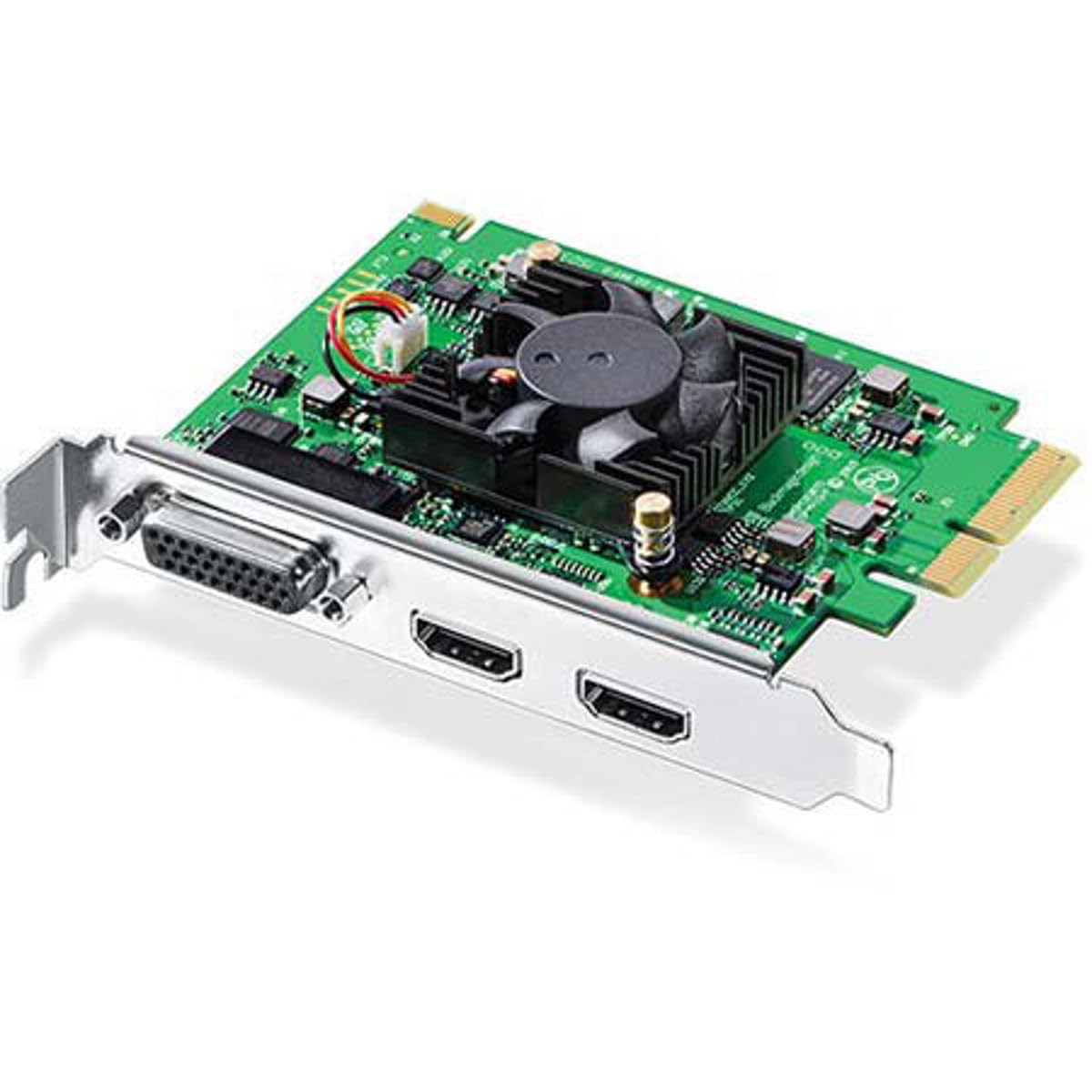
A PCIe card that prioritizes raw capture quality over gamer-friendly features like high-refresh passthrough.
The Intensity Pro 4K captures 4K Ultra HD at up to 30fps and 1080p at 60fps straight to a PCIe 4-lane slot on your motherboard. It comes with Media Express software and supports live streaming, video conferencing, and presentations. Because it is internal, you avoid USB handshake delays, and the card handles 4:2:2 color sampling from cameras like the Sony A6100 — something USB cards often cannot match at 4K.
Buyers who use it for professional video editing report crisp 4K and HD capture with excellent color accuracy. However, the setup is not beginner-friendly: early Windows drivers had OBS compatibility issues (only RGBA color format worked), and the fan produces a high-pitched whine. One reviewer warned that the card fails to capture PS4 or Xbox One video at launch (2015), though subsequent driver updates may have resolved this.
At 4K30, this card falls short of the AVerMedia’s 4K60 capture speed, but for film-style recording where frame rate is secondary to color depth, it holds its own.
Professional Strengths
- PCIe connection for ultra-low latency and consistent throughput
- Supports 4:2:2 color sampling from HDMI cameras
- Includes Media Express software for direct recording
Considerations
- 4K capture limited to 30fps — not ideal for high-frame-rate gaming
- Setup requires driver patching and may be problematic on Windows
- Fan noise can be audible inside a quiet studio
Who should buy: Video editors who need a stable internal card for recording 4K30 footage from a camera into a non-linear editor like Avid or DaVinci Resolve.
Not for: Console gamers who want 4K60 capture with HDR passthrough — look at the AVerMedia or Elgato external options.
7. Blackmagic Design DeckLink Quad HDMI

A four-port capture beast that handles separate camera or console feeds simultaneously at 4K60 each.
The DeckLink Quad HDMI packs four HDMI 2.0b inputs on a single PCIe 8-lane card, each capable of capturing 4K60 in up to 12-bit RGB 4:4:4 (at 4Kp30 DCI) or 10-bit YUV 4:2:2. This makes it ideal for live production setups where you need to combine a camera, a gaming console, a PC feed, and a second camera — all in real time. It supports Rec. 601, Rec. 709, and Rec. 2020 color spaces, plus 8 channels of embedded 24-bit 48 kHz audio per input.
Buyers using it with vMix and OBS say the card is “rock solid with 3 cameras during live productions” and that the 4K picture is crisp. The main frustrations are driver-related: finding and installing the correct “Desktop Video” software from Blackmagic’s site can take over an hour, and the internal USB plug is undocumented. The card is also unable to capture from copy-protected HDMI sources.
For multi-camera workflows, this card beats using multiple single-port USB cards because all four inputs share the same PCIe bus, keeping latency consistent across feeds.
Key Capabilities
- Four independent 4K60 HDMI 2.0b inputs on one PCIe card
- Supports deep color HDR up to 12-bit 4:4:4
- Works with major production software: vMix, OBS, Wirecast, Media Express
Setup Hurdles
- Drivers are hard to find on the Blackmagic website — expect 1+ hour setup
- No copy-protected source capture (HDCP sources fail)
- Undocumented internal USB plug required for full functionality
Best fit: Live event streamers and video production teams running multiple HDMI cameras or console feeds into a single PC.
Warning: If you are not comfortable with a day-one driver hunt and reading forum guides, this card will test your patience.
Understanding the Specs
Capture Format
The format your card uses to encode video before sending it to your computer. MJPEG compresses each frame individually — it handles 4K60 easily but creates large files. YUY2 preserves more color detail and is preferred by editing software, but it requires more USB bandwidth. Most cards switch between formats automatically based on the resolution and frame rate you select. Check that your streaming or editing software supports the format your card uses at your target resolution.
Passthrough vs Capture Latency
Passthrough latency is the delay between your console or camera sending a signal and the card outputting it to your monitor. Zero-latency passthrough means the card routes the HDMI signal directly to your monitor without processing it — your game stays responsive. Capture latency is how long it takes the card to encode that same signal and deliver it to your computer. Cards with a separate HDMI output port for passthrough (like the GENKI ShadowCast 3 Pro) typically give you the lowest passthrough lag.
FAQ
Do I need an internal PCIe card or is USB fine for 4K capture?
What is the difference between 4K30 and 4K60 capture for streaming?
Will a capture card work with my gaming laptop?
What does VRR do in a capture card?
Can I capture 4K footage from a PS5 or Xbox Series X?
How much does audio quality vary between capture cards?
Do I need a separate streaming PC or can I game and stream on one machine?
What is the real-world weight difference between these cards?
Can I use a 4K capture card with a DSLR as a webcam?
Final Thoughts: The Verdict
Across the board, the 4k capture card winner is the AVerMedia Live Gamer ULTRA 2.1 because it delivers the best balance of 4K144 HDR passthrough (your monitor sees the full high-dynamic-range signal at 144Hz) and stable 4K60 capture in a portable external form factor. If you want to build a dual-PC streaming studio with zero USB latency, grab the Elgato 4K Pro. And for a lightweight travel companion that lets you game on an iPad, the GENKI ShadowCast 3 Pro is the smallest option at 1.2 ounces.
How We Picked
We do not accept paid placement. Every pick is matched to a real buyer and a real use-case; we do not hands-on test units.
Sources & Methodology
Specifications: manufacturer listings and product documentation. Review insights: verified customer reviews, as of July 2026. Pricing: not shown on this page (it changes often); check the current price via the retailer link.
As an Amazon Associate, FitlyFast earns from qualifying purchases. This does not affect which products we feature.