
Our readers keep the lights on and the weekend projects moving. As an Amazon Associate, I earn from qualifying purchases.
Specs are compiled from manufacturer listings and verified buyer reviews and can change over time — please confirm the key details on the product page before buying.
Editing a photo on a screen that shifts red to orange or clips your shadows is a recipe for prints that look nothing like what you intended. A budget monitor for photo editing needs to deliver on two things first: color accuracy that matches what you see on paper, and a resolution sharp enough to judge fine detail — without making your credit card wince. This guide cuts through the noise to find the monitors that actually respect both your eyes and your wallet.
I’m Rikta — the founder and writer behind FitlyFast. This guide is built by comparing the manufacturers’ published specifications and the patterns across verified customer reviews, so you get each pick’s real strengths and trade-offs instead of marketing spin.
Whether you are retouching portraits, grading video, or building a color-managed workflow on a budget, the budget monitor for photo editing you choose must balance gamut coverage, contrast, and ergonomics to keep your work consistent from screen to print.
Our Picks at a Glance


How To Choose The Best Budget Monitor For Photo Editing
Picking the right editing monitor on a tight budget means knowing where to spend your money and where you can save without hurting your work. The three specs below will steer you right.
Color Gamut and Accuracy (sRGB / DCI-P3 / Delta E)
Color gamut is the range of colors a screen can show. For photo editing, you want at least 99% to 100% sRGB coverage — that matches the standard web and print workflow. If you also edit video, look for 95% DCI-P3 or better. Accuracy is measured as Delta E, where a value under 2 means the color you see is nearly identical to the intended color. A Calman Verified badge means the monitor was factory calibrated and includes a report in the box, so you can start editing right away without tweaking.
Panel Type and Resolution
An IPS (In-Plane Switching) panel is non-negotiable for photo editing — it keeps color and brightness consistent even when you view the screen from an angle. A 27-inch 4K (3840 x 2160) display gives you sharp pixels for judging fine details like skin texture or dust spots on a sensor. A 1440p (2560 x 1440) resolution is still very capable and often leaves room in the budget for better color accuracy or a larger 32-inch screen. Avoid TN (Twisted Nematic) panels entirely, as their color shifts dramatically off-axis.
Connectivity and Ergonomics
USB-C with Power Delivery (PD) lets you charge your laptop and send video through a single cable, keeping your desk tidy. Look for at least 65W PD if you use a MacBook. For comfort during long edits, a fully adjustable stand — height, tilt, swivel, and pivot to portrait mode — is a standout for reviewing vertical images. A VESA mount pattern on the back gives you the option to use an arm if your desk setup demands it.
Quick Comparison
| Model | Best For | Resolution | Color Gamut | Ergonomics | Amazon |
|---|---|---|---|---|---|
| LG 32U631A-B★ Best Overall | Large-screen value | 2560 x 1440 (QHD) | 99% sRGB | Tilt Only | Amazon |
| LG 27UP650K-WBest Value | Budget 4K color | 3840 x 2160 (4K) | 95% DCI-P3 | Height, Tilt, Pivot | Amazon |
| ASUS ProArt PA278CVEditor’s Choice | Calman-verified accuracy | 2560 x 1440 (QHD) | 100% sRGB | Height, Swivel, Pivot | Amazon |
| Dell S2725QS | 4K + high refresh | 3840 x 2160 (4K) | 99% sRGB | Height, Swivel, Pivot | Amazon |
| Dell S2725QC | USB-C single-cable | 3840 x 2160 (4K) | 99% sRGB | Height, Swivel, Pivot | Amazon |
| ViewSonic VP2468A | Pantone-validated 1080p | 1920 x 1080 (FHD) | 100% sRGB | Height, Swivel, Pivot | Amazon |
| ViewSonic VP2756-4K | Pantone-validated 4K | 3840 x 2160 (4K) | 100% sRGB | Height, Swivel, Pivot | Amazon |
| ASUS ProArt PA279CV | Pro 4K on a budget | 3840 x 2160 (4K) | 100% sRGB | Height, Swivel, Pivot | Amazon |
In‑Depth Reviews
1. LG 32U631A-B
The massive 32-inch canvas that gives you room to edit without the 4K price tag.
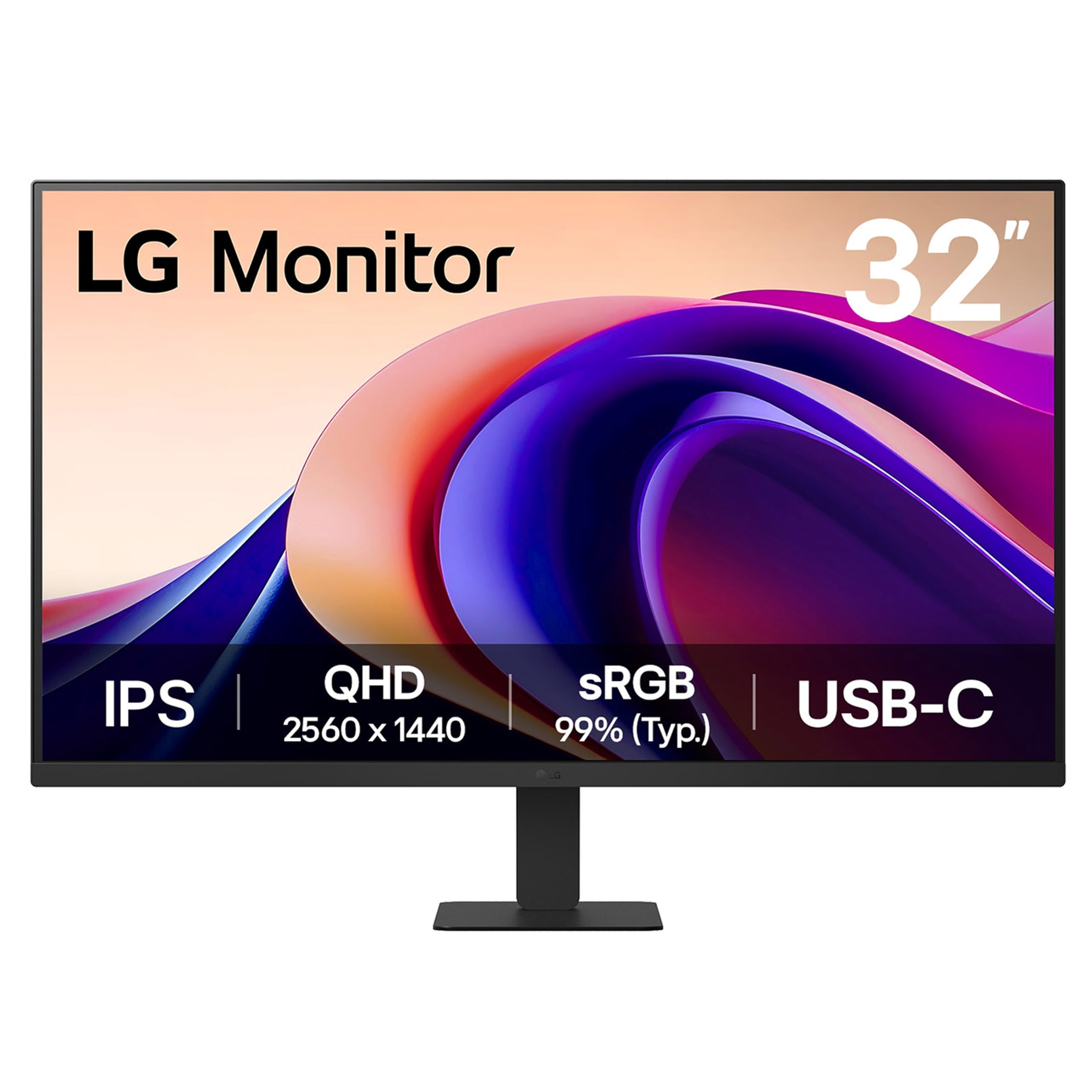
You get a 32-inch QHD (2560 x 1440) IPS screen with 99% sRGB color coverage, which means your photos will hold their intended hues across the wide panel. The 100Hz refresh rate and 5ms response time keep scrolling and zooming smooth — a welcome upgrade from the standard 60Hz you find on most budget monitors. And the 250 cd brightness is adequate for a typical desk setup away from direct sunlight.
What wins people over is the sheer screen real estate. Owners consistently praise the size and the “large brilliant display” for everyday editing work. The virtually borderless three-side bezel makes it feel even larger, while the ultra-slim stand keeps the desk tidy. A few note that the lack of DisplayPort means you may need an adapter to hit the full 100Hz, and the stand offers tilt only. Buyers report one unit arrived with “one dead pixel and one fuzzy pixel,” though the dominant experience is one of long-term satisfaction — several owners mention being “very pleased” even after 11 months of daily use.
For photo editing specifically, the 99% sRGB gamut is the key strength here. That is an excellent figure for the price, outperforming many monitors that cost more but cut corners on color. Just remember you are working at 1440p rather than 4K, so zooming in on critical detail becomes a regular habit. The 32-inch QHD panel (2560 x 1440) delivers roughly the same pixel density as a 24-inch 1080p screen — perfectly usable, but you will want to sit at a comfortable distance.
The Big Picture
- Massive 32-inch QHD IPS panel gives you a wide editing canvas.
- 99% sRGB gamut delivers reliable photo color for the price.
- 100Hz refresh rate makes menus and scrolling noticeably smoother.
The Fine Print
- Stand offers tilt only — no height or pivot adjustment for portrait work.
- 250 cd brightness is modest; avoid harsh window reflections.
- No DisplayPort input; may need an adapter for full 100Hz.
Reach for this if: you need a big, color-capable editing screen on a tight budget and can live with QHD resolution.
Think twice if: you need a fully adjustable stand or a 4K pixel grid for critical fine-detail inspection.
2. LG 27UP650K-W
The first true 4K door into photo editing without blowing your budget.
This 27-inch 4K (3840 x 2160) IPS display packs a 95% DCI-P3 color gamut — a wider color space than standard sRGB, which makes a real difference when you edit images destined for modern devices or print. The 400 cd brightness and 1200:1 contrast ratio give you noticeably punchier highlights and deeper blacks than the 250 cd / 1000:1 combo of the LG 32U631A-B above. It is also DisplayHDR 400 certified, meaning HDR content is mapped with a meaningful brightness floor rather than being a pure marketing label.
The thing everyone raves about is the picture quality. The consensus across owners is that this monitor delivers “crisp text” and “vibrant colors” straight from the start, with several highlighting how it compares favorably to far pricier Mac displays. The fully adjustable stand — height, tilt, and pivot — is a genuine workday asset for photo editors who switch between landscape and portrait framing. It runs at 60Hz, which is perfectly adequate for stills editing and light video work, and the 4K resolution (3840 x 2160) gives you 50% more pixels than the LG 32U631A-B’s QHD (2560 x 1440) — meaning finer detail when you zoom in on a raw file.
The trade-off is straightforward: it lacks built-in speakers and USB ports, so you will need a separate audio solution and a USB hub or a direct laptop connection. Some owners note the white finish and silver stand may not suit every desk aesthetic. As one owner puts it, this is a “Great 4K60Hz HDR10 monitor for the price” — a sentiment that rings true across hundreds of reviews. For a budget 4K editing screen, the color accuracy and build quality here are hard to argue with.
4K Clarity, Paid Forward: The 4K UHD resolution (3840 x 2160) and 95% DCI-P3 gamut make this the most affordable genuine entry into photo editing at this sharpness.
The Catch – Ports and Stand: No USB ports or built-in speakers, and the white stand might not match every setup. The adjustable ergonomics, however, are excellent.
3. ASUS ProArt PA278CV
The Calman-verified color lab for editors who need trust, not tweaking.
This 27-inch QHD (2560 x 1440) IPS monitor is built from the ground up for creative work. It comes Calman Verified with a factory calibration report inside the box, guaranteeing a Delta E < 2 color error — meaning the greens, blues, and skin tones you see are scientifically close to the intended values. The 100% sRGB and 100% Rec. 709 coverage gives you solid print and video editing capability from the moment you plug it in. The 65W USB-C Power Delivery is a standout feature here — a single cable charges your laptop and sends the display signal, a convenience class-leading by the LG options above.
What sets the PA278CV apart in the owner community is the “Excellent color accuracy out of box” and “IPS clarity” that owners consistently highlight. Quality gets the most mentions by far — over 70 owners single it out — and it pairs with picture quality (49 mentions) as the dominant praise. The ergonomic stand tilts, swivels, pivots to portrait, and adjusts height, making it a pleasure for long editing sessions. Connectivity includes USB-C, HDMI, DisplayPort, and a built-in USB hub, plus DisplayPort daisy-chaining for a multi-monitor setup. One owner sums it up by describing it as a “steal” for graphic design and editing work.
The QHD resolution (2560 x 1440) is excellent for most editing tasks, though it does not match the pixel density of a 4K screen at the same 27-inch size — you might find yourself zooming in more often on fine detail. One owner wished for a 100Hz refresh rate and better contrast, which are fair points for the more demanding user. The 350 cd brightness is a solid middle ground, good for most indoor lighting. For the budget-minded editor who values factory-tested color accuracy above all else, this ProArt monitor delivers where it counts.
The ProArt Promise
- Delta E < 2 and Calman Verified from the start for immediate color trust.
- 65W USB-C PD charges your laptop and handles video in one cable.
- Fully adjustable stand with portrait pivot for vertical images.
The Resolution Reality
- QHD (1440p) resolution — not as pixel-dense as 4K for fine-detail zooming.
- Only 75Hz max refresh rate; not ideal for fast-paced gaming.
- Some owners note the contrast could be deeper.
Best for editors who value accuracy: The Calman Verified Delta E < 2 gives you confidence from day one.
Consider the 4K equivalent if: you need maximum pixel density for detailed retouching and can stretch the budget.
4. Dell 27 Plus 4K Monitor – S2725QS

A 4K 120Hz screen that edits smoothly and doubles for light gaming.
The Dell S2725QS brings a rare combination to the budget photo editing space: a 27-inch 4K (3840 x 2160) IPS panel with a 120Hz refresh rate. The 1500:1 contrast ratio is the highest among the monitors on this list, delivering noticeably deeper blacks and better shadow detail than the 1000:1 or 1200:1 competition — a real asset when editing low-key portraits or landscapes. The 99% sRGB coverage and ComfortView Plus blue light filter (reducing emissions to ≤35%) mean you can work long hours without color shift or eye strain.
Image quality is the undisputed star here, earning the most mentions by far — over 160 owners single it out, with monitor quality close behind at 155 mentions. The near-OLED black performance and crisp 4K visuals are consistently praised. The built-in speakers are a genuine step above what most monitors offer, with owners describing them as “incredibly loud” and detailed. The fully adjustable stand (height, pivot, swivel, tilt) and ultra-thin bezel in ash white make for a clean, flexible editing station.
The catch is ghosting in fast games — the 5ms response time is fine for editing and casual play, but competitive shooters will see motion blur. The 120Hz refresh rate is a big upgrade over the standard 60Hz you find on most budget 4K monitors, making cursor movement and palette scrolling much more fluid. A few owners noted a slight yellow tint that required calibration, and the matte coating has a faint grain, but the overwhelming consensus is that this Dell 27 Plus is a fantastic value for a 4K editing monitor that also handles everyday use beautifully.
4K at 120Hz, Done Right: The combination of 4K resolution, a 120Hz refresh rate, and a 1500:1 contrast ratio makes this a rare and compelling budget editing monitor.
The Gaming Caveat: The 5ms response time shows ghosting in fast-paced games. For photo editing, web work, and media consumption, this is one of the smoothest screens you can get at this price.
5. Dell 27 Plus 4K USB-C Monitor – S2725QC

The same brilliant 4K 120Hz panel, now with a single USB-C cable for power and data.
The S2725QC is the USB-C version of the Dell 27 Plus, swapping the standard connectivity for a single USB-C to C cable that delivers up to 100W of power delivery — enough to charge a MacBook Pro at full speed. The core panel is the same: a 27-inch 4K (3840 x 2160) IPS display with a 120Hz refresh rate, 99% sRGB coverage, a 1500:1 contrast ratio, and the ComfortView Plus low-blue-light technology. For photo editors with a modern laptop, this one-cable workflow is the cleanest way to work.
Display quality earns the most praise here — over 126 owners mention it positively, with picture quality close behind at 95 mentions. The crisp 4K visuals and “near-OLED blacks” are recurring themes, and the 120Hz refresh rate makes everything feel responsive. The built-in speakers are also better than average, eliminating the need for a separate sound bar for basic audio. The adjustable stand and ash white finish mirror the S2725QS, offering full ergonomic flexibility. One owner noted the controls are on the back and “hard to see and reach,” a minor ergonomic quibble.
The main trade-off is the lack of a DisplayPort input — the single USB-C port and two HDMI ports cover most setups, but it is something to check before buying. A few owners mention the swivel is slightly wobbly, and the 100W power delivery is a significant step up from the 65W or 96W options on other monitors, making this the best choice for power users who want a single cable to their laptop. Between the Dell S2725QS and this S2725QC, pick the former if you need DisplayPort, and pick this one if USB-C charging is your priority.
The USB-C Advantage
- 100W USB-C Power Delivery charges a MacBook Pro at full speed via one cable.
- Sharp 4K resolution, smooth 120Hz refresh rate, and deep 1500:1 contrast ratio.
- Full ergonomic stand with height, pivot, swivel, and tilt adjustment.
The Setup Check
- No DisplayPort input — relies on USB-C and HDMI for connection.
- Back-mounted controls are tricky to find and press without looking.
- Swivel can feel slightly wobbly, according to some owners.
Pick this for: a clean single-cable 4K workflow with laptop charging, especially if you use a MacBook.
skip it if: your setup requires a DisplayPort connection or you prefer front-mounted controls.
6. ViewSonic VP2468A

Smaller screen, Pantone-grade color — for editors who need certified accuracy above all else.
This 24-inch 1080p (1920 x 1080) IPS monitor is the most color-accurate panel on this list, period. It is Pantone Validated and covers 100% sRGB, plus EBU, SMPTE-C, Rec. 709, and DICOM-SIM color spaces. Factory hardware calibration with a Delta E < 2 accuracy means the color you see is exactly what the colorist intended. The 65W USB-C Power Delivery, RJ45 Ethernet, and built-in USB hub make it a fully featured docking monitor for a laptop-based photo editing workflow.
What owners praise most is the color accuracy — described as the “best color accuracy monitor owned” by several. The advanced ergonomic stand (tilt, swivel, pivot, and height) is excellent, and the Flicker-Free technology with a Blue Light Filter reduces eye fatigue during long editing sessions. The 250 cd brightness and 1000:1 contrast ratio are modest but adequate for a 24-inch screen. A recurring note is that the USB-C port failed on two separate units, though the workaround of using USB-C to HDMI preserves the display signal.
At 1080p, this is not a high-resolution screen — you will see individual pixels on fine details at close viewing distance. It is best suited for editors who prioritize color accuracy above all other specs, or who use it as a dedicated secondary color reference monitor alongside a higher-resolution primary display. The 60Hz refresh rate is fine for editing. If you need Pantone-certified color and a fully kitted-out connectivity hub in a compact size, this is your monitor.
Certified Color, Compact Footprint: Pantone Validation and factory-calibrated Delta E < 2 make this the most trustworthy color on the list, despite the modest 1080p resolution.
The Resolution Cap: At 24 inches and 1080p, pixel density is low. Treat this as a dedicated color reference screen, not a primary editing canvas.
7. ViewSonic VP2756-4K

A Pantone-validated 4K screen where color integrity and a fast, single-cable setup meet.
The VP2756-4K is the 4K sibling of the VP2468A, bringing the same professional color certification to a 27-inch 4K UHD (3840 x 2160) IPS panel. It is Pantone Validated and covers 100% sRGB with Delta E < 2 factory calibration. The 60W USB-C Power Delivery is a step behind the 96W on the ASUS ProArt PA279CRV, but still enough to charge most ultrabooks during a full editing session. The 350 cd brightness is a solid step above the 250 cd entry-level standard.
Picture quality is the top positive aspect here, with 41 owners praising it, followed closely by color (30 mentions). The color accuracy is regularly described as matching a MacBook screen for editing, making it a reliable partner for Adobe software. The 4K resolution gives you the pixel density to inspect fine detail without constant zooming. The advanced ergonomic stand with tilt, swivel, pivot, and height adjustment is a major asset for comfort. The thin 8mm bezel gives it a clean, modern look on any desk.
A notable gripe is that the advertised rotation feature may not be fully supported on Mac — one owner found the pivot did not work with their system, which is worth verifying if you edit in portrait mode on a Mac. The OSD (on-screen display) controls are described as clunky, though the ViewSonic desktop software provides better control. For a budget-conscious editor who needs Pantone-level color accuracy at 4K, this is a well-rounded and trustworthy option.
Color You Can Trust
- Pantone Validated with 100% sRGB and Delta E < 2 for professional color work.
- 4K UHD (3840 x 2160) resolution for fine-detail editing at a 27-inch size.
- Fully adjustable stand and USB-C 60W PD for a tidy workspace.
The Mac Caveat
- Pivot/rotation may not work on Mac systems as advertised.
- 60W USB-C PD is lower than some competitors’ 96W.
- OSD buttons are clunky, though software helps.
Reach for this if: Pantone validation is a must for your client work and you want 4K pixel density.
Look elsewhere if: you are on a Mac and need guaranteed portrait rotation, or need more than 60W of laptop charging.
8. ASUS ProArt PA279CV

A full-featured 4K ProArt with the connectivity options that replace a separate dock.
The PA279CV is the 4K version of the ProArt PA278CV, offering the same Calman Verified Delta E < 2 color accuracy and 100% sRGB coverage at a true 4K (3840 x 2160) resolution. The 65W USB-C Power Delivery charges your laptop while sending video, and the built-in USB 3.1 hub (four Type-A ports) expands your connectivity. The 100,000,000:1 contrast ratio (ASUS’s smart contrast ratio spec) is a marketing figure, but the real-world contrast is good for an IPS panel. The included 3-month Adobe Creative Cloud subscription is a nice bonus for new subscribers.
Monitor quality is the top positive mention, with 56 owners praising it, and color accuracy is close behind at 47 mentions. The picture is described as “beautiful color” and an “excellent value” for critical color work. The fully adjustable stand with vertical pivot rotation is a huge plus for reviewing vertical compositions. One owner noted a slight green tint from the start, which they fixed with a simple tint adjustment, and several mention that a full calibration is recommended for the most critical work.
The most significant pattern in the reviews is the USB-C connectivity complaint — 46 mentions label it negative. A number of owners mention the USB-C port failing or causing issues, particularly with Macs. Asus’s repair process has been described as “exhausting” in some cases. If USB-C reliability is critical to your workflow, you may want to go with the 4K ProArt PA279CRV at the top of the budget, which has a more recent track record. Still, for the price, the PA279CV offers a phenomenal color-accurate 4K panel with a fully featured connectivity hub.
4K Pro Color at a Discount: Calman Verified Delta E < 2, a 4K IPS panel, and a built-in USB hub for a price that undercuts its big sibling.
The USB-C Risk: The most common complaint is USB-C reliability, especially with Macs. Consider it a calculated gamble for the price, or step up to the PA279CRV for a more sturdy connection.
Understanding the Specs
Color Gamut (sRGB / DCI-P3 / Adobe RGB)
Think of a color gamut as the full paintbox a monitor can use. sRGB is the default for the web and most consumer displays — 100% coverage means your images will look consistent across the internet. DCI-P3 is a wider paintbox used in modern cinema and many mobile devices — 95% or higher is excellent for video editing. Adobe RGB is the widest of the three, designed for print output — 99% coverage is ideal if you send files to a professional printer. A monitor that covers multiple spaces well (like the ASUS ProArt PA279CRV) gives you flexibility across mediums.
Delta E and Calman Verification
Delta E (often written as dE or ΔE) is a number that measures the difference between a real-world color and what the monitor shows. A Delta E under 2 means the human eye cannot typically tell the difference — that is the gold standard for photo editing. Calman Verification means an independent calibrator (Calman) has tested the monitor and confirmed it meets the advertised Delta E figure. A factory calibration report in the box (which the ASUS ProArt and ViewSonic ColorPro models include) means you can start editing without spending extra on a hardware calibrator.
FAQ
What is the minimum resolution I need for photo editing on a budget?
Is an IPS panel essential for photo editing?
What does Delta E mean and why does it matter?
Can I use a gaming monitor for photo editing?
Does a higher refresh rate matter for photo editing?
How much USB-C power delivery do I need for my laptop?
What does Pantone Validation mean for a monitor?
Is 250 cd brightness enough for photo editing?
Final Thoughts: The Verdict
For most buyers, the budget monitor for photo editing winner is the ASUS ProArt PA278CV because it delivers Calman Verified Delta E < 2 accuracy, 65W USB-C charging, and a fully adjustable stand at a price that does not force a resolution compromise. If you want true 4K sharpness and Pantone validation, the ViewSonic VP2756-4K is the right step up. And for the largest editing canvas on the tightest budget, the LG 32U631A-B gives you a huge 32-inch QHD screen with 99% sRGB color that is genuinely tough to top for the money.
How We Picked
We do not accept paid placement. Every pick is matched to a real buyer and a real use-case; we do not hands-on test units.
Sources & Methodology
Specifications: manufacturer listings and product documentation. Review insights: verified customer reviews, as of July 2026. Pricing: not shown on this page (it changes often); check the current price via the retailer link.
As an Amazon Associate, FitlyFast earns from qualifying purchases. This does not affect which products we feature.