
Our readers keep the lights on and the weekend projects moving. As an Amazon Associate, I earn from qualifying purchases.
Color banding, crushed blacks, and inaccurate skin tones are the fastest way to ruin a grade or a multi-cam edit. A 4K monitor for video editing must deliver wide color gamut coverage, high contrast, and factory-calibrated Delta E values that keep your timeline faithful to the final export—not just a bright desktop panel.
I’m Rikta — the co-founder and writer behind FitlyFast. I’ve spent hundreds of hours analyzing panel technologies, color space standards, and real-world calibration reports to separate true post-production monitors from general-use displays that happen to be 4K.
This guide focuses on the 4k monitor for video editing, breaking down the specific color specs, connectivity needs, and panel types that matter most in a NLE workflow.
How To Choose The Best 4K Monitor For Video Editing
Choosing a monitor for video editing is fundamentally different from picking a gaming or office display. You are prioritizing color fidelity, panel consistency, and connectivity that supports a clean signal path from your timeline to your reference monitor.
Color Gamut: sRGB Is Not Enough For Video
Video workflows rely on DCI-P3 and Rec. 709 color spaces. Look for a monitor with at least 95% DCI-P3 coverage. Adobe RGB is useful for print and photography, but for editing video destined for cinema or web distribution, DCI-P3 is the target. A panel that covers 99% DCI-P3 will show you the true saturation in your grade.
Delta E: The Number That Measures Trust
Delta E (dE) is the mathematical difference between the color you send to the monitor and what appears on screen. A value under 2 is considered excellent for professional video editing. Factory-calibrated monitors come with a report showing dE values for each color patch. Monitors without this calibration often require a hardware calibration tool to achieve the same accuracy.
Panel Technology: IPS vs. IPS Black vs. QD-OLED
Standard IPS panels offer wide viewing angles and good color accuracy but lower contrast (1000:1). IPS Black technology doubles that contrast to 2000:1 for deeper blacks without sacrificing viewing angles—ideal for editing HDR content. QD-OLED panels provide near-infinite contrast with perfect blacks, but they can suffer from text clarity issues and require burn-in mitigation software for static timeline elements.
Quick Comparison
On smaller screens, swipe sideways to see the full table.
| Model | Category | Best For | Key Spec | Amazon |
|---|---|---|---|---|
| BenQ PD3225U | Premium IPS Black | Mac-based color grading | 2000:1 Contrast Ratio | Amazon |
| MSI MPG 321URX | QD-OLED | HDR video & gaming hybrid | 0.03ms GtG Response | Amazon |
| Dell U2725QE | IPS Black 120Hz | Fluid timeline scrubbing | 120Hz Refresh Rate | Amazon |
| BenQ PD2705U | Pro IPS | Comprehensive color validation | Pantone SkinTone Validated | Amazon |
| ASUS ProArt PA279CRV | High Gamut IPS | 99% Adobe RGB / DCI-P3 | 99% DCI-P3 Coverage | Amazon |
| ASUS ProArt PA279CV | Calman Verified | Entry-level critical color | Delta E < 2 Factory Cal | Amazon |
| ViewSonic VP2756-4K | Pantone Validated | Photo & video hybrid editing | Delta E<2 Accuracy | Amazon |
| LG 27UP850-W | USB-C Hub | MacBook single-cable workflow | USB-C 96W PD | Amazon |
| LG 32UN650-W | Large Value IPS | Budget-friendly 32-inch timeline | DCI-P3 95% Coverage | Amazon |
| KTC M32P10 | MiniLED Hybrid | High-refresh HDR video review | 1152 MiniLED Zones | Amazon |
In‑Depth Reviews
1. BenQ PD3225U

The BenQ PD3225U delivers a 2000:1 contrast ratio through IPS Black technology, giving you deeper blacks than standard IPS panels while maintaining the wide-angle consistency needed in a collaborative edit bay. Its 98% P3 coverage and Delta E ≤ 2 factory calibration mean your Rec. 709 and DCI-P3 grades translate accurately to the monitor.
Thunderbolt 3 provides 40 Gb/s bandwidth with 85W power delivery, enabling a single-cable connection to a MacBook Pro. The built-in KVM switch and daisy-chain support let you share peripherals across a multi-monitor setup without extra clutter. The HotKey Puck and Display Pilot software make navigating calibration modes immediate.
The 250-nit brightness is modest compared to HDR-grade monitors, but the IPS Black contrast compensates for shadow detail in SDR edits. Anodized metal stand offers full ergonomic adjustment. For Mac-based editors who need reference-level color without entering OLED pricing, this is a professional anchor.
Why it’s great
- 2000:1 IPS Black contrast for better shadow depth
- Thunderbolt 3 with 85W PD and daisy-chain support
- Pantone and Calman validated, Delta E ≤ 2
Good to know
- 250 nits peak brightness limits HDR impact
- Premium pricing positions it above mid-range options
2. MSI MPG 321URX QD-OLED

The MSI MPG 321URX uses a quantum-dot OLED panel that achieves true black levels and exceptional HDR contrast, making it one of the few monitors that can display a genuine HDR grade without blooming. With 99% DCI-P3 coverage and Delta E ≤ 2, it serves both color-critical editing and high-refresh-rate playback review.
The 0.03ms GtG response time and 240Hz refresh rate are more than any editor needs, but they eliminate motion blur when scrubbing fast timelines or reviewing camera pans. The USB-C port with 90W power delivery supports a laptop connection, and the built-in KVM allows shared peripherals between editing workstation and gaming PC.
Static timeline elements—toolbars, markers, waveform scopes—pose a burn-in risk on any OLED panel. MSI includes OLED Care 2.0 features like pixel shift and panel refresh to mitigate this. The stand lacks height adjustment out of the box, but VESA mounting solves that. For editors who also game at a high level, this is a dual-purpose powerhouse.
Why it’s great
- Infinite contrast ratio for true HDR grading
- 99% DCI-P3 with factory dE ≤ 2 accuracy
- 240Hz for fluid playback review
Good to know
- OLED burn-in risk from static timeline elements
- Standard stand lacks height adjustment
3. Dell UltraSharp U2725QE
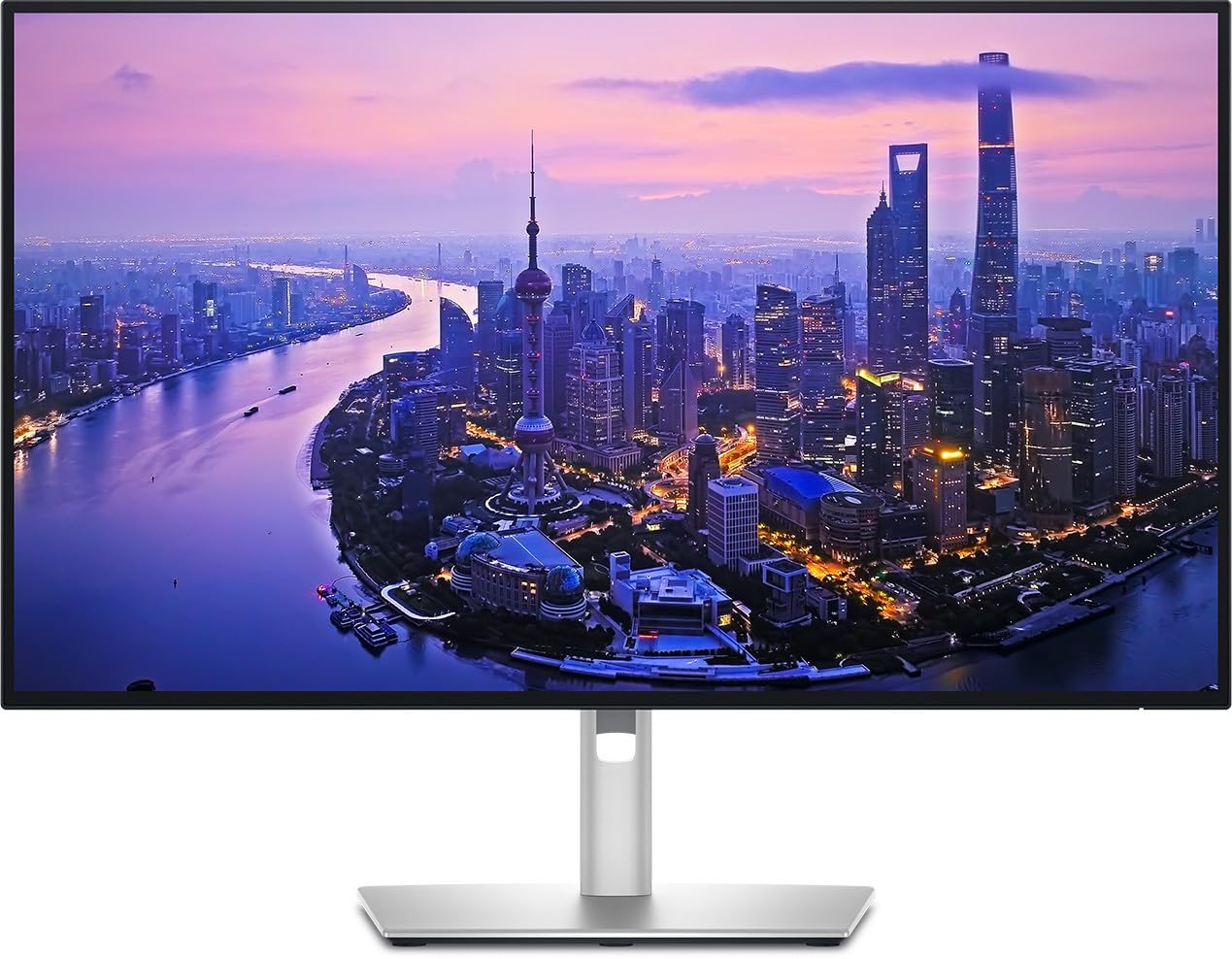
The Dell U2725QE combines IPS Black technology with a 120Hz refresh rate—a rarity in pro-grade editing monitors. The 99% DCI-P3 coverage and factory calibration to Delta E under 1.5 give you color confidence on a timeline, while the higher refresh rate makes scrubbing through footage feel noticeably smoother than a standard 60Hz panel.
Thunderbolt 4 delivers up to 140W power delivery, enough to charge a MacBook Pro or high-end laptop at full speed. The monitor supports daisy-chaining two additional 4K monitors, ideal for a three-screen edit setup. ComfortView Plus reduces blue light without shifting color temperature, preserving accuracy during long sessions.
A minority of Mac users report compatibility quibbles, and the price sits north of the mid-range threshold. But the combination of IPS Black contrast, 120Hz fluidity, and Thunderbolt 4 charging is unmatched in a single pro monitor. For editors who spend hours scrubbing timelines, the smoothness justifies the spend.
Why it’s great
- 120Hz refresh for smoother timeline scrubbing
- Thunderbolt 4 with 140W laptop charging
- IPS Black contrast with Delta E < 1.5
Good to know
- Some Mac users report compatibility issues
- Not a budget-friendly pick
4. BenQ PD2705U

The BenQ PD2705U is Pantone and Pantone SkinTone validated, making it a strong choice for editors who grade human subjects and need confidence in flesh-tone reproduction. Its 100% sRGB and Rec. 709 coverage with average Delta E ≤ 3 covers standard broadcast and web delivery spaces reliably.
The 65W USB-C port provides single-cable connectivity and charging for a MacBook Pro, while the built-in KVM switch and HotKey Puck streamline switching between two computers—useful for an edit suite with a PC tower and a laptop. The ICC Sync feature works with Display Pilot to map the correct color profile in one second.
The 350-nit brightness is adequate for SDR editing. HDR compliance is present but not impactful at this contrast ratio. The anti-glare coating helps when working in brightly lit rooms. For editors who prioritize skin-tone accuracy and need an all-around pro feature set below premium tier prices, this is a solid foundation.
Why it’s great
- Pantone SkinTone validated for natural flesh tones
- 65W USB-C with KVM switch
- ICC Sync for instant color profile mapping
Good to know
- HDR performance is limited at this contrast ratio
- Menu navigation is clunky
5. ASUS ProArt PA279CRV

The ASUS ProArt PA279CRV covers 99% of both DCI-P3 and Adobe RGB, making it one of the few monitors at its price point that handles video and photo color spaces equally well. Calman Verified and factory pre-calibrated to Delta E < 2, it gives editors a reliable starting point before deeper hardware calibration.
The USB-C port delivers 96W power delivery—enough to charge a 16-inch MacBook Pro at speed. The daisy-chain DisplayPort out simplifies multi-monitor setups. The matte screen finish minimizes reflections in a brightly lit edit suite, and the ergonomic stand offers height, pivot, swivel, and tilt adjustments.
The 60Hz refresh is standard for editing monitors, and the 400-nit peak brightness is adequate for SDR. Some users report minimal backlight bleed, though uniformity is generally strong. For editors working across both video and photography who need a single versatile display, this delivers wide gamut coverage at a fair price.
Why it’s great
- 99% DCI-P3 and Adobe RGB dual coverage
- 96W USB-C PD for fast laptop charging
- Calman Verified with factory dE < 2
Good to know
- 60Hz refresh limits scrubbing smoothness
- Minor backlight bleed reported on some units
6. ASUS ProArt PA279CV

The ASUS ProArt PA279CV is Calman Verified and factory calibrated to Delta E < 2, offering pro-grade color accuracy that checks the most important box for entry-level video editing. Its 100% sRGB and Rec. 709 coverage serves standard web and broadcast delivery without overshooting the budget.
Extensive connectivity includes USB-C with 65W power delivery, DisplayPort, HDMI, and a four-port USB 3.1 hub. The included Adobe Creative Cloud trial adds value for new editors building their suite. The ergonomic stand offers full height, pivot, swivel, and tilt adjustments for comfortable long sessions.
The 400-nit brightness is decent for SDR, but HDR compliance is nominal. Some users note a slight green tint in the factory calibration that requires a manual tint adjustment to correct. For editors starting a professional workflow on a budget, this offers the essential color spec with room to grow into a calibration tool later.
Why it’s great
- Factory calibrated to Delta E < 2 accuracy
- USB-C with 65W PD and built-in USB hub
- Full ergonomic adjustment included
Good to know
- Factory calibration may need minor tint adjustment
- HDR performance is limited
7. ViewSonic VP2756-4K
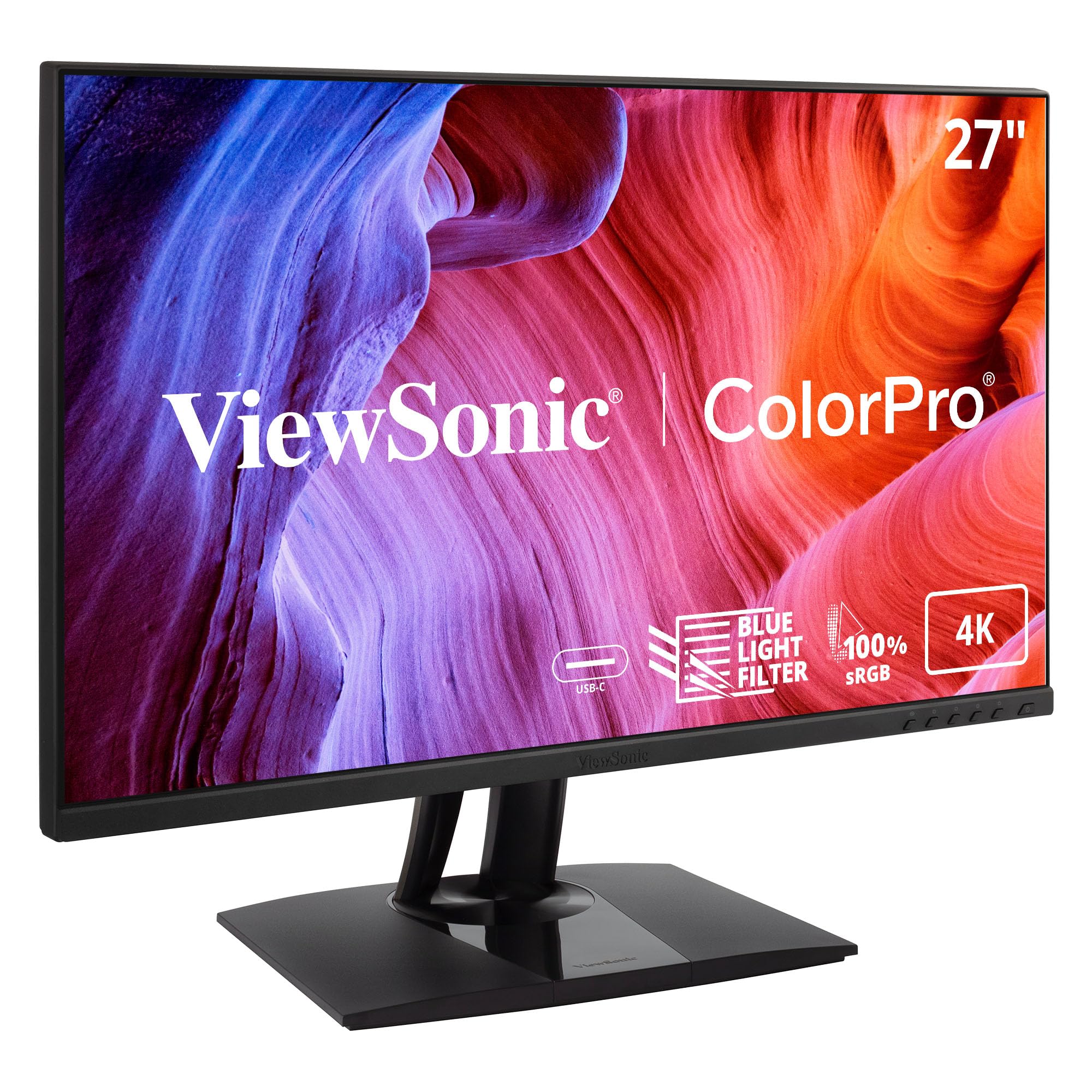
The ViewSonic VP2756-4K is Pantone Validated with Delta E < 2 accuracy, covering 100% sRGB, EBU, and SMPTE-C color spaces. The 27-inch 4K IPS panel delivers consistent viewing angles for color matching across a multi-monitor edit bay.
USB-C provides 60W power delivery with data, audio, and video over a single cable. The built-in KVM switch supports editing between a MacBook and PC workstation seamlessly. The advanced ergonomic stand with tilt, swivel, pivot, and height adjustment ensures comfortable positioning during long grading sessions.
The 60Hz refresh is standard for pro monitors. The OSD menus are clunky compared to software-based controls. Editors note the matte screen minimizes glare well, though it slightly diffuses highlight pop. For a Pantone-validated monitor at this price tier, it offers a strong entry into color-accurate editing.
Why it’s great
- Pantone Validated with Delta E < 2 accuracy
- USB-C with 60W PD and KVM switch
- Full ergonomic stand included
Good to know
- OSD navigation is clunky
- 60Hz refresh limits fluidity
8. LG 27UP850-W

The LG 27UP850-W combines DCI-P3 95% color gamut with VESA DisplayHDR 400, giving editors a decent color foundation for hybrid SDR and HDR workflows. The 27-inch 4K IPS panel delivers consistent colors across a wide viewing angle, essential for collaborative review sessions.
USB-C with 96W power delivery is the standout feature, charging a 16-inch MacBook Pro at full speed while carrying video and data over one cable. The ergonomic stand with height, pivot, and tilt adjustment supports flexible desk layouts. AMD FreeSync reduces tearing during playback previews.
The 400-nit peak brightness is adequate for HDR viewing but not intense enough for a dedicated HDR grading monitor. USB-A ports supply only 1 amp, insufficient for charging modern peripherals. For editors on a Mac workflow who need reliable single-cable charging and solid color coverage, this is a clean option.
Why it’s great
- USB-C with 96W power delivery for MacBook Pro
- DCI-P3 95% color gamut coverage
- DisplayHDR 400 for SDR/HDR hybrid work
Good to know
- USB-A ports are limited to 1 amp
- HDR peak brightness is modest
9. LG 32UN650-W

The LG 32UN650-W offers a 32-inch 4K IPS panel with DCI-P3 95% color gamut at a budget-friendly price, making it the largest timeline canvas you can get without spending heavily. The 350-nit brightness and 1000:1 contrast are fine for SDR editing in a controlled lighting environment.
The height-adjustable stand provides basic positioning, and the 3-side virtually borderless design keeps the screen focused during editing. HDR10 compatibility is present but does not produce a convincing HDR image. AMD FreeSync helps with smooth preview playback on compatible GPUs.
The VA panel variant listed in specs is a discrepancy—users consistently receive the IPS version with vibrant color reproduction. The stand is functional but basic; VESA mounting allows you to replace it with an arm. For editors who prioritize screen real estate and color coverage over HDR or high refresh, this is a solid large-screen foundation.
Why it’s great
- 32-inch 4K IPS panel for max timeline space
- DCI-P3 95% for budget-conscious color work
- Height-adjustable stand with borderless design
Good to know
- HDR10 compatibility without meaningful HDR performance
- Stand is basic and limited in adjustments
10. KTC M32P10
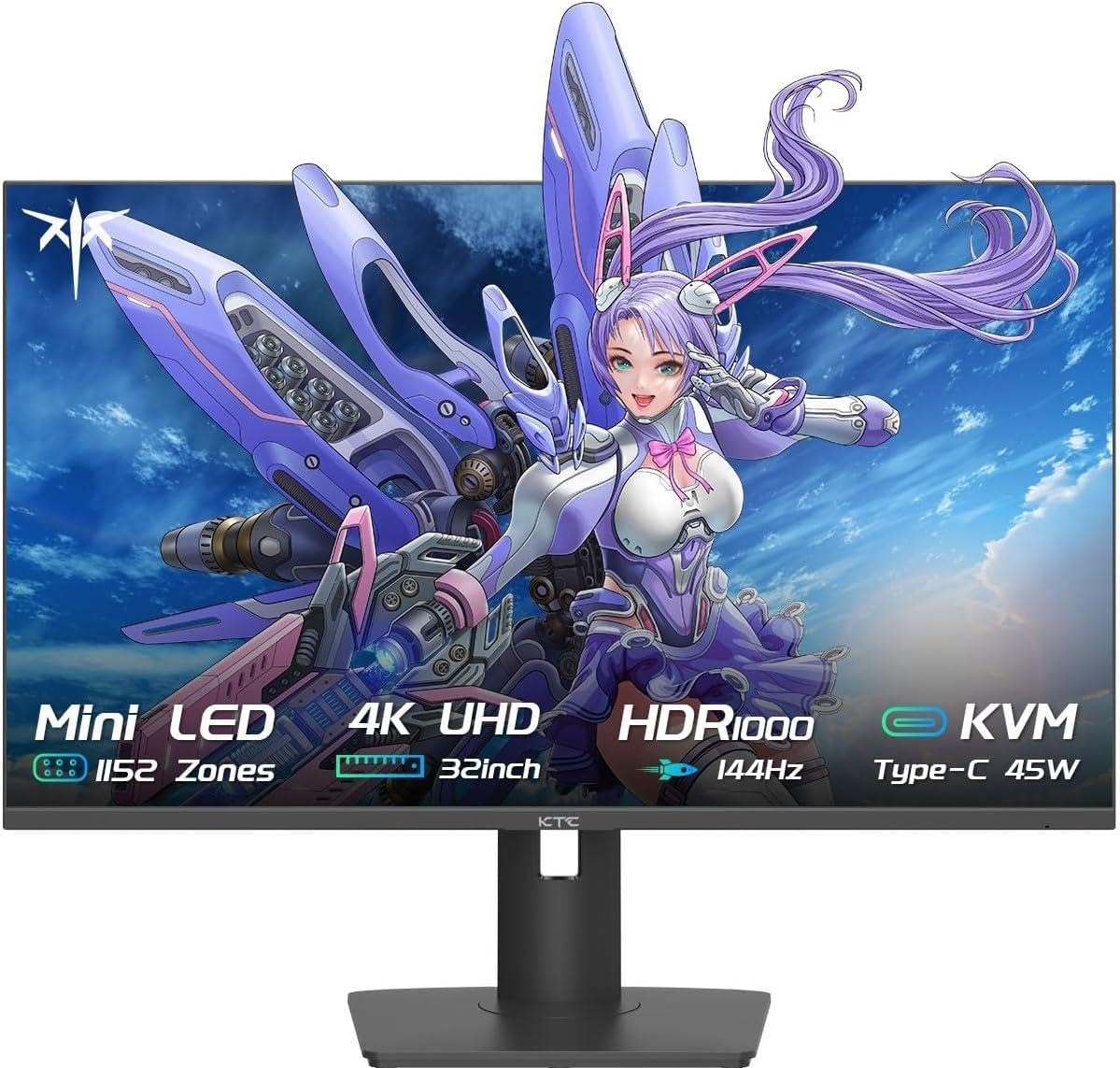
The KTC M32P10 uses a MiniLED backlight with 1152 full-array local dimming zones and 4608 LEDs, delivering strong HDR performance with a 1000-nit peak brightness. The Fast IPS panel covers a wide color gamut and supports 144Hz refresh for smooth playback review and gaming.
Connectivity includes HDMI 2.1, DisplayPort 1.4, and USB-C with 45W power delivery. The monitor supports FreeSync and G-Sync Compatibility, plus VRR and HDR simultaneously. The ergonomic stand offers tilt, swivel, and height adjustment. Quantum Dot technology delivers vibrant color saturation.
MiniLED can exhibit blooming around bright objects on dark backgrounds compared to OLED, and the 45W USB-C power delivery is insufficient for larger laptops. Some users report a bug where the settings menu becomes unresponsive after rest mode. For editors who want a bright HDR monitor for video review and also game at high refresh, this offers strong hybrid value.
Why it’s great
- 1152 MiniLED zones for HDR brightness
- 144Hz refresh with FreeSync and G-Sync
- HDMI 2.1 and Quantum Dot color
Good to know
- MiniLED blooming visible in dark scenes
- Rest mode bug affects menu responsiveness
FAQ
Is 60Hz enough for color grading and video editing?
Do I need an OLED panel for professional video editing?
What is the difference between sRGB and DCI-P3 for video editing?
Do I need hardware calibration or is factory calibration enough?
Final Thoughts: The Verdict
For most users, the 4k monitor for video editing winner is the BenQ PD3225U because it combines IPS Black contrast, Thunderbolt 3 connectivity, and factory-calibrated Delta E ≤ 2 for a professional editing workflow. If you want high-refresh timeline scrubbing, grab the Dell U2725QE. And for HDR grading with true black levels, nothing beats the MSI MPG 321URX QD-OLED.