
Our readers keep the lights on and the weekend projects moving. As an Amazon Associate, I earn from qualifying purchases.
Animators live in the gap between a thought on screen and the hand that draws it. A laggy cursor, a screen that glares back, or a pen that skips a press disrupts the entire flow. Finding a display that erases that gap defines the search for a serious art tablet for animation.
I’m Rikta — the co-founder and writer behind FitlyFast. I’ve spent hundreds of hours comparing pen responsiveness, pressure curves, color gamut specs, and build quality across the current market to separate the real studio tools from the ones that just look good on paper.
Whether you are building a home animation station or need a portable sketch tool for storyboarding on location, this guide compares nine models with a focus on the specific specs that matter most to animators. My goal is to help you find the best art tablet for animation for your specific workflow and budget.
How To Choose The Best Art Tablet For Animation
Choosing an art tablet specifically for animation means looking past general drawing specs. Animators deal with repetitive strokes, precise onion skinning, and long hours staring at a screen. The right tablet reduces hand fatigue, eliminates visual distractions, and matches the frame rate demands of your software.
Pressure Sensitivity and Tilt Response
Animation line art relies on consistent, wobble-free strokes at variable speeds. Higher pressure levels (8192 or 16384) allow finer control over line weight as you transition from a thin construction line to a thicker final ink. Tilt support (60 degrees is standard) lets you shade or fill larger areas using the pen’s side, mimicking a chisel marker. For frame-by-frame animation, low initial activation force (2g or 3g) is critical so the faintest touch registers during light sketching.
Display Quality: Parallax, Glare, and Color Gamut
Parallax — the visible gap between the pen tip and the cursor — destroys accuracy. A fully laminated screen eliminates the air gap, placing the pen tip directly on the LCD layer, effectively reducing parallax to near zero. Anti-glare etched glass reduces reflections from overhead lighting, a common pain during all-night animation dumps. For color-critical work like character design or asset creation for games, look for coverage above 99% sRGB or better yet, 95% DCI-P3, which matches modern display standards.
Screen Size and Portability
Animators working in storyboards or quick sketches benefit from portable 13-inch models they can bring to meetings or coffee shops. Those doing detailed frame-by-frame work or rigging in software like Toon Boom Harmony or Moho find a 15.6-inch or larger screen more comfortable for navigating toolbars without feeling cramped. Weight and thickness also matter — a sub-3-pound device is far easier to carry daily than a 6-pound studio behemoth.
Connectivity and Software Compatibility
Single USB-C connectivity (with DisplayPort Alt Mode) keeps desks cleaner and reduces the chance of cables snagging during a fast edit. Always verify that the tablet supports your specific operating system — some cheaper units have buggy Linux support or lose button function on Chromebooks. Every model should support Adobe Animate, Clip Studio Paint, and Blender out of the box, but double-check forums if you use a niche tool like TVPaint or Moho Debut.
Quick Comparison
On smaller screens, swipe sideways to see the full table.
| Model | Category | Best For | Key Spec | Amazon |
|---|---|---|---|---|
| HUION Kamvas Pro 16 V2 | Premium | Professional Workflow | 16K pressure, 16-inch | Amazon |
| Wacom Cintiq 16 | Premium | Industry Standard | 2.5K resolution, 16-inch | Amazon |
| Xencelabs Pen Display 24 | High-End | Studio Production | 4K UHD, 24-inch | Amazon |
| Wacom MovinkPad 11 | Standalone | On-the-Go Sketching | All-in-one Android | Amazon |
| VEIKK Studio 16 | Mid-Range | Large Mid-Size Canvas | 16K pressure, 15.6-inch | Amazon |
| XPPen Artist 13.3 Pro V2 | Mid-Range | Balanced Features | 16K pressure, dial | Amazon |
| HUION Kamvas 13 Gen 3 | Mid-Range | Portable Premium Feel | PenTech 4.0, dual dial | Amazon |
| XPPen Artist 12 3rd Gen | Value | Entry-Level Screen | 16K pressure, ultra-portable | Amazon |
| XPPen Artist13.3 Pro V2 | Value | Budget Screen & Features | 16K pressure, AG glass | Amazon |
In‑Depth Reviews
1. HUION Kamvas Pro 16 V2

The Kamvas Pro 16 V2 delivers a professional-grade package at a mid-range price point. Its PenTech 4.0 stylus offers 16,384 pressure levels with a low 2g activation force, making feather-light strokes for rough animation keys easily detectable. The 15.6-inch anti-glare Canvas Glass 2.0 screen eliminates the rainbow sparkle effect common on cheaper etched surfaces, keeping your view clean during long shading sessions.
The Smart Touch Bar replaces a traditional scroll wheel, letting you scrub through your timeline or zoom into a tight frame with a simple swipe. Combined with six customizable express keys, it keeps your hand on the canvas and off the keyboard. The ST200 aluminum stand offers six lockable angles from 14.5 to 45 degrees, which helps maintain ergonomic wrist alignment over a full workday.
Color accuracy measures at 120% sRGB and 99% Rec.709, matching the standard for broadcast animation color spaces. The unit is 0.45 inches thick and weighs 2.65 pounds, making it slimmer than the previous Kamvas Pro iterations and easier to fit into a laptop bag for studio-to-home commutes.
Why it’s great
- Industry-leading 16K pressure with 2g activation
- Smart Touch Bar for efficient timeline navigation
- Paper-like anti-glare surface with zero sparkle
- Slim, aluminum stand with multiple angle locks
Good to know
- Screen brightness limited to around 200 nits
- Port side warms up after three hours of use
- 3-in-1 cable required for some setups
2. Wacom Cintiq 16

The Cintiq 16 remains the benchmark that other pen displays are measured against. Its 16-inch IPS panel delivers 2560×1600 resolution, offering noticeably sharper text and UI elements than the standard 1080p found on most competitors. This extra pixel density makes a real difference when reading small tool icons in Blender or navigating complex node graphs in Moho.
The bundled Pro Pen 3 provides 8192 pressure levels with tilt support and three programmable side buttons. The pen holder mounts magnetically to either side of the display and can be angled for quick access. The anti-glare glass has a consistent, fine tooth that resists fingerprints and reduces hotspot glare from overhead studio lights.
Color coverage hits 99% DCI-P3 and 100% sRGB, which covers the gamut needed for most animation pipelines. The Cintiq 16 uses a USB-C connection with DisplayPort Alt Mode or Thunderbolt 3/4, keeping the cable count to one for compatible computers. It lacks dedicated shortcut buttons on the tablet frame, so you will rely on the pen buttons or an external remote to keep your left hand active.
Why it’s great
- Sharp 2.5K resolution for detailed UI visibility
- Pro Pen 3 with excellent initial response
- 100% sRGB and 99% DCI-P3 color accuracy
- Durable, anti-glare surface with minimal sparkle
Good to know
- No on-tablet shortcut keys or express keys
- Pro Pen 3 lacks built-in eraser on tail
- Fold-out legs provide only one angle
3. Xencelabs Pen Display 24

The Xencelabs Pen Display 24 is built for production-level animation studios. Its 24-inch 4K UHD IPS screen offers 3840×2160 resolution, giving you enough real estate to keep your timeline, layers, and brush settings all visible without overlapping your canvas. The Super-AG Etching reduces glare in brightly lit rooms, a common problem for animators working in open-plan office environments.
Xencelabs includes two battery-free pens in the box: a 3-button version with an eraser and a slim minimalist Thin Pen for those who prefer a lighter grip. Both pens operate at 8192 pressure levels with 3g initial activation force. The wireless Quick Keys remote features a small OLED display that shows your current button assignments, and the physical dial can be mapped to zoom, rotation, or brush size.
The color performance is Pantone and SkinTone validated, with 99.43% Adobe RGB coverage and 96.11% DCI-P3. The magnesium alloy back housing acts as a heatsink, keeping the unit silent and cool during heavy 3D rendering sessions. The included tilt stand adjusts from 16 to 72 degrees with one hand, making it easy to switch between drawing and typing poses throughout the day.
Why it’s great
- Massive 4K canvas for complex animation projects
- Two battery-free pens with different ergonomics
- Wireless Quick Keys remote with OLED display
- Pantone validated color accuracy
Good to know
- Power connector feels slightly loose
- Large footprint demands desk space
- Premium price point
4. Wacom MovinkPad 11
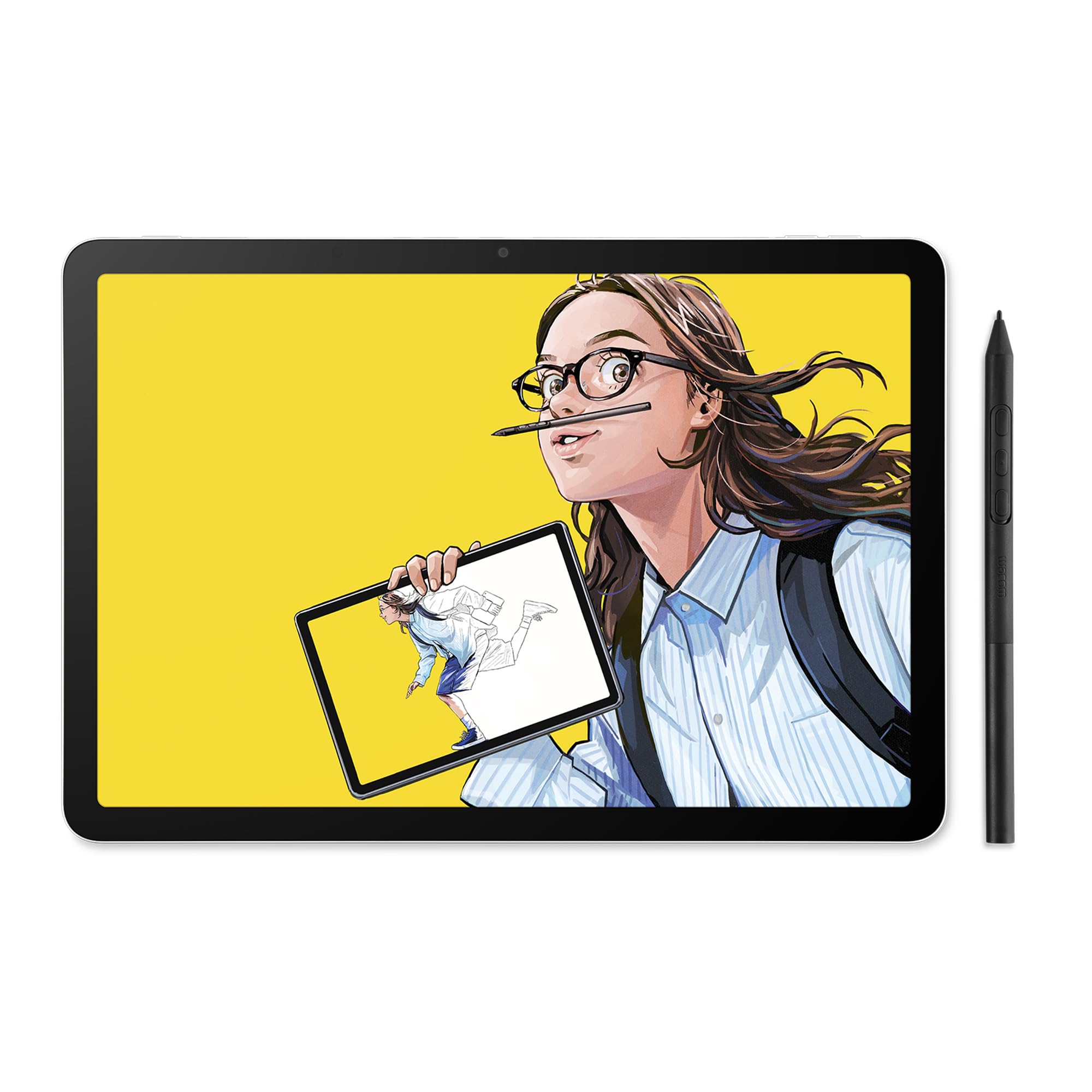
The MovinkPad 11 is a rare standalone drawing tablet that runs Android 14 natively. No computer or laptop is required — you can open Clip Studio Paint Debut (included with a two-year license) or the Wacom Canvas sketching app directly on the device. The anti-glare etched glass screen provides a matte tooth that feels similar to drawing on a premium sketchbook page.
This is a purpose-built tool for animators who sketch storyboards on the go. The Quick Draw feature launches the sketch app instantly when you tap and hold the pen on the locked screen, cutting down the friction between inspiration and the first line. The slim version of Wacom’s Pro Pen 3 delivers 8192 pressure levels and includes three programmable buttons, with replacement nibs stored inside the pen barrel.
At 1.3 pounds, it is lighter than most laptops and fits easily into a messenger bag. The 11-inch screen is compact for a dedicated tablet, but the trade-off is portability. The processor is adequate for 2D sketching but will struggle with heavy filters or effects in full-featured Android art apps. Expect around seven hours of battery life per charge.
Why it’s great
- Fully standalone — no computer required
- Instant sketch launch with Quick Draw
- Lightweight and ultra-portable at 1.3 pounds
- Includes two-year Clip Studio Paint Debut license
Good to know
- Slow processor for complex filters
- No dedicated audio jack
- Touchscreen can be finicky
5. VEIKK Studio 16
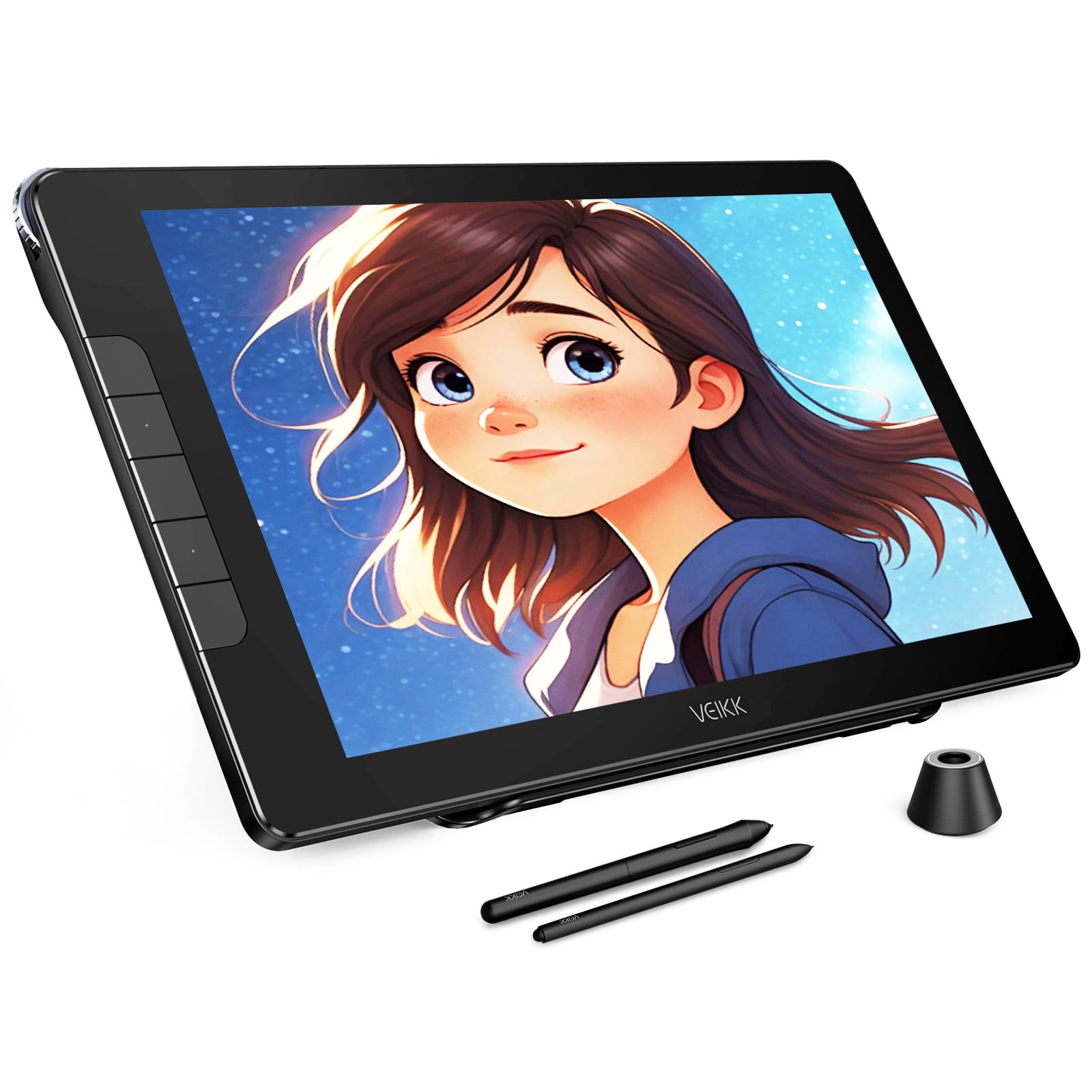
The VEIKK Studio 16 offers a 15.6-inch full HD display with 16K pressure sensitivity at a price that undercuts most 13-inch competitors. The fully laminated anti-glare glass and anti-fingerprint coating keep the surface clear and reduce eye fatigue. It includes two battery-free pens — a slim model and a standard-size model — so you can choose based on grip preference.
The aerospace-grade aluminum dial provides precise control for zooming and adjusting brush sizes. Five customizable hotkeys sit next to the dial, which is enough for core shortcuts like undo, redo, and layer toggle without overwhelming beginners. The included adjustable S100 stand elevates the display to a comfortable 20-degree angle for desk use.
Color coverage reaches 125% sRGB, and the 178-degree viewing angle ensures colors remain consistent even if you tilt the display. Setup is simple with a single USB-C to C cable for compatible laptops, and the VESA mount pattern on the back offers the option of a monitor arm or wall mount for a cleaner studio layout.
Why it’s great
- Large 15.6-inch screen at a budget-friendly price
- Two battery-free pens for different grips
- Smooth aluminum control dial
- VESA mount compatible for custom setups
Good to know
- Some users report cursor jumping after months of use
- Software compatibility needs checking
- 3-in-1 cable included, but Type-C to Type-C preferred
6. XPPen Artist 13.3 Pro V2

The Artist 13.3 Pro V2 is powered by the X3 Pro Smart Chip, delivering industry-first 16K pressure sensitivity with a 0.4mm center accuracy. The fully laminated display eliminates parallax and ships with a pre-applied anti-glare film for a paper-like drawing resistance. The 13.3-inch screen hits 95% DCI-P3 and 99% sRGB, making it a strong option for colorists who need wide gamut coverage.
The distinctive red dial roller gives you one-handed control over canvas zoom, brush rotation, and undo functions. Eight customizable express keys sit on the left side of the display, giving you quick access to your most-used tools. The metal back panel dissipates heat faster than plastic, keeping the display cool during marathon frame-by-frame sessions.
The tablet supports dual-mode: Pen Display mode for direct drawing, or Pen Tablet mode with the screen turned off to save laptop battery and reduce neck strain when used as a standard black pad. The package includes a foldable stand, a glove, and a cleaning cloth. A full-featured USB-C cable is included for single-cable connection to compatible devices.
Why it’s great
- First 16K pressure in this price bracket
- 95% DCI-P3 color gamut coverage
- Metal backing for better heat management
- Dual Pen Display and Pen Tablet modes
Good to know
- Button function fails on Chromebook without driver
- 3-in-1 cable needed for non-USB-C devices
- Anti-glare film may scratch under heavy use
7. HUION Kamvas 13 Gen 3

The Kamvas 13 Gen 3 combines a 13.3-inch fully laminated screen with the new Canvas Glass 2.0, which reduces glare significantly without adding the rainbow sparkle effect found on some AG films. PenTech 4.0 drives the PW600L pen to 16,384 pressure levels with a 2g initial activation force, making it one of the most responsive pens in the 13-inch category. The 60-degree tilt support adds natural shading capability.
This model introduces dual dial buttons for brush size and canvas rotation, plus five programmable express keys. The dual dial saves time during animation work where you constantly switch between zoom and timeline scrub. The ST300 adjustable stand provides six different angles for ergonomic positioning, and the 3-in-1 cable setup keeps the desk tidy.
Color accuracy is factory calibrated to an average Delta E of less than 1.5, with 99% sRGB and Rec.709 coverage. This makes the Kamvas 13 Gen 3 a reliable choice for animators who need consistent color output for video exports. The unit is two pounds, so it travels well in a backpack alongside a laptop.
Why it’s great
- Canvas Glass 2.0 with minimal sparkle and glare
- Dual dial for efficient timeline and brush control
- 16K PenTech 4.0 with low 2g activation force
- Factory calibrated Delta E < 1.5
Good to know
- Screen brightness is around 200 nits
- Buttons not fully functional on Linux
- Not touch compatible
8. XPPen Artist 12 3rd Gen
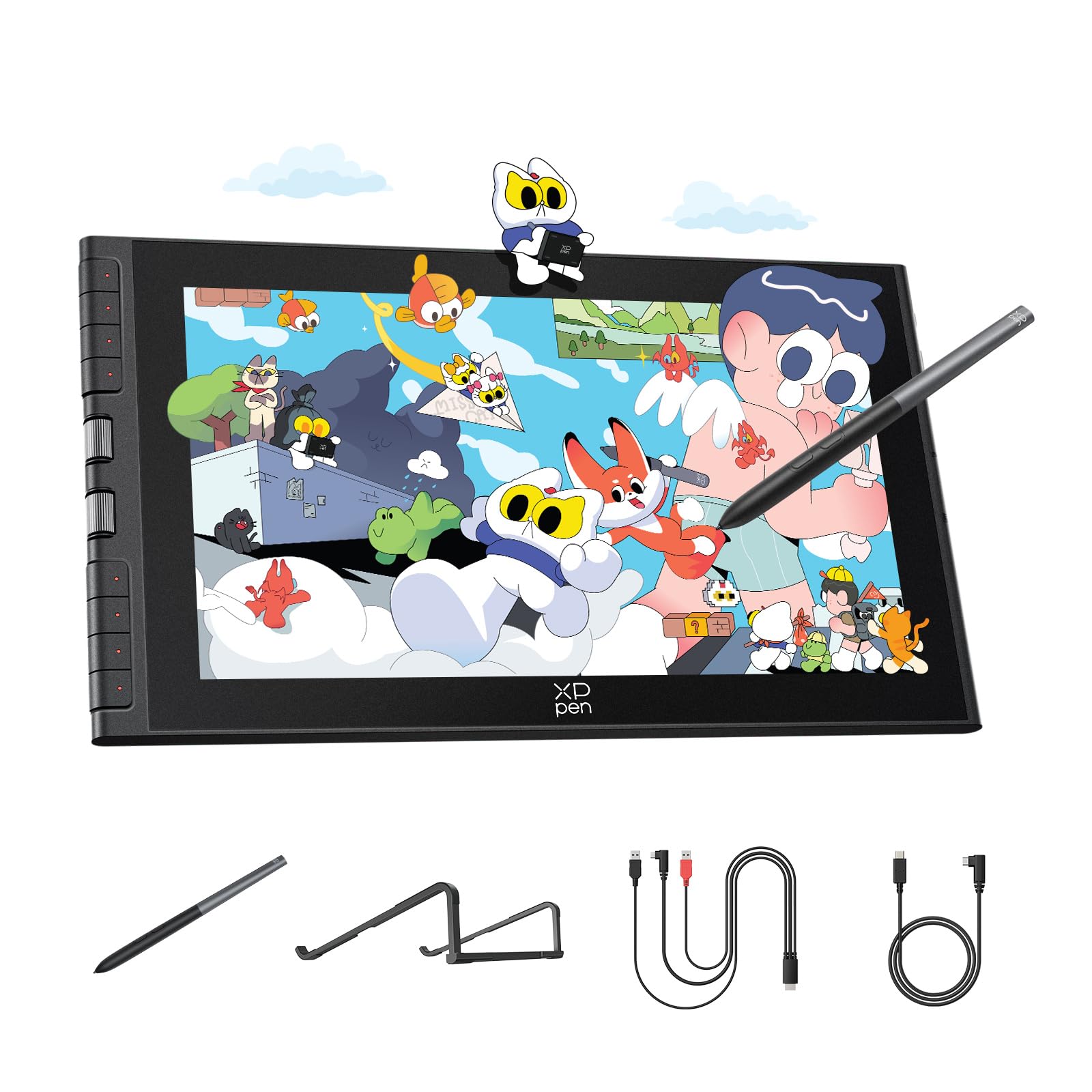
The Artist 12 3rd Gen packs a fully laminated 11.9-inch display into a frame weighing just 1.58 pounds. It is the most portable pen display in this lineup, designed specifically for animators who draw in cafes or move between classrooms and home desks. The AG etched glass reduces 85% of glare and resists fingerprints, keeping the surface clean during touch-and-draw sessions.
The revolutionary X-Dial wheels give you two independent scroll controls for brush size and canvas zoom, saving significant time compared to keyboard shortcuts. Eight customizable express keys on the side help you map your most-used animation commands. The X4 pen delivers 16K pressure sensitivity with 60-degree tilt support and a 2g activation force, which matches the response of much more expensive pens.
The display is factory pre-calibrated to 99% sRGB with a Delta E of less than 1.5. It connects via a single USB-C cable to most modern laptops and is compatible with Windows, macOS, Android, ChromeOS, and Linux. The included foldable stand provides a 20-degree ergonomic angle, and the magnetic pen holder keeps the X4 pen from rolling off your desk during a fast coffee break.
Why it’s great
- Extremely portable at 1.58 pounds
- Dual X-Dial wheels for efficient workflow
- 16K pressure X4 pen with magnetic storage
- AG etched glass resists glare and fingerprints
Good to know
- Small 11.9-inch screen can feel cramped for heavy UI
- Requires firmware update for full button function
- 3-in-1 cable needed for older computers
9. XPPen Artist13.3 Pro V2 (Budget)

This version of the XPPen Artist 13.3 Pro V2 offers the same 13.3-inch full-laminated screen and X3 Pro smart chip as its counterpart but at a more entry-level price. The 16K pressure stylus with 60-degree tilt response works well for frame-by-frame inking and rough storyboard sketching where line consistency matters more than heavy color management.
The Red Dial Quick Key and eight customizable express keys mirror the premium model exactly, giving beginners the same shortcut control that experienced users rely on. The AC42 adjustable stand provides stability for tablets up to 13.3 inches and folds flat for transport. The driver interface has been simplified for first-time tablet owners, with easy access to brightness, contrast, and color temperature sliders.
Color gamut coverage hits 125% sRGB area ratio with 99% sRGB coverage and 95% DCI-P3. The 250 cd/m² brightness is higher than many competing 13-inch displays, making it easier to see fine details in brighter rooms. The package includes a glove, cleaning cloth, and eight replacement nibs.
Why it’s great
- 16K pressure from the X3 Pro chip at a low entry price
- Red Dial and eight express keys for full shortcut access
- High 250 cd/m² brightness for bright environments
- Beginner-friendly simplified driver setup
Good to know
- Pen may scratch the screen without protector
- Driver issues reported on some Windows systems
- Some units stop displaying after computer sleep mode
FAQ
Can I use an art tablet for animation with Linux?
What is the ideal screen size for frame-by-frame animation?
Do I need 16K pressure sensitivity for animation?
Is it worth paying more for a standalone tablet like the MovinkPad?
How important is anti-glare glass for animation work?
Final Thoughts: The Verdict
For most users, the best art tablet for animation winner is the HUION Kamvas Pro 16 V2 because it combines 16K PenTech 4.0 responsiveness, a large 15.6-inch anti-glare screen, and the innovative Smart Touch Bar at a mid-range price that beats most competitors on value. If you want the sharpest 2.5K resolution and the Wacom ecosystem, grab the Wacom Cintiq 16. And for mobile storyboard artists who need a standalone device, nothing beats the Wacom MovinkPad 11 for true on-the-go sketching.