
Our readers keep the lights on and the weekend projects moving. As an Amazon Associate, I earn from qualifying purchases.
The leap from paper to a digital canvas can feel like you’ve lost the muscle memory you spent years building — that hollow, hovering sensation when your hand has no feedback is the first barrier every beginner faces. A good beginner art tablet solves this by giving you a surface that rewards your natural hand pressure and line weight without demanding you learn a new language of menus and drivers first.
I’m Rikta — the co-founder and writer behind FitlyFast. I’ve spent years dissecting the hardware specifications of drawing tablets, from active area ratios and pressure sensitivity curves to driver compatibility across operating systems, so you don’t have to sort through the noise yourself.
This guide breaks down the seven strongest options for new digital artists, comparing active area dimensions, battery-free pen reliability, shortcut key layouts, and cross-platform support so you can match a tablet to your actual workspace and creative goals with beginner art tablet that actually fits your hand.
How To Choose The Best Beginner Art Tablet
Every new digital artist faces the same fork in the road: a pen tablet (no screen, lower cost, steeper eye-hand coordination curve) versus a pen display (built-in screen, higher cost, feels closer to paper). For most beginners, a pen tablet is the faster route to skill development because it forces you to focus on stroke quality without the distraction of a bright display, and it leaves budget for a better stylus and a larger active area.
Active Area — The Single Most Important Spec
The active area is the actual surface your pen tracks on. Tiny tablets (6 x 3.7 inches) are portable but cause cramped hand positions that trigger early fatigue and sloppy lines. A surface around or above 10 x 6 inches gives your wrist and forearm enough room for natural shoulder-driven strokes, which is how real drawing motion works. Entry-level tablets under 8 inches diagonal are fine for note-taking but frustrating for any art requiring sweeping linework.
Battery-Free vs. Charged Stylus Discipline
A stylus that never needs charging eliminates the single biggest interruption to a beginner’s practice session. Battery-free pens (standard in Wacom, Huion, and XP-Pen models) also tend to weigh less and feel more balanced than pens containing a battery. The trade-off is that battery-free pens usually have fewer side buttons and lower maximum pressure sensitivity ranges, though 8192 levels is already more than most traditional artists ever needed.
Customizable Shortcuts — Real Speed Gains After Week One
Every hundredth of a second you save reaching for the keyboard adds up over a three-hour session. Look for at least six programmable express keys positioned on the side of the tablet where your non-dominant hand rests. Scroll wheels and touch strips are nice extras but often require breaking your focus to locate by feel — physical keys with distinct shapes you can learn by touch are more beginner-friendly.
Quick Comparison
On smaller screens, swipe sideways to see the full table.
| Model | Category | Best For | Key Spec | Amazon |
|---|---|---|---|---|
| Wacom Intuos Small BT | Pen Tablet | Brand reliability & Bluetooth | 6 x 3.7 inches active area | Amazon |
| HUION Inspiroy H1161 | Pen Tablet | Large area & touch strip | 11 x 6.87 inches active area | Amazon |
| UGEE UE12 | Pen Display | Screen drawing on a budget | Full-laminated 11.6-inch 1080p | Amazon |
| XP-Pen Deco 01 V3 (10×6) | Pen Tablet | 16384 pressure & tilt | 10 x 6.25 inches active area | Amazon |
| XP-Pen Deco 01 V3 (Pink) | Pen Tablet | Same specs, color option | 10 x 6.25 inches active area | Amazon |
| HUION Inspiroy 2 Small | Pen Tablet | Ultra-portable & scroll wheel | 6.3 x 3.9 inches active area | Amazon |
| UGEE M708 V3 | Pen Tablet | Largest area, lowest cost | 10 x 6 inches active area | Amazon |
In‑Depth Reviews
1. Wacom Intuos Small Bluetooth Graphics Drawing Tablet

Wacom’s EMR (Electro-Magnetic Resonance) technology remains the gold standard for battery-free pen feel — the Intuos Small delivers that same 4096-level pressure response and zero-lag tracking the brand built its reputation on, but in a compact chassis that fits inside a laptop bag. The active area is only 6 x 3.7 inches, which is tight for full-arm drawing, but the Bluetooth connectivity lets you tuck the tablet away while working on a sofa or in a classroom without USB cable clutter.
The bundled creative software suite (includes Corel Painter Essentials, Clip Studio Paint Pro, and a training library) gives a beginner immediate tools to practice with, which eliminates the first-week paralysis of figuring out what to draw with. The four customizable ExpressKeys are fewer than most competitors, but their physical placement on the top edge is easy to locate by touch, and the battery-free pen requires no charging dock — you simply pick it up and draw.
Where the Intuos Small loses ground is its cramped drawing surface for anyone used to A5 or larger sketchbooks — wrist fatigue sets in faster during longer sessions. The Bluetooth connection also introduces slight line jitter reported by some users, so cable-based use remains smoother for precision linework. This is the pick for brand confidence and software value, not for the largest stroke radius.
Why it’s great
- Industry-leading battery-free EMR pen feel with no charging required
- Bluetooth wireless frees you from USB cable during class or commute
- Includes full creative software suite and online training library
Good to know
- Active area is small (6 x 3.7 inches) — cramped for wide strokes
- Bluetooth can cause line jitter; wired mode is smoother
- Only four ExpressKeys — fewer than most similarly-priced competitors
2. HUION Inspiroy H1161 Graphics Drawing Tablet

With an 11 x 6.87-inch active area, the H1161 offers the largest drawing surface in this roundup without jumping to a screen-based display. That extra real estate means you can execute shoulder-driven arcs and broad cross-hatching without resetting your hand position every few seconds — a major advantage for beginners trying to transfer traditional sketchbook habits onto a digital surface. The PW100 battery-free stylus supports 60 degrees of tilt and 8192 levels of pressure, which reads natural pen angles well for shading.
The programmable touch strip on the left edge replaces a scroll wheel or physical slider for zooming and brush size adjustment, and it works reliably after a short calibration period. The ten physical ExpressKeys on the side are clearly differentiated by shape, so your non-dominant thumb learns the layout within two sessions. The USB-C connection includes an adapter for older devices, and the tablet is compatible with Android 6.0 and above, though Samsung Galaxy phones (outside the Note series) do not show a cursor.
Long-term users praised the H1161 for outlasting their previous Wacom Intuos 4 after two years of daily use, noting that the surface stays smooth and the driver remains stable across Windows and macOS updates. The pen build feels slightly cheaper than the Wacom equivalent — the nib has a small amount of lateral wobble inside the barrel — but at this active area size, the trade-off is clearly worth it for beginners who prioritize stroke freedom over pen build polish.
Why it’s great
- Generous 11 x 6.87-inch active area enables full-arm drawing motion
- Touch strip replaces scroll wheel for intuitive zoom and brush resize
- Battery-free pen with tilt recognition and stable driver support
Good to know
- Pen barrel feels less premium than Wacom; nib has slight wobble
- Samsung Galaxy phones (non-Note) don’t show a cursor
- No Bluetooth — wired USB connection only
3. UGEE UE12 11.6-Inch Drawing Tablet with Screen

The UE12 is the only pen display (built-in screen) in this guide, and it changes the game for beginners who find the disconnect between hand and monitor disorienting. The 11.6-inch full-laminated 1080p panel eliminates parallax — the gap between the glass and the LCD that makes your pen tip appear offset from your stroke — so what you see is exactly where your line lands. The 124% sRGB color gamut covers Adobe RGB and DCI-P3 spaces, which makes it viable for photo editing and illustration work beyond casual doodling.
The battery-free PW600 stylus supports 16384 levels of pressure and 60-degree tilt, which produces smooth taper in calligraphy and charcoal-style shading without the jagged stepping common in lower-resolution pens. The eight shortcut keys on the side have a concave-convex texture that your fingers can identify without looking, and the dual USB-C ports support blind plug insertion — you don’t have to flip the cable three times before it fits. The included 3-in-1 cable routes power, video, and data through a single connection to your computer.
Linux users should note that driver support currently works only under X11, not Wayland, as of early 2026 firmware. The pen nibs are on the softer side — artists with a heavy hand may need replacements within a year. Some units exhibit a faint buzzing sound near the power port, but it is barely audible with headphones or ambient room noise. This is the premium option for beginners who need to see their marks appear directly under their hand.
Why it’s great
- Full-laminated screen eliminates parallax — lines land where you look
- 124% sRGB with Adobe RGB and DCI-P3 modes for color-accurate work
- Battery-free stylus with 16K pressure and tilt for natural line variation
Good to know
- Linux driver only works under X11, not Wayland
- Pen nibs are soft and wear faster for heavy-handed users
- Some units report faint buzzing from the power port area
4. XP-Pen Updated Deco 01 V3 Drawing Tablet (10×6)

The Deco 01 V3 hits an impressive balance between pressure precision and active area size for the mid-range segment. The X3 Smart Chip stylus delivers 16384 pressure levels with 60-degree tilt, and in practice, it translates light feather strokes into finer detail lines than most 8192-level pens can manage without post-processing smoothing. The 10 x 6.25-inch surface is roomy enough for forearm-driven work while still fitting comfortably into a backpack alongside a 15-inch laptop.
The eight programmable ExpressKeys are arrayed in a clean row on the left side, and the included protective film gives the drawing surface a paper-like texture that reduces the slick, glassy feeling that makes some new users overcompensate with pressure. The USB-C to USB-C connection works directly with Android 10.0 and above, and the bundled adapters cover USB-A host devices without dongle hunting. Linux users report plug-and-play operation with OpenTabletDriver for full customization.
Customer feedback highlights that the Deco 01 V3 feels significantly more consistent in pressure sensitivity than the older Bamboo and Intuos Small models it often replaces. The one cable solution keeps setup clean, though the Android compatibility is best treated as a secondary feature — screen mapping on non-tablet Android phones can be finicky, and the tablet is most reliable when paired with a Windows or macOS machine for art software like Clip Studio Paint or Krita.
Why it’s great
- 16384 pressure levels with tilt produce finer detail control
- 10 x 6.25-inch area is large enough for natural strokes, small enough for travel
- Linux works out-of-box with OpenTabletDriver for customization
Good to know
- Android mapping can be inconsistent on phones without tablet-sized screens
- Protective film may show minor scratches over time — apply carefully
- No Bluetooth — wired USB-C connection only
5. XP-Pen Deco 01 V3 Drawing Tablet (Pink)

This is functionally the same Deco 01 V3 hardware as the previous entry — same 10 x 6.25-inch active area, same X3 Smart Chip with 16384 pressure levels and 60-degree tilt, same eight customizable ExpressKeys — but offered in a pink chassis that avoids the sea of identical black tablets. The 220 report rate (PPS) is explicitly marketed for OSU gameplay, which translates to lower input latency during rapid successive taps in drawing applications as well.
The ambidextrous layout works for left-handed users after remapping the ExpressKeys, and the edge-backlit surface makes the active area boundaries visible in dim lighting conditions — a small but useful quality for sketching at night without a desk lamp. The 8mm ultra-slim profile slides easily into a laptop sleeve, and the included protective film and artist glove reduce friction drag during long sessions.
Professional artists in customer reviews have replaced their Wacom Intuos Pro units with this Deco 01 V3, citing more consistent pressure response and a sturdier build that doesn’t creak or flex under hand weight. The vertical orientation of the pen holder (upright cup design) may feel cluttered to some users who prefer the horizontal tray style found in other brands. If you want the exact same technical performance as the standard black Deco 01 V3 but with a distinct visual identity, this is the version to choose.
Why it’s great
- Same excellent 16384 pressure and tilt performance as the standard V3
- Pink finish stands out from the usual black tablet options
- 220 report rate minimizes input lag for fast strokes and OSU gameplay
Good to know
- Upright pen holder can feel cluttered on a small desk
- Identical specs to the standard model — purely a color choice
- No Bluetooth — wired connection remains the only option
6. HUION Inspiroy 2 Small Drawing Tablet

The Inspiroy 2 Small packs a surprisingly premium set of features into a 6.3 x 3.9-inch frame that weighs 275 grams — lighter than many laptops and small enough to slip into the front pocket of a backpack. The PenTech 3.0 stylus offers improved precision over the previous generation, with reduced cursor jitter and wobble that makes fine linework feel more predictable than older budget Huion pens. The physical scroll wheel is a rare find at this size, giving you fast zoom and canvas rotation without reaching for the keyboard.
The six programmable press keys on the left side are customisable per app through Huion’s driver software, and the battery-free pen ships with ten replacement nibs inside the holder. USB-C connectivity with an included OTG adapter means it works with Android smartphones running OS 6.0 or later, as well as Windows, macOS, Chrome OS, and Linux. Left-handed users can flip the tablet orientation and remap the keys through the driver.
The compact active area is the limiting factor here — it feels closer to a large trackpad than a sketchbook, and users transitioning from A5 notebooks will find themselves resetting their hand position frequently. The rubber stoppers on the bottom are small and may slide on polished desks. This tablet is best suited for beginners who primarily need note-taking, annotation, or light sketching on the go, rather than expansive canvas work.
Why it’s great
- Extremely lightweight (275g) and compact — ideal for daily carry
- Physical scroll wheel is rare at this size for fast zoom and navigation
- PenTech 3.0 stylus reduces wobble vs. older budget Huion pens
Good to know
- Small active area requires frequent hand repositioning for full strokes
- Rubber feet are small and may slide on smooth surfaces
- Not suitable for broad canvas art — best for notes and quick sketches
7. UGEE M708 V3 Large Drawing Tablet
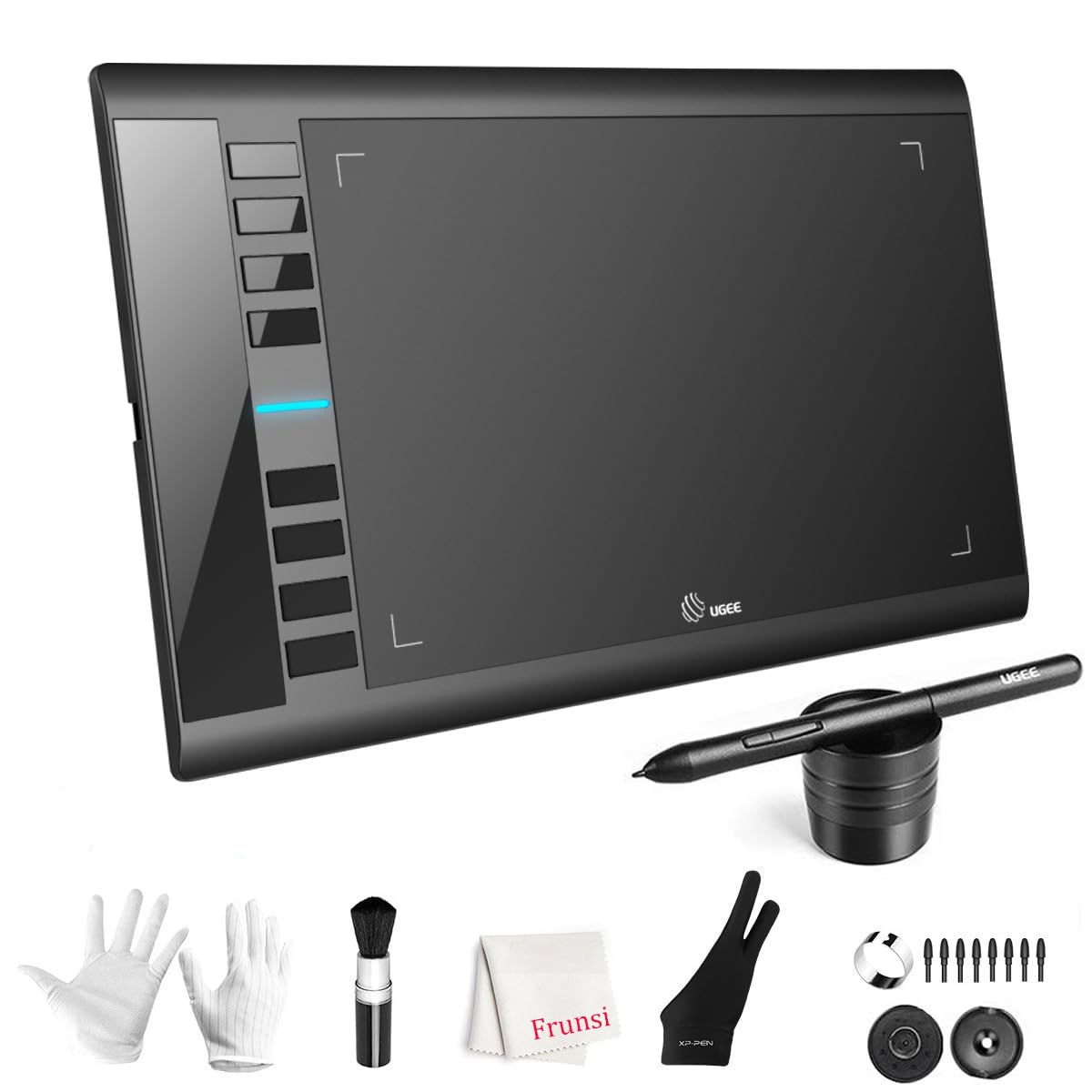
The M708 V3 delivers the largest active area (10 x 6 inches) at the lowest entry cost in this guide, making it the default recommendation for beginners who want maximum stroke room without spending more. The paper-like textured surface provides tactile feedback that feels closer to a traditional sketchpad than the slick glass of many competitors, which helps new users gauge pressure more naturally. The 16384-level passive stylus reads well across the full area with no noticeable dead zones near the edges.
The eight customizable ExpressKeys on the left side are clearly labeled and responsive, and the included accessory kit (glove, pen holder, USB-C adapter, and replacement nibs) covers the essentials without extra purchases. The USB to USB-C connectivity is straightforward, and the tablet works out of box with Windows 7 and above, macOS 10.10 and above, Android 10.0 and above, Chrome OS 88 and above, and Linux. The 60-degree tilt support is a welcome addition at this budget tier, offering shading control usually reserved for more expensive models.
Customer feedback notes that the stylus detection distance is short — you need to hover very close to the surface for the cursor to register, which has a learning curve for beginners who are used to hovering higher. The included manual is sparse, but the driver software from UGEE handles the heavy lifting. For budget-conscious beginners who need a large drawing area above all else, the M708 V3 is a straightforward, no-frills workhorse.
Why it’s great
- 10 x 6-inch active area is the largest for the lowest cost here
- Paper-like textured surface gives tactile feedback for pressure control
- Includes glove, nibs, and USB-C adapter — no hidden extras needed
Good to know
- Stylus detection distance is short — requires close hover to register
- Manual is sparse; driver setup is straightforward but not guided
- No Bluetooth or scroll wheel — basic wired-only experience
FAQ
Should a beginner buy a pen tablet or a pen display?
What is the difference between a battery-free stylus and a charged stylus?
How important are express keys for a beginner?
Can I use an art tablet with my Android phone or tablet?
Does Linux support drawing tablets well?
Final Thoughts: The Verdict
For most users, the beginner art tablet winner is the Wacom Intuos Small Bluetooth because it combines the most reliable battery-free pen technology with a bundled software library and wireless freedom that removes every friction point for a new artist. If you want the largest possible active area without spending on a screen, grab the UGEE M708 V3. And for a direct pen-on-screen experience that eliminates the hand-eye disconnect, nothing beats the UGEE UE12 pen display at this price.