
Our readers keep the lights on and the weekend projects moving. As an Amazon Associate, I earn from qualifying purchases.
The single hardest part of starting digital art isn’t learning layers or mastering shading—it’s picking a tablet that won’t fight you. A skipping cursor, a pen that needs constant charging, or a drawing surface smaller than your phone are the real barriers that kill motivation before you ever finish a sketch. The right beginner tablet removes all those frustrations and lets muscle memory take over.
I’m Rikta — the co-founder and writer behind FitlyFast. I’ve spent hundreds of hours analyzing pressure sensitivity levels, active area dimensions, driver ecosystem stability, and real-world compatibility reports across the entire beginner drawing tablet market to find the models that genuinely remove friction for new artists.
Whether you’re sketching on a Chromebook, learning animation in Krita, or taking digital notes on an Android phone, the best beginner drawing tablet feels natural from the first stroke, not like fighting a machine to make a straight line.
How To Choose The Best Beginner Drawing Tablet
The beginner drawing tablet market is packed with options that look identical on paper but feel completely different under your hand. Three factors separate the tablets you’ll love from the ones that end up in a drawer after a week.
Active Area vs. Desk Space
A 10×6 inch active area lets you draw using your whole arm instead of just your wrist, producing smoother lines and reducing hand fatigue. However, that same size may crowd your keyboard if you have a small desk. Measure your workspace before committing. A 6×4 inch area is more portable and works fine for casual sketching and note-taking, but feels restrictive for detailed illustration.
Pressure Sensitivity: Is 16K Overkill for Beginners?
8192 levels of pressure is the modern baseline and delivers more than enough nuance for a beginner to learn line weight control. The newer 16384 levels offer finer gradation, which helps when you’re doing ultra-light sketching or painting. Both are valid for learning—the difference becomes relevant only after you’ve developed a consistent hand. Battery-free EMR pens are non-negotiable; a pen that needs charging defeats the purpose of a grab-and-go tool.
Driver Stability and Cross-Platform Support
The most technically impressive tablet is useless if the driver crashes mid-sketch. Check that the tablet natively supports your operating system (Windows, macOS, Android, ChromeOS, Linux). Some brands have strong Linux support through open-source drivers like OpenTabletDriver, while others limit advanced features (button mapping, tilt) to Windows and macOS only. Beginners on Chromebooks or Android phones should prioritize models with confirmed compatibility reports.
Quick Comparison
On smaller screens, swipe sideways to see the full table.
| Model | Category | Best For | Key Spec | Amazon |
|---|---|---|---|---|
| XP‑Pen Artist 12 3rd | Display Tablet | Direct‑on‑screen drawing | 11.9″ screen, 16K pressure | Amazon |
| HUION Inspiroy 2 Large | Pen Tablet | Full‑arm movement drawing | 10.5×6.56″ area, 3‑set keys | Amazon |
| XP‑Pen Deco 01 V3 (16K) | Pen Tablet | Budget 16K pressure experience | 10×6.25″, 16,384 pressure levels | Amazon |
| XP‑Pen Deco 01 V3 (16K) | Pen Tablet | Entry‑level 16K at low cost | 10×6.25″, 16K, USB‑C | Amazon |
| HUION HS610 | Pen Tablet | Tilt‑sensitive sketching | 10×6.25″, ±60° tilt | Amazon |
| HUION Inspiroy 2 Small | Pen Tablet | Ultra‑portable carry | 6.3×3.9″, scroll wheel | Amazon |
| GAOMON M10K | Pen Tablet | Large area at low price | 10×6.25″, touch ring | Amazon |
In‑Depth Reviews
1. XPPen Artist 12 3rd
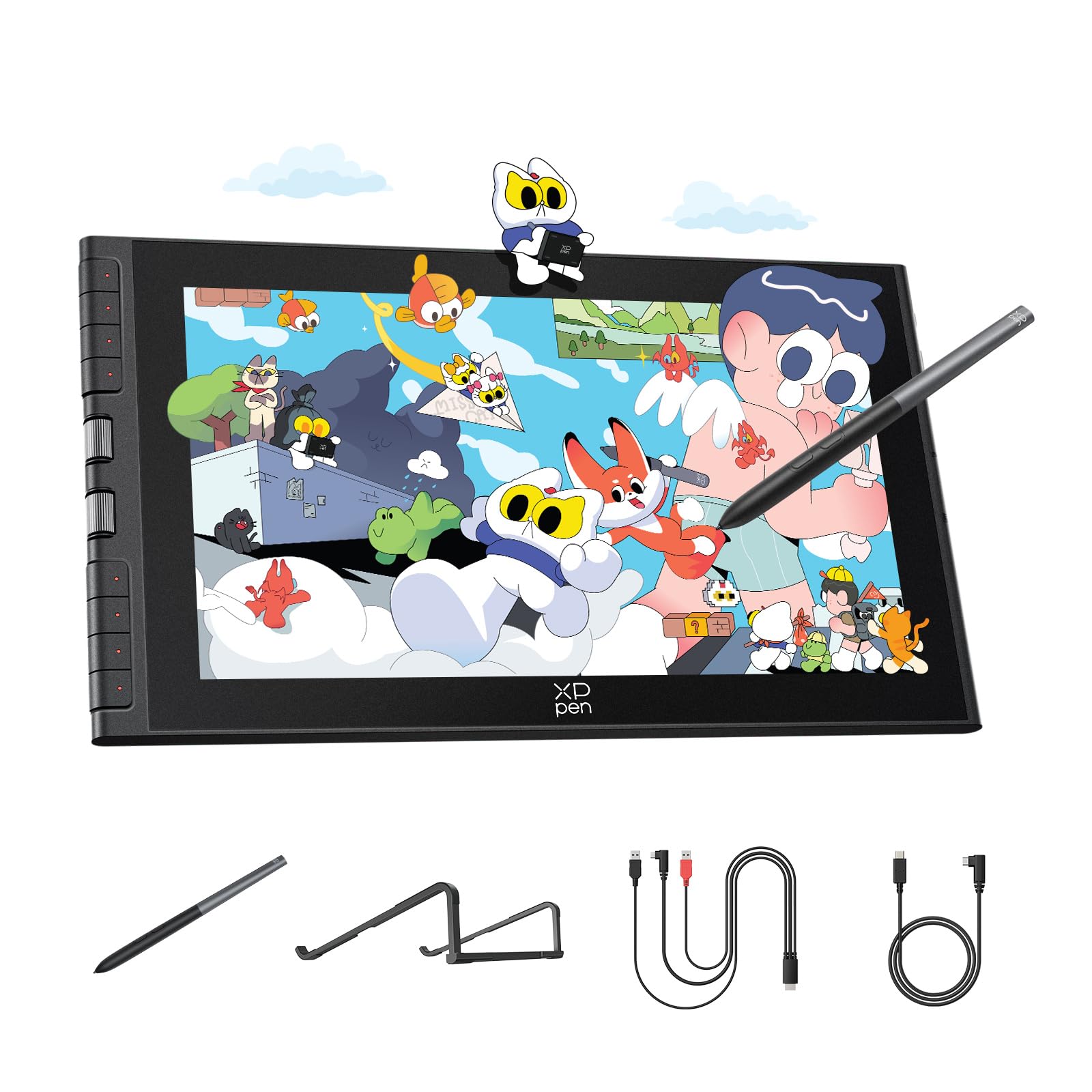
The Artist 12 3rd is a screen tablet that eliminates the hand-eye disconnect beginners often struggle with. Its 11.9-inch AG etched glass display cuts glare by 85% and keeps fingerprints to a minimum, making long sessions comfortable. The factory calibration delivers 99% sRGB and ΔE<1.5 color accuracy, so what you see is what you get out of the box—no manual tweaking.
The magnetic X4 pen offers 16,384 pressure levels and 60-degree tilt support with a mere 2g initial activation force, letting you lay down feather-light shading lines without jitter. Dual X-Dial wheels and eight customizable keys reduce menu navigation time significantly, and the foldable stand provides a 20-degree ergonomic angle that relieves neck strain.
Connectivity is handled by a single USB-C cable or a 3-in-1 interface, keeping your workspace clean. The tablet works across Windows, macOS, Android, ChromeOS, and Linux, though full button functionality on Android and Chromebook may require a firmware update from a Windows or Mac machine first. Young artists on Krita or Clip Studio Paint will find the driver integration stable and responsive.
Why it’s great
- Full-laminated display with nearly zero parallax between pen tip and cursor
- Magnetic pen attachment prevents losing the stylus during travel
- Factory color calibration saves setup time for color-critical work
Good to know
- Firmware update required for full Android/Chromebook button support
- Premium price compared to screenless pen tablets
2. HUION Inspiroy 2 Large

The Inspiroy 2 Large offers one of the most generous active areas in this segment at 10.5 x 6.56 inches, allowing full-arm drawing motion that produces naturally flowing lines. The PenTech 3.0 stylus PW110 delivers lag-free tracking with a slimmer body and soft silicone grip that reduces hand fatigue during extended sessions. No batteries or charging required for the pen—grab and draw.
Three sets of eight programmable press keys plus a scroll wheel give you macro-level control across different apps without digging through menus. The scroll wheel is particularly useful for canvas zooming and brush size adjustment. Setup is straightforward: plug in the USB-C cable, install the driver, and you’re drawing within minutes. It works with Windows, macOS, Linux, and Android 6.0+ devices.
Several users noted that the Huion software can be quirky—tablet orientation doesn’t mirror in the UI, and some changes require reconnecting the tablet. The connection uses a Micro B port rather than USB-C, which limits cord orientation. Despite these quirks, the build feels solid, the surface texture offers pleasant paper-like resistance, and the price makes it an attractive mid-range option.
Why it’s great
- Large active area encourages full-arm drawing for smoother strokes
- Three sets of shortcut keys handle separate app profiles
- Battery-free PW110 stylus with soft silicone grip
Good to know
- Micro B port instead of USB-C restricts cable orientation
- Driver software has UI quirks that may annoy advanced users
3. XPPen Deco 01 V3 (16K)

The Deco 01 V3 brings 16,384 levels of pressure sensitivity and a 220Hz report rate into a price range typically reserved for 8192-level tablets. The X3 Smart Chip stylus delivers 60-degree tilt support with virtually no lag or stroke distortion, making it a phenomenal tool for learning natural shading and hatching techniques. The 10 x 6.25-inch active area is 20% larger than entry-level models.
Eight ambidextrous shortcut keys reduce menu navigation by an estimated 40%, and the edge-backlit surface makes late-night sketching possible without an extra desk lamp. The battery-free pen never needs charging, eliminating the “forgot to charge” anxiety common with active styluses. The USB-C to USB-C connectivity includes adapters for older devices, and the included protective film and glove add value.
Linux users report plug-and-play functionality with OpenTabletDriver for full button mapping and pressure sensitivity customization. The pen holder stores extra nibs and keeps the stylus upright, though some find it clutter-prone. A few users noted that the large size may feel overwhelming for complete beginners with limited desk space, but the generous drawing area pays off during extended illustration sessions.
Why it’s great
- 16,384 pressure levels at a fraction of what display tablets cost
- 220Hz report rate ensures smooth, responsive linework
- Excellent Linux support via OpenTabletDriver
Good to know
- Large size may crowd small desks or tight backpacks
- Pen holder takes up desk space
4. XPPen Deco 01 V3 (16K)

This variant of the Deco 01 V3 offers the same 16,384 pressure levels and 60-degree tilt support, making it a strong contender for budget-conscious beginners who still want top-tier pen precision. The 10 x 6.25-inch drawing surface feels spacious without overwhelming a standard desk setup, and the 8mm thin profile slides easily into a backpack for dorm-to-studio mobility.
The setup process is genuinely beginner-friendly: connect the USB-C cable, install the driver, and start drawing. Android device support (version 10.0 and above) includes the XPPen Tools app for accurate screen mapping across different aspect ratios. The package includes a stylus stand, 10 replacement nibs, a glove, and a protective film, giving new artists everything they need to start creating without additional purchases.
Reviewers consistently praise the consistent pressure sensitivity compared to older Wacom Intuos models at higher price points. The shortcut keys and pen side buttons are programmable and respond well. A minority of units may have connection quirks, but replacements are generally straightforward. For a beginner who wants 16K pressure without paying a premium, this is the entry point.
Why it’s great
- 16384 pressure levels at a truly entry-level price
- Complete accessory package includes nibs, glove, and protective film
- Easy Android integration with XPPen Tools app
Good to know
- Some units may have sporadic disconnection issues
- Large drawing space reduces portability
5. HUION HS610

The HS610 delivers 8192 levels of pressure sensitivity with ±60° tilt support, which is a rare feature at this price point. The tilt function mimics the natural angle of a pencil, allowing you to shade by rotating the pen rather than adjusting pressure alone. This makes it an excellent training tool for artists transitioning from traditional media to digital.
A multifunctional touch ring lets you zoom, scroll, or adjust brush size without reaching for the keyboard. The 12 customizable press keys are stiff enough to prevent accidental presses but responsive when needed. The PW100 stylus uses electromagnetic resonance technology, so it never needs charging. The 10 x 6.25-inch active area matches the ratio of most monitors, making cursor mapping feel intuitive.
Driver installation can be finicky—some users on Windows 7 required custom support from Huion to get the tablet recognized on older systems. The finish may show scrapes out of the box on returned units, and there is no included protective cover. Once the driver is stable, however, the HS610 performs reliably for months of daily use in Krita, Photoshop, and Clip Studio Paint.
Why it’s great
- ±60° tilt support for natural shading at a low price
- Multifunctional touch ring reduces reliance on keyboard shortcuts
- Battery-free EMR pen with 8192 levels of nuanced pressure
Good to know
- Driver setup can be problematic on older Windows systems
- No protective cover included; finish may show wear quickly
6. HUION Inspiroy 2 Small

The Inspiroy 2 Small is a true travel companion with a 6.3 x 3.9-inch active area that fits on a laptop keyboard deck. Despite the compact dimensions, it packs PenTech 3.0 technology that eliminates noticeable lag and wobble. The PW110 stylus has a slimmer body and soft silicone grip, making it comfortable for prolonged note-taking and quick sketches. The battery-free design means you never hunt for a charger.
A unique scroll wheel and six programmable press keys bring essential shortcuts to your left hand, keeping your workflow uninterrupted. The pink color adds personality, and the USB-C OTG adapter allows direct connection to Android phones and tablets running OS 6.0 or later. It’s also ambidextrous-friendly, with orientation settings in the driver for left-handed users.
The small size means you’ll be drawing mainly from the wrist rather than the arm, which can feel limiting for detailed illustration. The nib wears down faster than on larger models, and the scroll wheel requires a firm push to activate. For beginners who prioritize portability and are willing to trade drawing area for backpack-friendly dimensions, this tablet delivers reliable performance in a tiny footprint.
Why it’s great
- Ultra-portable size fits in laptop bags and on cramped desks
- Scroll wheel and six keys offer convenient one-hand control
- PenTech 3.0 delivers responsive, wobble-free tracking
Good to know
- Small active area limits full-arm drawing technique
- Nib wears faster; scroll wheel requires firm activation
7. GAOMON M10K

The GAOMON M10K offers a 10 x 6.25-inch drawing area with a paper-like texture surface at a price that undercuts most competitors. The AP31 battery-free stylus provides 8192 levels of pressure sensitivity, and the pen’s two side buttons let you toggle between pen and eraser instantly. The surface texture gives genuine pen-on-paper resistance that helps traditional artists feel at home.
Ten programmable press keys and a creative touch ring handle canvas zooming, brush adjustment, and page scrolling. The setup is simple: plug in the USB cable, download the driver from the GAOMON website (uninstall any prior tablet drivers first), and map your shortcuts. It works with Windows 7+, macOS 10.12+, and select Android devices running versions 11 through 14. The included carrying bag and pen sleeve with extra 8 nibs add practical value.
The pen requires a harder press after extended use, which can cause hand fatigue during long sessions. Some users encountered driver conflicts that required using a universal driver package to resolve. The tablet is wired-only—no Bluetooth option. For beginners on a strict budget who want a large active area for note-taking and basic digital art, the M10K delivers more square inches per dollar than almost anything in its tier.
Why it’s great
- Large drawing area with paper-like surface texture at a budget price
- Ten hotkeys plus touch ring for efficient workflow customization
- Comes with carrying bag and extra nibs for long-term use
Good to know
- Pen requires harder press over time, leading to hand fatigue
- Driver conflicts may arise if previous tablet drivers aren’t fully uninstalled
FAQ
Do I need a screen tablet or a pen tablet as a total beginner?
Will a drawing tablet work with my Chromebook or Android phone?
How important is tilt sensitivity for a beginner artist?
Final Thoughts: The Verdict
For most users, the best beginner drawing tablet winner is the XPPen Artist 12 3rd because it removes the hand-eye disconnect with its direct-on-screen display while keeping pressure sensitivity at a professional 16,384 levels. If you want a massive canvas for full-arm drawing without a display, grab the HUION Inspiroy 2 Large. And for budget-minded students who need 16K pressure at the lowest possible entry point, nothing beats the XPPen Deco 01 V3.