
Our readers keep the lights on and the weekend projects moving. As an Amazon Associate, I earn from qualifying purchases.
Specs are compiled from manufacturer listings and verified buyer reviews and can change over time — please confirm the key details on the product page before buying.
Staring at a fuzzy 1080p screen while you try to align a 0.01mm tolerance is a special kind of misery. For CAD work, the monitor is not a peripheral — it is your entire workspace, and the difference between a crisp 4K panel and a muddy one shows up in every single line you draw. This guide cuts through the spec-sheet noise to the monitors that actually make dense constraint lines, 3D viewports, and long schematics look easy, ranked by what real drafting work demands: resolution, color accuracy, and a stand that does not fight you at hour six.
I’m Rikta — the founder and writer behind FitlyFast. This guide is built by comparing the manufacturers’ published specifications and the patterns across verified customer reviews, so you get each pick’s real strengths and trade-offs instead of marketing spin.
Whether you are modeling in SolidWorks, drafting in AutoCAD, or rendering in Blender, the right cad monitors keep your lines sharp, your colors honest, and your eyes fresh through a full workday.
Our Picks at a Glance


How To Choose The Best CAD Monitors
Picking a monitor for CAD is about more than just finding a big screen. Your daily reality involves dense 2D drawings, complex 3D models, and long hours staring at fine lines — so the panel needs to nail specific things that a general office or gaming monitor might not.
Resolution: The Sharpness of Your Lines
For CAD, higher resolution means smaller text stays readable and intricate details don’t turn into a blur. You want at least 4K (3840×2160) so you are not constantly zooming in and out to see what you are doing.
Color Accuracy: Trusting What You See
If you render final concepts or present to clients, colors must be honest. Look for high color gamut coverage (like 99% sRGB or 99% DCI-P3) and factory calibration (like Delta E<2) so your digital model matches what you intend.
Panel Type & Ergonomics: Comfort and Clarity
An IPS (in-plane switching) panel is the smart choice because it keeps colors consistent from wide viewing angles. A stand that adjusts in height, tilt, swivel, and pivot lets you position the screen to avoid neck and eye strain during marathon design sessions.
Quick Comparison
| Model | Best For | Resolution | Color Gamut | Refresh Rate | Amazon |
|---|---|---|---|---|---|
| KTC 27″ 4K U27T6★ Best Overall | High-refresh CAD + gaming | 3840 x 2160 | 140% sRGB | 160Hz | Amazon |
| Dell S2725QCBest Value | USB-C single-cable desks | 3840 x 2160 | 99% sRGB | 120Hz | Amazon |
| INNOCN 27C1U-DMac Favorite | MacBook plug-and-play | 3840 x 2160 | 1.07B colors | 60Hz | Amazon |
| Samsung ViewFinity S8 | Reliable budget 4K | 3840 x 2160 | HDR10 | 60Hz | Amazon |
| ASUS ProArt PA279CRV | Color-critical professional work | 3840 x 2160 | 99% DCI-P3, 99% Adobe RGB | 60Hz | Amazon |
| BenQ MA270U | smooth MacBook color matching | 3840 x 2160 | P3 wide gamut | 60Hz | Amazon |
| ViewSonic VP3256-4K | Large-screen color accuracy | 3840 x 2160 | 100% sRGB | 60Hz | Amazon |
| ASUS ProArt PA27JCV | Ultra-sharp 5K detail | 5120 x 2880 | 99% DCI-P3, 100% sRGB | 60Hz | Amazon |
| INNOCN 40C1U | Massive ultrawide multitasking | 5120 x 2160 | 135% sRGB, 106% DCI-P3 | 100Hz | Amazon |
In-depth Reviews
1. KTC 27″ 4K U27T6
Our pick — 4.5★ from 850+ verified ratings; the strongest balance of quality and price.
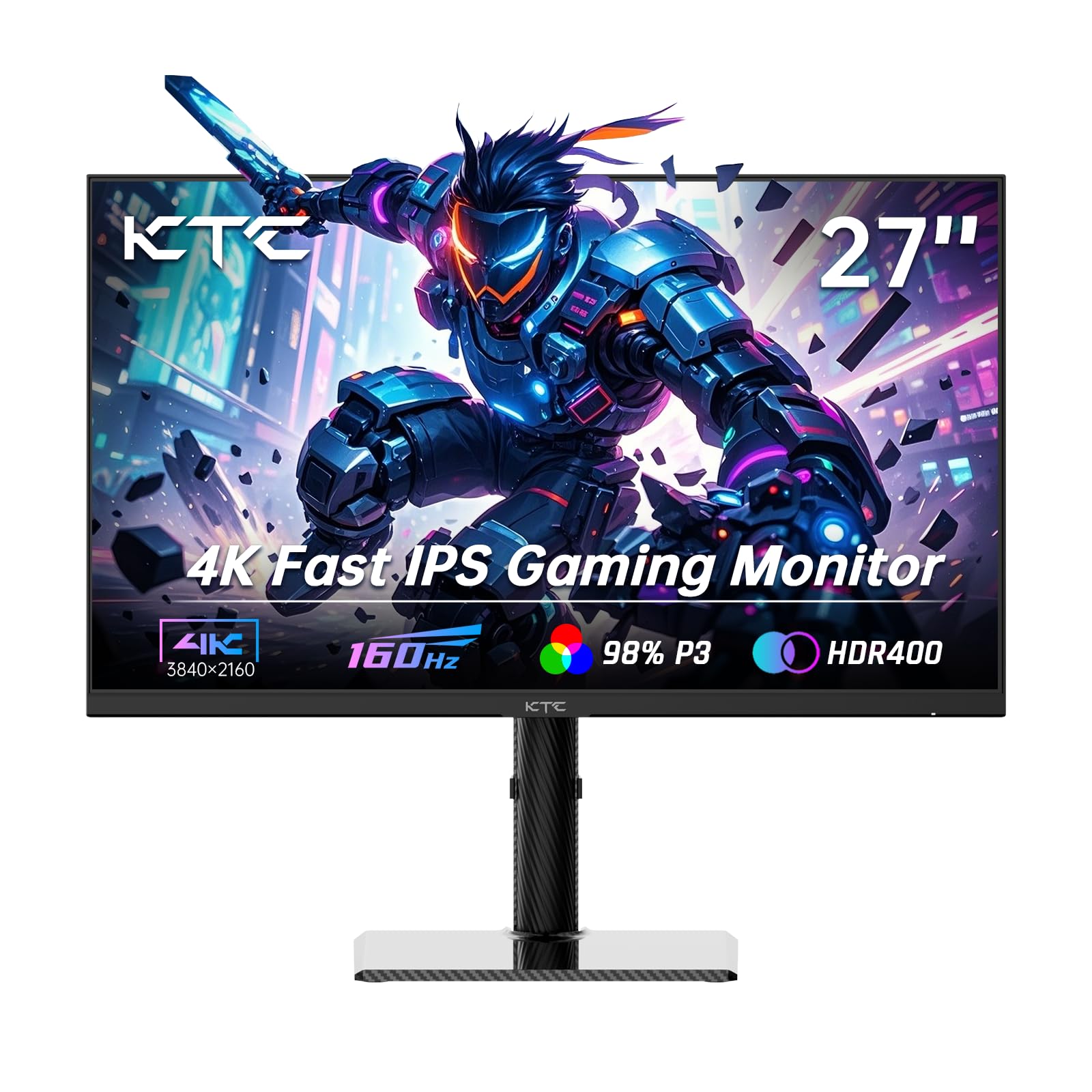
The 160Hz refresh rate makes 3D viewport panning feel instant, while the 4K Fast IPS panel keeps lines sharp for both CAD and gaming.
If you have ever dragged a complex 3D model and felt the screen lag behind your cursor, this KTC fixes that. Its 160Hz refresh rate (how often the image updates per second) makes panning and orbiting in CAD software feel instant, and it is 160Hz versus the standard 60Hz panels — a difference you feel immediately in daily use. The 3840×2160 resolution on the 27-inch Fast IPS panel keeps your fine dimension lines razor-sharp, and the 140% sRGB color gamut means your rendered materials look vivid and rich.
Owners praise the smoothness and the easy rotation between landscape and portrait. The dual HDMI 2.1 and dual DisplayPort 1.4 inputs make hooking up multiple workstations simple. The fully adjustable stand (height, tilt, swivel) is a practical bonus, but the real win here is that buttery-smooth refresh paired with true 4K detail — a combination that is rare at this tier. The contrast ratio sits at 1000:1, which is typical for IPS panels and fine for CAD linework.
The only real trade-off is that its color-critical precision, while good, does not hit the factory-calibrated Delta E<2 standard of dedicated ProArt monitors. If you are doing final client presentations, you may want a secondary calibrated panel, but for the 95% of CAD work — modeling, drafting, reviewing — this is nearly unbeatable. The crowd favorite has earned a 4.5-star reputation across 800+ owners for a reason.
The Speed Advantage
- 160Hz refresh is noticeably smoother than 60Hz panels for 3D viewport work
- 140% sRGB coverage makes colors pop for renders and visual checks
- Height, tilt, swivel, and pivot stand adjusts to your ideal viewing angle
Who Should Look Elsewhere
- Not factory-calibrated to professional Delta E standards
- 1000:1 contrast is standard, not exceptional for HDR content
Your best bet if: you want one monitor that handles both demanding CAD modeling and casual gaming with zero compromises.
Think twice if: your work is strictly color-critical print production where a calibrated panel is non-negotiable.
2. Dell S2725QC
A single USB-C cable delivers 4K video, data, and 65W laptop charging, while the 1500:1 contrast ratio produces deep, rich blacks.
Clean cable management is a genuine productivity booster, and this Dell nails it. A single USB-C cable carries 4K video, USB data, and up to 65W of power to your laptop — one cable, no clutter. The display itself is a standout, with a 1500:1 contrast ratio that owners consistently describe as near-OLED blacks. That is 1500:1 versus the KTC’s 1000:1, which makes dark UI themes and shadowed model edges look noticeably deeper and more defined.
This is among the most affordable 4K monitors with a 120Hz refresh, and the picture quality is the most-discussed strength — 134 owners single out the display quality, with another 98 praising the picture. The 99% sRGB coverage keeps colors true, and the anti-glare coating means you can work near a window without fighting reflections. The built-in speakers are also a pleasant surprise for casual video review or Zoom calls with clients.
The honest caveat here is the USB-C dock function. While it works beautifully for many, the review pages note a pattern of USB-C connectivity issues emerging over months of use — one owner’s “Dell S2725QC USB-C/dock failed after months; HDMI works but defeats purpose.” It is not a universal flaw, but if you are planning to run your entire workstation through the single USB-C port, it is worth knowing. Also, the Ash White finish is a love-it-or-hate-it aesthetic choice for a professional desk.
The Desk-Cleaner
- Single USB-C cable delivers video, data, and 65W laptop charging
- 1500:1 contrast delivers noticeably deep, rich blacks
- 120Hz refresh keeps motion smooth for 3D viewport navigation
The Known Grumbles
- Long-term USB-C dock reliability has mixed owner reports
- Stand lacks tilt adjustment, limiting some ergonomic setups
Reach for this if: you want a near-flagship 4K experience with deep blacks and a clean single-cable desk.
Look elsewhere if: you plan to rely entirely on the USB-C port for daily connection; consider the HDMI input as your primary for maximum stability.
3. INNOCN 27C1U-D
Connects to MacBooks via USB-C with 65W charging and auto-wake, delivering factory-calibrated Delta E<2 color accuracy from the start.
Mac users have a specific set of expectations, and this INNOCN was built to meet them. It connects to an M2 MacBook Air flawlessly, charging via USB-C, and it even auto-powers on with your Mac — a small touch that makes the daily routine feel smooth. The 3840×2160 IPS panel with a 178° viewing angle and factory calibration to Delta E<2 (a measure of color accuracy where lower is better) means what you see is what you get for design reviews. Owners consistently rate the build quality as impressive, with another 44 citing the picture quality as a top feature.
The 60Hz refresh rate is standard for this price tier, and the 1000:1 contrast ratio is typical. It is not a gaming monitor, and it does not try to be. What it focuses on is accurate color and reliable connectivity at a price that undercuts premium rivals. The included USB-C port delivers 65W of power, so your laptop stays charged through the workday without a separate adapter.
The recurring criticisms are minor but real: the HDMI input produces slightly off colors compared to the USB-C connection, and there is no USB hub built-in. So if you need to daisy-chain peripherals, you will need a separate hub. But for the core task — a crisp, color-accurate 4K display that works flawlessly with modern Macs — this is a fantastic value pick that does not make you pay a premium for the Apple logo.
The Mac Match
- Factory-calibrated to Delta E<2 for accurate colors from the start
- USB-C delivers 65W power and auto-wakes with your Mac
- Fully adjustable stand with pivot, swivel, and height
The Compromises
- HDMI colors are less accurate — stick to USB-C
- No built-in USB hub for peripheral expansion
Who it suits: MacBook owners who want reliable 4K, accurate color, and single-cable charging without the Pro Display XDR price tag.
Who it misses: anyone needing a USB hub or planning to use the HDMI port as their color-critical connection.
4. Samsung ViewFinity S8 (S80D)

The tool-free, fully adjustable stand and TÜV-certified Eye Saver Mode reduce flicker and blue light for all-day drafting comfort.
Long hours in front of a CAD model take a toll on your eyes, and Samsung addresses that directly. The ViewFinity S8 features a TÜV-certified Eye Saver Mode and automatic brightness adjustment that tune for your environment, reducing flicker and excessive blue light. For someone who spends eight-plus hours a day on detailed drawings, that is not a gimmick — it is a genuine comfort feature. The 3840×2160 4K resolution keeps text crisp, making it a favorite for Photoshop and Lightroom work according to the review patterns.
The standout physical feature is the Easy Setup Stand, which requires no tools or screws to assemble. You simply push it together and you are done. It is fully height-adjustable, swivels, tilts, and pivots a full 90 degrees for portrait-mode document viewing. Owners love that you can switch between landscape and portrait with ease, which is perfect for reviewing long schematics or code. HDR10 support adds vibrancy to videos and 3D render reviews.
The main thing to know is that it has no built-in speakers — you will need external ones or a headphone jack connection. Also, while the menu buttons work fine, a few owners find them slightly confusing initially. But the 4.6-star rating across 240+ owners positions this as among the most consistently reliable budget 4K panels, and it excels at the fundamentals: sharp text, good contrast, and a fantastic stand.
The Comfort Builder
- Tool-free assembly stand with full height, tilt, swivel, and 90-degree pivot
- TÜV-certified Eye Saver Mode reduces flicker and blue light
- HDR10 delivers vibrant colors for render reviews
The Missing Pieces
- No built-in speakers — plan for external audio
- Menu button layout takes a little getting used to
Pick it for: a no-fuss, reliable 4K panel with the top-tier ergonomic stand for all-day comfort.
skip it if: you need speakers, or you prefer a more premium color-accurate panel for professional print work.
5. ASUS ProArt PA279CRV

Calman Verified and factory pre-calibrated to Delta E<2, with 99% DCI-P3 and 99% Adobe RGB coverage for color-true renderings.
When your client’s signature color needs to match perfectly on screen, this ASUS is the professional choice. The ProArt PA279CRV is Calman Verified and factory pre-calibrated to a Delta E<2 color accuracy, meaning the colors you see are measurably true to the source. With 99% DCI-P3 and 99% Adobe RGB coverage, it handles both video and print color spaces with authority. If you are doing photorealistic rendering or video editing, this is the panel to trust — owners rate the quality and color accuracy as the top two strengths.
The connectivity is a serious productivity boost for multi-device setups. The DisplayPort over USB-C supports daisy-chaining, letting you connect a second monitor through a single cable for an expanded workspace. It also provides a generous 96W of power delivery, enough to charge even a demanding 16-inch laptop. The stand offers the full range of tilt, swivel, pivot, and height adjustments, and the 5-year warranty (with online registration) is a rare vote of confidence in longevity.
It runs at 60Hz, which is perfectly fine for CAD work but not for high-refresh gaming — as owners note, do not buy this for competitive shooters. One reviewer’s experience also suggests connecting directly via USB-C rather than through an HDMI hub for the best MacBook compatibility. If your work is all about color fidelity, this is the professional-grade tool that the design community trusts.
The Color Authority
- Calman Verified and factory-calibrated to Delta E<2
- 99% DCI-P3 and 99% Adobe RGB for print and video accuracy
- 96W USB-C power delivery charges even large laptops
The Professional Limits
- 60Hz refresh is not suited for high-refresh gaming
- Best color results require a direct USB-C connection
Best for: the designer or engineer whose renders must be color-true for client sign-off.
Not for: gamers, or anyone wanting a monitor that doubles as a high-refresh entertainment screen.
6. BenQ MA270U

Tuned with BenQ’s Mac-specific color calibration, the P3 gamut matches MacBook Pro and Air colors, and brightness controls work from the MacBook keyboard.
There is a reason this is described as a “cheaper Studio Display alternative” by owners. The BenQ MA270U is tuned with BenQ’s exclusive color calibration specifically for MacBooks, offering a vibrant P3 wide color gamut that visually matches the color profile of a MacBook Pro or Air. For an engineer who also does design reviews, the colors on your laptop now match the colors on your monitor — approvals become faster, and surprises disappear. The single USB-C cable connects and expands your MacBook display while delivering 90W of power, and the second USB-C port supplies 15W to charge an iPad or iPhone.
The cleverest feature is the integrated MacBook controls. You can adjust the monitor’s brightness and volume directly from your MacBook keyboard — no fiddling with awkward monitor buttons. The 2000:1 contrast ratio is noticeably better than typical IPS panels, providing deeper blacks that make 3D viewports look more dimensional. Owners consistently praise the crisp 4K resolution and easy setup, with display quality being the most-mentioned positive.
The caveat is a mixed reliability signal in the review data. Most units work as advertised, but an occasional report of a unit going dark or failing after a few weeks appears in the feedback — a risk that exists with any monitor, but one to note here given the premium price point. If you are deeply invested in the Apple ecosystem and want a monitor that feels like a native Mac accessory, this delivers on the promise.
The smooth Mac
- P3 color gamut tuned to match MacBook Pro and Air colors
- Control brightness and volume from your MacBook keyboard
- 2000:1 contrast ratio delivers impressive depth
The Reality Check
- Isolated reports of units failing after several weeks of use
- Premium price for a 60Hz panel
Choose it for: a smooth, color-matched Mac ecosystem where the monitor feels like a native Apple peripheral.
Consider others if: you are on a Windows PC and do not need the Mac-specific color tuning and controls.
7. ViewSonic VP3256-4K

The 32-inch 4K screen offers expansive workspace, and Pantone Validation with 100% sRGB ensures trustworthy color for design work.
Sometimes 27 inches is not enough, and this ViewSonic gives you a significant boost in screen real estate. At 32 inches with 4K resolution, you get a massive canvas for multi-panel CAD layouts and side-by-side model comparisons without the eye strain of a smaller panel. It is Pantone Validated, meaning it is certified to reproduce Pantone Matching System colors — a serious credential for anyone in product design or branding. The 100% sRGB coverage, along with EBU and SMPTE C standards, ensures your colors are consistent and predictable.
The ergonomic stand is top-tier, offering tilt, swivel, pivot, and height adjustments for all-day comfort. The 60W USB-C port charges your laptop and acts as a hub, letting owners switch between a MacBook, a gaming handheld, and an iPad Air with ease. Flicker-Free technology and a blue light filter round out the comfort features for extended sessions. Owners highlight the bright, consistent image and the reliable performance, with picture quality being the most-discussed strength.
The one notable flaw reported is a Mac-specific limitation: the monitor cannot rotate to portrait mode 90 degrees when connected to a Mac, despite claims of Mac compatibility. If you rely on portrait mode for code or long documents, verify your setup works before committing. The bezels are thin, the build feels premium and heavy, and the color quality is genuinely impressive for the price — just be aware of the rotation quirk.
The Big Canvas
- 32-inch 4K screen offers expansive workspace for complex layouts
- Pantone Validated with 100% sRGB for trustworthy color
- 60W USB-C hub connects multiple devices smoothly
The Mac Quirk
- Portrait rotation does not work reliably with Mac connections
- Heavy panel requires a sturdy desk or mount
Ideal for: the designer or architect who needs a large, color-accurate canvas and works on a PC or with a laptop that supports full rotation.
Reconsider if: you are a Mac user who absolutely needs portrait orientation for your daily workflow.
8. ASUS ProArt PA27JCV

The 5K (5120 x 2880) panel packs 218 pixels per inch, making fine CAD lines silky-smooth and eliminating visible pixel structure.
If 4K is sharp, this ASUS ProArt takes it a step further. The 27-inch 5K panel (5120 x 2880) packs 218 pixels per inch into the same physical space, making even the thinnest CAD line look silky-smooth and eliminating any visible pixel structure. For architects reviewing detailed elevations or engineers inspecting micro-components, this extra resolution is transformative. It is Calman Verified and factory pre-calibrated to Delta E<2, with 99% DCI-P3 and 100% sRGB coverage, so the colors are as accurate as the detail is sharp.
This monitor is built for a multi-computer workflow. The built-in Auto KVM feature lets you switch between two connected laptops or PCs using a single keyboard and mouse — no more juggling peripherals across desks. The USB-C port offers DisplayPort support, superfast data transfers, and 96W of power delivery via a single cable. The LuxPixel anti-glare (AGLR) coating cuts reflections effectively, making it easier to work near windows. Owners upgrading from 4K consistently report noticeably sharper text and less glare.
Here is where honesty matters: this product has the most divided review profile in this list. The picture quality and display sharpness are genuinely praised, but there is a significant cluster of mixed feedback around power, value, and overall image quality — including reports of screens going dark or text scaling issues with some Mac computers. As owners put it, one called it “a nice balanced trade-off,” while another said it was “terrible for Mac users” due to scaling. If you are on a Mac, research your specific model’s HiDPI support first; if you are on Windows, the 5K resolution is phenomenal for CAD.
The Resolution King
- 5K (5120 x 2880) delivers exceptional sharpness for fine detail
- Auto KVM switches between two computers with one keyboard
- 99% DCI-P3 and 100% sRGB with Delta E<2 calibration
The Mixed Bag
- Mixed reliability reports including occasional shutdowns
- Mac text scaling and HiDPI support is inconsistent
Grab it for: the ultimate sharpness for Windows-based CAD work where every pixel of detail matters.
Proceed with caution if: you are on a Mac, where scaling issues are a known, recurring complaint.
9. INNOCN 40C1U

The rare flat 5K ultrawide that replaces dual monitors with one glorious curved-free canvas.
Imagine replacing your two-monitor setup with a single, smooth 40-inch screen and you have the INNOCN 40C1U. The 21:9 aspect ratio at 5120 x 2160 resolution gives you the width of two monitors without a bezel in the middle — a standout for comparing multiple CAD drawings side by side or keeping your toolbox, properties panel, and viewport all visible at once. Crucially, it is a flat panel, which owners in graphic design and architectural work specifically prefer over curved screens to avoid distorting straight lines.
The color credentials are strong for the price: 135% sRGB and 106% DCI-P3 coverage, factory pre-calibrated to Delta E<2. The 100Hz refresh rate keeps the desktop and 3D viewport navigation fluid. Connectivity is comprehensive with 2x HDMI 2.1, DisplayPort 1.4, a 65W USB-C port, and multiple USB-A ports. Owners who have used it heavily for six months report flawless performance and equal quality to much more expensive 5K displays from other brands.
The honest trade-offs are real. The contrast ratio is 1200:1, fine for CAD but not OLED-level, and owners note the black levels are limited. It is not designed for HDR media creation — the 350-nit brightness is adequate, not dazzling, for HDR video. The built-in speakers are weak, so plan on external audio. And at 19.30 lbs without the stand, it is a substantial piece of hardware that needs a sturdy desk or a heavy-duty arm mount.
The Multitasker’s Dream
- 40-inch 5K ultrawide replaces dual monitors with no bezel
- Flat panel avoids the line distortion of curved ultrawides
- Factory-calibrated to Delta E<2 with 106% DCI-P3
The Big Sacrifices
- Limited black range and average HDR capability
- Weak built-in speakers and heavy 19.30 lbs weight
Perfect for: the engineer or architect who wants an expansive, distortion-free canvas for multi-document workflows.
Not for: HDR content creation, or anyone with a weak desk who cannot support 19.30 lbs of monitor.
Understanding the Specs
Resolution & Pixel Density
Resolution is the number of pixels on the screen — 3840×2160 (4K) is the modern baseline for CAD. More pixels mean smaller, sharper text and finer detail without zooming. The pixel density matters, too: a 27-inch 4K screen is incredibly crisp, while a 32-inch 4K screen trades a little density for more physical space. For CAD, 4K is the balance; 5K is for those who want absolute maximum sharpness.
Color Gamut & Calibration
Color gamut is the range of colors a monitor can display, usually given as a percentage of a standard like sRGB or DCI-P3. A 99% sRGB panel covers nearly all the colors used in typical digital work, while 99% DCI-P3 covers the wider range used in video and film. Delta E (ΔE) measures color accuracy — a score under 2 means the difference between what you see and the true color is imperceptible to most people.
Refresh Rate & Response
Refresh rate, measured in Hz, is how many times the screen updates per second. Standard is 60Hz, which is fine for static CAD work. Higher rates like 100Hz or 160Hz make panning and orbiting a 3D model feel noticeably smoother and reduce eye strain during constant motion. If you do a lot of 3D viewport navigation, a higher refresh rate is a genuine productivity boost, not just a gaming luxury.
Connectivity & Power Delivery
USB-C with Power Delivery (PD) is the modern standard for a clean desk. A single cable carries video, data, and electric power to your laptop — typically 65W to 96W. A 65W port will charge a standard laptop, while 90W+ is needed for larger 16-inch machines. Always check your laptop’s power requirements to ensure the monitor can keep up while you work.
FAQ
Is a 4K monitor necessary for CAD work?
What is the difference between 4K and 5K for CAD?
Does my graphics card matter for a 4K CAD monitor?
What does Delta E less than 2 mean for a monitor?
Can I connect my laptop to a CAD monitor with one cable?
Is a higher refresh rate worth it for CAD software?
Why is an IPS panel recommended over a TN or VA panel for CAD?
Does the stand really matter for a CAD monitor?
What is a KVM switch in a monitor?
Are ultrawide monitors good for CAD drafting?
Final Thoughts: The Verdict
For the majority of shoppers, the best CAD monitor is the KTC 27″ 4K U27T6 because it delivers class-leading smoothness and sharp 4K detail at a price that makes it a no-brainer. If you want flawless single-cable connectivity and deep blacks for a tidy desk, grab the Dell S2725QC. And for color-critical work where your renderings must be true, the ASUS ProArt PA279CRV is the professional’s choice. The crowd favorite in this lineup holds a 4.5-star reputation across hundreds of owners, which is a strong signal that the KTC is the safest, most satisfying pick for a wide range of CAD users.
How We Picked
We do not accept paid placement. Every pick is matched to a real buyer and a real use-case; we do not hands-on test units.
Sources & Methodology
Specifications: manufacturer listings and product documentation. Review insights: verified customer reviews, as of August 2026. Pricing: not shown on this page (it changes often); check the current price via the retailer link.
As an Amazon Associate, FitlyFast earns from qualifying purchases. This does not affect which products we feature.