
Our readers keep the lights on and the weekend projects moving. As an Amazon Associate, I earn from qualifying purchases.
Specs are compiled from manufacturer listings and verified buyer reviews and can change over time — please confirm the key details on the product page before buying.
If you spend your day in SolidWorks, AutoCAD, or Revit, a standard office mouse makes you work harder than you should — reaching for the middle button, hunting for a zoom control, and fighting wrist fatigue by 3 p.m. A purpose-built CAD mouse puts the commands you use constantly right under your thumb and fingers, so you can orbit, pan, and zoom without breaking your flow. To end the search quickly: the PHILIPS Ergonomic Wireless is the best all-around pick because it delivers quiet comfort, three-device switching, and a 25-day battery without a premium price, but the SOLAKAKA SM809 Pro is the macro command center if you need 16 programable buttons.
I’m Rikta — the founder and writer behind FitlyFast. This guide is built by comparing the manufacturers’ published specifications and the patterns across verified customer reviews, so you get each pick’s real strengths and trade-offs instead of marketing spin.
The right cad mouse keeps your wrist neutral, puts a dedicated middle button under your index finger, and lets you assign your most-used tools to programmable buttons without opening a settings menu every session.
Our Picks at a Glance


How To Choose The Right CAD Mouse
Before you compare sensors and battery life, think about how you actually work. A CAD mouse is a precision tool, and the best one for you depends on your hand size, software, and whether you prioritize wrist relief or button count.
Start with the middle mouse button
In almost every CAD package, the middle mouse button is how you orbit, pan, and zoom the viewport. Pressing it constantly means a dedicated, comfortable middle button is non-negotiable — it is the single most-used button in your day. Some ergonomic mice bury this function, which makes modeling feel clumsy no matter how high the DPI goes.
Count the buttons you’ll actually use
Programmable buttons let you assign frequent commands like “measure” or “extrude” to a single click. More buttons only help if you can reach them without looking. A mouse with 8 to 16 programmable inputs can be a huge time-saver, but only if the button placement feels natural for your hand size.
Match the shape to your grip and posture
Standard mice force your wrist into a flat, twisted position that strains the forearm over long sessions. Vertical mice tilt your hand into a more natural handshake position, while trackballs keep your hand still and move the cursor with your thumb or fingers. All three can work for CAD — the right one keeps you pain-free through an 8-hour day.
Quick Comparison
| Model | Best For | Buttons | Max DPI | Battery Life | Amazon |
|---|---|---|---|---|---|
| PHILIPS Ergonomic Wireless★ Best Overall | Everyday comfort & value | 5 | 4000 | 200 hours | Amazon |
| SOLAKAKA SM809 ProMacro Powerhouse | Macro-heavy workflows | 16 | 24000 | 350 hours | Amazon |
| MOJO Pro SilentNinja Quiet | Quiet late-night work | 9 | 12000 | Wired | Amazon |
| Logitech Lift for Mac | Wrist-relief on Mac | 4 | — | 24 months | Amazon |
| Razer Pro Click Humanscale | Long battery for multi-device | 8 | — | 400 hours | Amazon |
| 3Dconnexion CadMouse Compact | Serious 3D modeling | 7 | — | 2 months | Amazon |
| Contour Unimouse | Fully adjustable ergonomics | 7 | — | 3 months | Amazon |
| Turtle Beach Kone XP Air | Gaming-grade precision | 10 | 19000 | 100 hours | Amazon |
| ELECOM Huge Plus Trackball | Zero desk movement | 10 | — | 5 months | Amazon |
In-Depth Reviews
1. PHILIPS Ergonomic Wireless Mouse
Our pick — 4.5★ from 950+ verified ratings; the strongest balance of quality and price.
A quiet, comfortable workhorse that covers the essentials at a budget-friendly price.
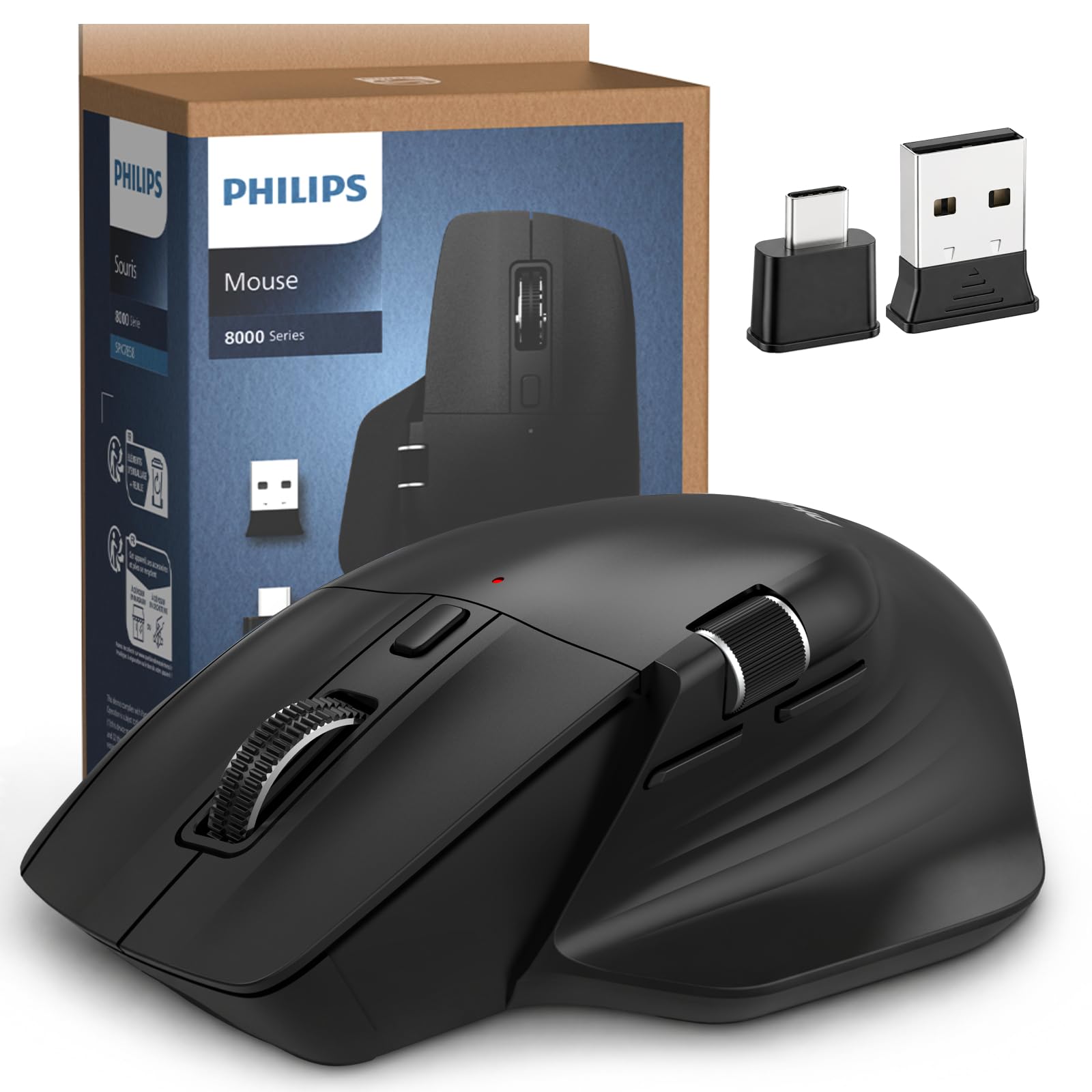
The PHILIPS Ergonomic Wireless earns the top spot for one simple reason: it gives you the daily comforts—a contoured right-handed shell with an anti-slip thumb rest and silent left and right buttons—that make an 8-hour drafting day tolerable. A dedicated thumb-side horizontal scroll wheel lets you fly through wide Excel columns or across a drawing without dragging your cursor, which is a small feature that makes a big difference in CAD work.
You can connect it three ways: the included dual 2.4G receiver has both USB-A and USB-C for a direct laptop plug, and Bluetooth pairs with iPad, Windows, and Mac—so you can switch between three devices without packing a hub. The optical sensor offers a 5-level adjustable DPI (800 to 4000), giving you a useful range for precise pixel edits without ever feeling twitchy. With a 500mAh battery and smart auto-sleep, it manages a 25-day heavy workload of about 8 hours a day, and a 5-minute emergency charge delivers an hour of tracking when you’re about to lose power before a call.
Buyers report it is “an absolute steal for the price,” with one owner saying it outdoes a far more expensive mouse on battery life and features. The most-discussed trade-off is the dotted texture on the scroll wheel, which one owner found irritating after several hours — a minor gripe, but worth knowing if you scroll constantly. At 97 g, it’s lighter than the 127 g MOJO Pro, which makes a difference over long sessions.
What wins people over
- Library-quiet clicks for open offices
- Three-device switching via Bluetooth and dual USB receiver
- 25-day battery life with 5-minute emergency top-up
Watch out for
- The textured scroll wheel can irritate after hours of use
- Needs a matte surface — it skips on glossy desks
Reach for this if: you want a reliable, comfortable daily driver that pairs with multiple devices and keeps your wrist happy through a standard workday.
Look elsewhere if: you need dozens of programmable macros for complex CAD shortcuts — five buttons won’t cover power users.
2. SOLAKAKA SM809 Pro MMO Gaming Mouse
A 16-button macro monster that lets you build your own control center — if you’re patient with setup.
If your CAD workflow is a long list of repeated commands, the SOLAKAKA SM809 Pro puts an extraordinary amount of power under your fingers: 16 total buttons, every one programmable for custom macros and key remapping stored on onboard memory. That’s more than triple the button count of the PHILIPS Ergonomic above, which makes it a serious candidate for users who want to skip menu navigation entirely. The 24000 DPI sensor is a huge ceiling, though most modeling work never needs to go anywhere near that high — the headroom simply means it tracks smoothly at any speed you dial in.
It connects three ways — 2.4GHz wireless, Bluetooth 5.0, and USB-C wired — so you can hop between desktop, laptop, and tablet without dongle swaps. Four magnetic side plates let you adjust grip and button layout, and custom RGB backlight adds visual feedback. What wins people over most is the build quality, with ergonomics a close second — the honeycomb grip reduces sweat and the shape suits large hands well.
The honest catch: buyer-reported wireless can be unreliable. The 2.4GHz range is described as only about 6–12 inches, unusable at 7–9 feet, and it can interfere with a bundled keyboard. As owners mention, this is essentially “a good wired-only option” — the software is barebones with no profile switching, and the side button color stays stuck. It beats the PHILIPS on battery too: 350 hours versus 200 hours, so if you stay wired or near the receiver, it’s a different class of macro flexibility.
The big strengths
- 16 programmable buttons with onboard macro storage
- Tri-mode connection: 2.4GHz, Bluetooth 5.0, USB-C
- 350-hour battery life on wireless
The honest limits
- 2.4GHz wireless range is poor — plan to use it wired or nearby
- Software is barebones with no profile switching
Best fit: macro-hungry CAD users who want to wire up every common command and don’t mind a basic setup process.
Not for: anyone who needs reliable wireless range around a desk — treat it as a wired mouse.
3. MOJO Pro Performance Silent Gaming Mouse
A near-silent wired mouse for quiet rooms and shared offices.
If you’ve ever had a coworker glare at your clicky mouse, the MOJO Pro solves that instantly: every button is silent, so you can work through the night without bothering anyone around you. It pairs that with a PMW3336 sensor pushing up to 12000 DPI and a 1000 Hz polling rate (meaning the mouse reports its position to your PC 1,000 times per second), which keeps cursor movement smooth and lag-free even during rapid viewport panning. The hand-sculpted ergonomic design suits medium-sized hands well, and it weighs 127 g — noticeably heavier than the 97 g PHILIPS, which gives it a solid, planted feel for steady line work.
You get 9 programmable buttons including a sniper key (a button that temporarily drops your DPI for fine precision — handy for snapping to a vertex), plus full customization through the brand’s software for macros, DPI adjustments, and gamer profiles. It’s a wired mouse with a 1.8m cable, so you never worry about battery life, though that does tether you to your desk.
The recurring theme in owner feedback is the silence — “ninja quiet” is how the brand describes it, and buyers agree it’s near-silent even in a hushed room. The main durability worry is the scroll wheel: an occasional report of wheel failure after a few months, so treat it gently if you scroll heavily. The side buttons can be tricky to set up if you’re not comfortable with configuration software.
Silent stand-out: the only pick on this list engineered around noise-free clicks, making it a strong choice for shared spaces and late-night modelers.
Weigh the trade-off: the wired tether and occasional scroll-wheel durability complaints are the price of that quiet precision.
4. Logitech Lift for Mac Vertical Ergonomic Mouse

A cradle for your wrist, angled at 57 degrees to end the forearm twist of flat mice.
If wrist pain is driving you away from your drafting table, the Logitech Lift for Mac is engineered specifically for relief. Its 57-degree angle holds your hand in a natural handshake position, which takes pressure off your wrist and lets your arm and upper body relax — a genuine alternative to the flat, twisted grip of a standard mouse. The ergonomic benefit is the most-praised aspect by a wide margin, with comfort close behind, and it’s designed for small to medium hands. Customers note it relieves hand pain compared to a Magic Mouse, often adapting within a day.
It’s built for the Apple ecosystem — compatible with MacBook Pro, MacBook Air, iMac, and iPad via Bluetooth Low Energy — and gives you 4 customizable buttons plus a silent magnetic SmartWheel for smooth scrolling. One AA battery (included) delivers up to 2 years of battery life, which is exceptional for a wireless mouse. Note that it connects via Bluetooth only, with no USB receiver in the box.
The main thing owners flag is Bluetooth connectivity — it connects well initially, but some report occasional disconnections, so keep that in mind if your workspace is crowded with wireless signals. The side buttons are also louder than the quiet main buttons. At 4.4 ounces it’s lightweight, and while it doesn’t offer macro-heavy programmability, for pure day-long comfort on a Mac, it’s one of the strongest choices here.
The relief play: if your wrist aches by mid-afternoon, the 57-degree angle is the single most effective feature on this list for posture.
Keep in mind: just 4 buttons and Bluetooth-only pairing — power macro users will want more inputs.
5. Razer Pro Click Humanscale Wireless Mouse

A comfortable performer that outlasts the workweek on a single charge.
If you’re tired of hunting for a charger mid-project, the Razer Pro Click, designed with Humanscale, pairs all-day comfort with an extended battery life of up to 400 hours — the longest claim on this list, comfortably beating the 350-hour SOLAKAKA. That means you can charge it at the start of the month and not think about it again until the next one. It holds 8 programmable buttons, an ergonomic form factor that fits comfortably in hand, and a tactile scroll wheel that reviewers call a highlight. At 5.28 ounces, it stays light enough for long sessions.
It connects via Bluetooth with multi-host support for up to 4 devices, letting you jump between a work laptop, a home PC, and a tablet without re-pairing. The 5G Advanced Optical Sensor delivers cutting-edge precision that owners say performs wonderfully on M1 Macs, where other premium mice can stutter. The build quality is the most-praised aspect, with ergonomics a close second.
The honest trade-offs: reliability gets the most negative owner feedback, with reports of units becoming unresponsive or the scroll wheel failing over time — durability is the recurring concern at this price point. Workspace purists note the scroll wheel is clicky-only rather than a free-spin mode, which isn’t ideal for long document scrolls. Full button remapping is Windows-only with the dongle; on a Mac, the side buttons and scroll clicks are less useful without third-party software.
Why it stands out
- Up to 400 hours of battery life per charge
- Multi-host Bluetooth for up to 4 devices
- Comfortable, tactile scroll wheel and light build
Why to think twice
- Reliability and durability are the most common complaints
- Full remapping is Windows-only via dongle
Best for: multi-device users who want one mouse to span a whole setup and hate hunting for chargers.
Think twice if: you want a Mac with full button customization from the start.
6. 3Dconnexion CadMouse Compact Wireless

The CAD specialist with the dedicated middle button that 3D modeling demands.
3Dconnexion builds mice exclusively for CAD, and the CadMouse Compact Wireless earns this spot with one feature the others lack: a dedicated middle mouse button positioned so your index or middle finger rests on it naturally — the button you press constantly to orbit and zoom in SolidWorks and similar tools. As owners put it, “having a mouse with a dedicated middle mouse button is a must, and CadMouse is probably the best available.” That is exactly what wins people over: the design is praised most, with customizability close behind.
It offers 7 total buttons, Bluetooth wireless connectivity to cut the cable clutter, and optical movement detection for smooth, precise cursor control. It’s compact at 4.3″ x 2.6″, making it easy to carry between workstations, and it works with both Mac and PC. The build is described as sturdy, with quality switches that give a satisfying button feel for constant middle-click use.
The catch is responsiveness: a few reviewers point out the scroll wheel as unusable, and the overall responsiveness gets mixed feedback. At roughly 2 months of battery life, it asks for more frequent charging than the 400-hour Razer. But if your priority is a purpose-built modeling tool rather than a multi-purpose office mouse, the dedicated middle button alone justifies a serious look.
The specialist’s pick: the only mouse here with a truly dedicated middle button engineered for constant orbit and pan commands.
Know the limit: scroll-wheel responsiveness is the most common owner complaint, and battery life is modest at 2 months.
7. Contour Unimouse Ergonomic Vertical Mouse

An adjustable shape that adapts to your hand, not the other way around.
Most vertical mice lock you into one fixed angle, but the Contour Unimouse is different: you set the tilt anywhere from 35° to 70° with a sturdy friction hinge, then adjust the thumb support up, down, in, out, forward, and back until the grip feels truly custom. For CAD users with hand or wrist pain, this is the most adaptable pick on the list, and owners confirm it: the ergonomics are the most-praised aspect, with quality close behind. It’s designed for right-handed users of all hand sizes and is noted as one of the largest mice available, so it suits medium to large hands best.
You get 6 programmable buttons plus a smooth scroll wheel, and a dedicated middle button that one owner highlights as perfect for 3D CAD work. It’s plug-and-play for both Mac and PC, so there’s no configuration barrier. Battery life runs about 3 months, which is solid for a wireless vertical mouse.
The trade-off: it’s large, and owners with small hands find it slightly too big, with some thumb discomfort reported. If you have smaller hands, this is who it isn’t for. But for the “all-day clickers” — a phrase owners actually use — it’s praised as a long-term solution for carpal tunnel and finger pain, with some on their third unit over 15 years.
The fit advantage
- Adjustable 35-70° tilt and fully movable thumb rest
- Dedicated middle button for CAD orbit commands
- Loyal following among users with chronic hand pain
The size reality
- One of the largest mice available — too big for small hands
- Some find the third top button takes getting used to
This is for: right-handed users with medium to large hands who want to dial in the perfect angle and need wrist-pain relief over pure button count.
Pass if: you have small hands or want a compact, portable mouse.
8. Turtle Beach Kone XP Air Wireless Gaming Mouse

A gaming-grade sensor wrapped in comfort, with 29 inputs to script your workflow.
If you want gaming-level precision in a comfortable shell, the Turtle Beach Kone XP Air brings serious hardware: an Owl-Eye optical sensor reaching 19K DPI, a 4D wheel, and a staggering 29 programmable inputs. That’s nearly double the button count of the 16-button SOLAKAKA, making it the most macro-flexible option here for complex CAD shortcuts. The refined ergonomic Kone shape feels great in hand, and the build quality is the most-praised aspect, with ergonomics close behind. Owners coming from the Logitech G700 series call it a familiar, comfortable replacement.
It connects via lag-free 2.4GHz wireless or Bluetooth, and the included RGB Rapid Charge Dock keeps it topped up — useful for a mouse that draws 100 hours of battery life on wireless. The TITAN Switch Optical gives a tactile feel with optical speed, and the PhantomFlex USB-C charging cable is lightweight and flexible for wired use. With NVIDIA Reflex compatibility, this is truly a dual-purpose work-and-play pick.
The honest negatives: reliability gets the most negative owner feedback, and the battery and charging performance are mixed — some say it charges quickly, others report it doesn’t stay charged. The wheel side-tilts are stiff, and there’s no replaceable battery, so when the internal cell dies, the mouse does too. If your priority is macro capacity plus precision, this delivers — just be aware durability is the long-term question mark.
Precision plus macros: the 19K DPI sensor and 29 inputs make it the most powerful macro platform on this list.
The durability catch: reliability is the most-flagged concern, and the non-replaceable battery is a long-term limitation.
9. ELECOM Huge Plus Wireless Trackball Mouse
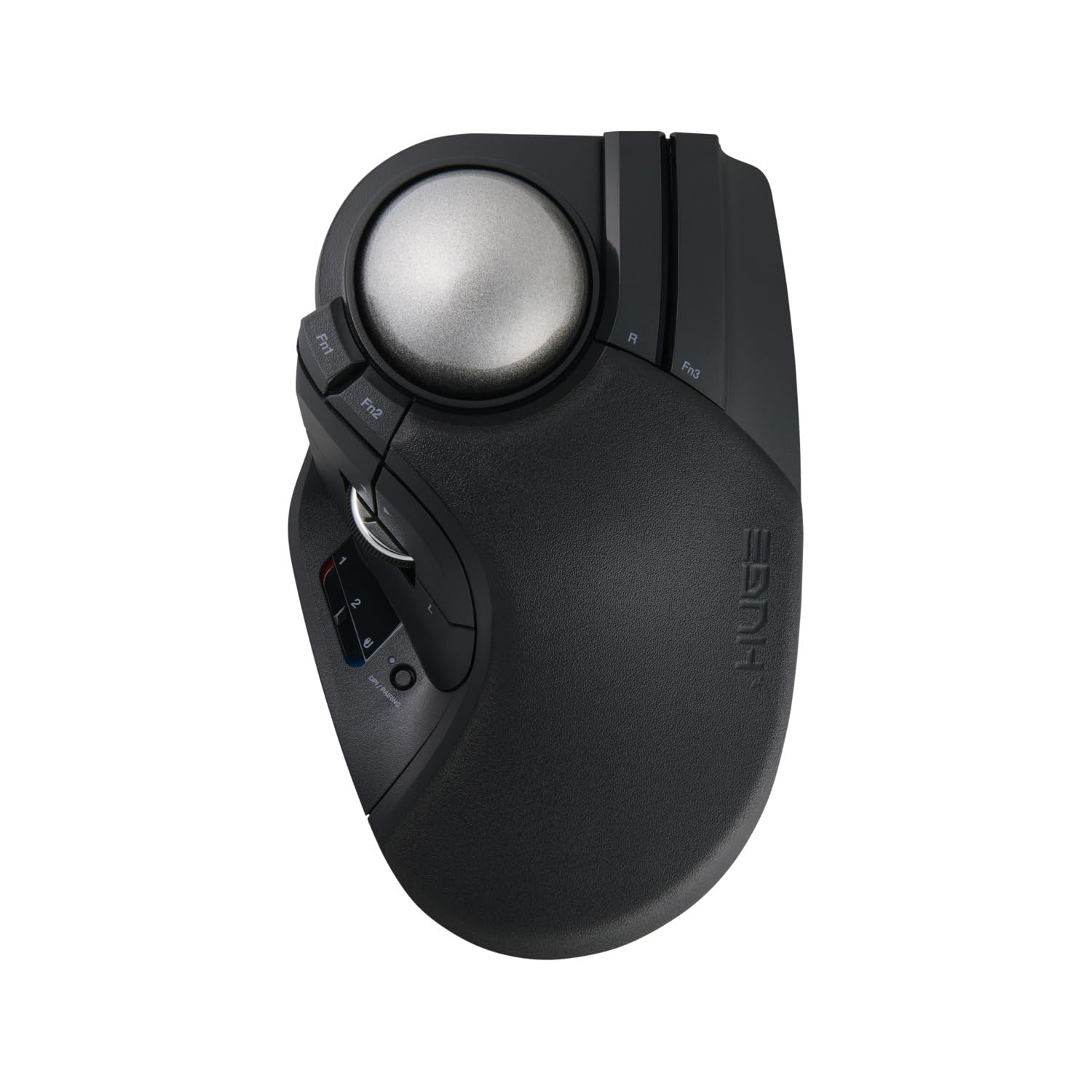
The desk-anchored trackball that keeps your hand still and your shoulder relaxed.
If you’re tired of your whole arm moving to reach the far corner of a dual-monitor setup, the ELECOM Huge Plus changes the game: your hand stays put and a 52mm trackball does the moving. The large ball fits naturally in hand and provides precise, fluid control, and it swaps in high-performance MinebeaMitsumi steel bearings that owners say eliminate the stickiness (stiction) that plagues lesser trackballs. The quality is the most-praised aspect, with reliability close behind, and precision earns strong positive feedback.
You get 10 programmable buttons for shortcuts, plus a tri-mode connection — Bluetooth, 2.4GHz wireless, or wired USB-C — for switching between up to three devices. A built-in rechargeable lithium-ion battery provides up to 5 months per charge, the longest battery estimate on this list. Silent clicks keep long work sessions distraction-free, and it works across Windows, macOS, iPadOS, Android, and ChromeOS. One owner reports flawless tracking at a 1000Hz wired polling rate versus 125Hz wireless, meaning wired mode is noticeably smoother.
The honest trade-offs: ergonomics are mixed, with some owners finding the palm rest slope too aggressive for medium hands and others loving it — it’s a shape you really need to try. At 291 g, it’s the heaviest pick here by far, but that weight anchors it so it never slides. The software lacks Linux support, and the middle click is heavy, though the remappable buttons compensate.
The standouts
- 52mm ball with swap-friendly steel bearings for smooth tracking
- Up to 5 months per charge on a rechargeable battery
- 10 programmable buttons with tri-mode connection
The adjustment period
- Ergonomics are polarizing — the palm rest doesn’t suit every hand size
- Heavy at 291 g, and wireless mode runs at a slower polling rate
Choose this if: you want to stop moving your arm entirely and prefer a desk-anchored setup with long battery life.
skip it if: you need a travel-friendly shape or dislike the trackball learning curve.
Understanding the Specs
DPI and sensor precision
DPI stands for dots per inch — how far the cursor travels for each inch the mouse moves. A higher DPI ceiling (like 24000 on the SOLAKAKA or 19000 on the Turtle Beach) gives you more headroom for fast cursor sweeps across multiple monitors. For CAD work you’ll usually settle in the middle range and rely on a sniper-type button to drop sensitivity for fine snaps.
Button count and macros
The buttons you can program are what turn a mouse into a CAD tool. A modest 5-button mouse covers the basics, while a 16- or 29-input model lets you assign orbit, measure, extrude, and other frequent commands so you rarely touch the menu. More buttons only help if the layout fits your hand — a reachable macro beats a crowded one every time.
Polling rate and responsiveness
The polling rate is how often the mouse reports its position to your computer, measured in hertz (Hz). A 1000 Hz rate, like the MOJO Pro, reports 1,000 times per second for near-instant cursor response — which can make viewport navigation feel smoother and more connected than a standard 125 Hz office mouse.
Ergonomics and battery life
The shape decides whether your wrist survives an 8-hour modeling session. Vertical mice like the Logitech Lift hold your hand at a 57-degree angle to reduce forearm twist, while adjustable options like the Contour Unimouse let you dial in your own tilt from 35 to 70 degrees. Battery estimates vary wildly — from 100 hours on a gaming mouse to 5 months on a trackball — so match your charging habits to reality.
FAQ
Is a dedicated middle mouse button really that important for CAD?
How many programmable buttons do I actually need for CAD work?
What DPI setting should I use for CAD modeling?
Will a wireless CAD mouse cause noticeable lag?
How long does a CAD mouse battery last between charges?
Is a vertical mouse better than a standard one for CAD work?
Can I use a gaming mouse for CAD software?
What is the difference between a trackball and a regular mouse for design work?
How do I know if a mouse will fit my hand size?
Final Thoughts: The Verdict
Across the board, the cad mouse winner is the PHILIPS Ergonomic Wireless because it delivers the essential comfort, quiet clicks, multi-device switching, and a 25-day battery at an approachable price for daily drafting. If you want a full macro command center, grab the {“@context”: “https://schema.org”, “@graph”: [{“@type”: “ItemList”, “name”: “9 Best CAD Mouse”, “url”: “https://fitlyfast.com/best-cad-mouse/”, “numberOfItems”: 9, “itemListElement”: [{“@type”: “ListItem”, “position”: 1, “name”: “PHILIPS Ergonomic Wireless Mouse”, “url”: “https://fitlyfast.com/best-cad-mouse/#product-1”}, {“@type”: “ListItem”, “position”: 2, “name”: “SOLAKAKA SM809 Pro MMO Gaming Mouse”, “url”: “https://fitlyfast.com/best-cad-mouse/#product-2”}, {“@type”: “ListItem”, “position”: 3, “name”: “MOJO Pro Performance Silent Gaming Mouse”, “url”: “https://fitlyfast.com/best-cad-mouse/#product-3”}, {“@type”: “ListItem”, “position”: 4, “name”: “Logitech Lift for Mac Vertical Ergonomic Mouse”, “url”: “https://fitlyfast.com/best-cad-mouse/#product-4”}, {“@type”: “ListItem”, “position”: 5, “name”: “Razer Pro Click Humanscale Wireless Mouse”, “url”: “https://fitlyfast.com/best-cad-mouse/#product-5”}, {“@type”: “ListItem”, “position”: 6, “name”: “3Dconnexion CadMouse Compact Wireless”, “url”: “https://fitlyfast.com/best-cad-mouse/#product-6”}, {“@type”: “ListItem”, “position”: 7, “name”: “Contour Unimouse Ergonomic Vertical Mouse”, “url”: “https://fitlyfast.com/best-cad-mouse/#product-7”}, {“@type”: “ListItem”, “position”: 8, “name”: “Turtle Beach Kone XP Air Wireless Gaming Mouse”, “url”: “https://fitlyfast.com/best-cad-mouse/#product-8”}, {“@type”: “ListItem”, “position”: 9, “name”: “ELECOM Huge Plus Wireless Trackball Mouse”, “url”: “https://fitlyfast.com/best-cad-mouse/#product-9”}]}, {“@type”: “Product”, “position”: 1, “name”: “PHILIPS Ergonomic Wireless Mouse”, “image”: “https://m.media-amazon.com/images/I/61j1i5BAGBL.jpg”, “brand”: {“@type”: “Brand”, “name”: “PHILIPS”}, “url”: “https://www.amazon.com/dp/B0FY5M888K/?tag=fitlyfast00-20”, “offers”: {“@type”: “Offer”, “url”: “https://www.amazon.com/dp/B0FY5M888K/?tag=fitlyfast00-20”}}, {“@type”: “Product”, “position”: 2, “name”: “SOLAKAKA SM809 Pro MMO Gaming Mouse”, “image”: “https://m.media-amazon.com/images/I/61w1P+THglL.jpg”, “brand”: {“@type”: “Brand”, “name”: “SOLAKAKA”}, “url”: “https://www.amazon.com/dp/B0DT15Z62M/?tag=fitlyfast00-20”, “offers”: {“@type”: “Offer”, “url”: “https://www.amazon.com/dp/B0DT15Z62M/?tag=fitlyfast00-20”}}, {“@type”: “Product”, “position”: 3, “name”: “MOJO Pro Performance Silent Gaming Mouse”, “image”: “https://m.media-amazon.com/images/I/41bkEasx4AL.jpg”, “brand”: {“@type”: “Brand”, “name”: “MOJO”}, “url”: “https://www.amazon.com/dp/B07Z81WS5L/?tag=fitlyfast00-20”, “offers”: {“@type”: “Offer”, “url”: “https://www.amazon.com/dp/B07Z81WS5L/?tag=fitlyfast00-20”}}, {“@type”: “Product”, “position”: 4, “name”: “Logitech Lift for Mac Vertical Ergonomic Mouse”, “image”: “https://m.media-amazon.com/images/I/51H3dJvxkrL.jpg”, “brand”: {“@type”: “Brand”, “name”: “Logitech”}, “url”: “https://www.amazon.com/dp/B098JK5T78/?tag=fitlyfast00-20”, “offers”: {“@type”: “Offer”, “url”: “https://www.amazon.com/dp/B098JK5T78/?tag=fitlyfast00-20”}}, {“@type”: “Product”, “position”: 5, “name”: “Razer Pro Click Humanscale Wireless Mouse”, “image”: “https://m.media-amazon.com/images/I/41aUhSr8nPL.jpg”, “brand”: {“@type”: “Brand”, “name”: “Razer”}, “url”: “https://www.amazon.com/dp/B08BQXL6DD/?tag=fitlyfast00-20”, “offers”: {“@type”: “Offer”, “url”: “https://www.amazon.com/dp/B08BQXL6DD/?tag=fitlyfast00-20”}}, {“@type”: “Product”, “position”: 6, “name”: “3Dconnexion CadMouse Compact Wireless”, “image”: “https://m.media-amazon.com/images/I/51sESXv4aiL.jpg”, “brand”: {“@type”: “Brand”, “name”: “3Dconnexion”}, “url”: “https://www.amazon.com/dp/B0CGKKG6DR/?tag=fitlyfast00-20”, “offers”: {“@type”: “Offer”, “url”: “https://www.amazon.com/dp/B0CGKKG6DR/?tag=fitlyfast00-20”}}, {“@type”: “Product”, “position”: 7, “name”: “Contour Unimouse Ergonomic Vertical Mouse”, “image”: “https://m.media-amazon.com/images/I/61oBU2g44IL.jpg”, “brand”: {“@type”: “Brand”, “name”: “Contour”}, “url”: “https://www.amazon.com/dp/B0D2593YZ2/?tag=fitlyfast00-20”, “offers”: {“@type”: “Offer”, “url”: “https://www.amazon.com/dp/B0D2593YZ2/?tag=fitlyfast00-20”}}, {“@type”: “Product”, “position”: 8, “name”: “Turtle Beach Kone XP Air Wireless Gaming Mouse”, “image”: “https://m.media-amazon.com/images/I/71dCCHcbbrL.jpg”, “brand”: {“@type”: “Brand”, “name”: “Turtle”}, “url”: “https://www.amazon.com/dp/B0D1CTCP8D/?tag=fitlyfast00-20”, “offers”: {“@type”: “Offer”, “url”: “https://www.amazon.com/dp/B0D1CTCP8D/?tag=fitlyfast00-20”}}, {“@type”: “Product”, “position”: 9, “name”: “ELECOM Huge Plus Wireless Trackball Mouse”, “image”: “https://m.media-amazon.com/images/I/61p1NZNMSxL.jpg”, “brand”: {“@type”: “Brand”, “name”: “ELECOM”}, “url”: “https://www.amazon.com/dp/B0FYC9YC3M/?tag=fitlyfast00-20”, “offers”: {“@type”: “Offer”, “url”: “https://www.amazon.com/dp/B0FYC9YC3M/?tag=fitlyfast00-20”}}, {“@type”: “FAQPage”, “mainEntity”: [{“@type”: “Question”, “name”: “Is a dedicated middle mouse button really that important for CAD?”, “acceptedAnswer”: {“@type”: “Answer”, “text”: “In most CAD packages, the middle mouse button is how you orbit, pan, and zoom the viewport, so you press it constantly. A mouse like the 3Dconnexion CadMouse Compact places a dedicated middle button under your finger for easy access, which modeling professionals consider essential — it reduces the awkward stretching a standard mouse can cause.”}}, {“@type”: “Question”, “name”: “How many programmable buttons do I actually need for CAD work?”, “acceptedAnswer”: {“@type”: “Answer”, “text”: “It depends on how many commands you want to reach without a menu. A 5-button mouse like the PHILIPS covers basic navigation, while a 16-button model like the SOLAKAKA or the 29-input Turtle Beach lets you assign many frequent commands. More buttons help only if you can reach them comfortably without looking.”}}, {“@type”: “Question”, “name”: “What DPI setting should I use for CAD modeling?”, “acceptedAnswer”: {“@type”: “Answer”, “text”: “Most CAD users settle in the middle range of their mouse’s DPI scale — high enough to cross dual monitors easily, low enough for precise snapping. The high ceilings like 24000 DPI or 19000 DPI matter mostly as headroom, so the cursor never feels twitchy at your preferred speed.”}}, {“@type”: “Question”, “name”: “Will a wireless CAD mouse cause noticeable lag?”, “acceptedAnswer”: {“@type”: “Answer”, “text”: “Modern wireless mice over 2.4GHz or Bluetooth are generally responsive enough for daily modeling work. If you want the smoothest possible tracking, check the polling rate — the ELECOM Huge Plus runs at 1000Hz wired versus 125Hz wireless, so wired mode feels noticeably more connected.”}}, {“@type”: “Question”, “name”: “How long does a CAD mouse battery last between charges?”, “acceptedAnswer”: {“@type”: “Answer”, “text”: “Battery life varies a lot by design. The Razer Pro Click claims up to 400 hours, the SOLAKAKA up to 350 hours, while vertical and trackball options like the Contour Unimouse and ELECOM Huge Plus run about 3 to 5 months per charge. Gaming mice with RGB lighting tend to consume power faster.”}}, {“@type”: “Question”, “name”: “Is a vertical mouse better than a standard one for CAD work?”, “acceptedAnswer”: {“@type”: “Answer”, “text”: “A vertical mouse like the Logitech Lift holds your hand in a more natural handshake position, which reduces wrist and forearm strain for many people. It’s a matter of what feels comfortable for your hand size — some users adapt in a day, while others prefer the familiar flat shape of a standard mouse.”}}, {“@type”: “Question”, “name”: “Can I use a gaming mouse for CAD software?”, “acceptedAnswer”: {“@type”: “Answer”, “text”: “Yes — gaming mice often excel at CAD because they bring high sensor precision and many programmable buttons. The MOJO Pro and Turtle Beach Kone XP Air are examples that work well for modeling, though you’ll want to assign your CAD macros in their configuration software rather than using gaming profiles.”}}, {“@type”: “Question”, “name”: “What is the difference between a trackball and a regular mouse for design work?”, “acceptedAnswer”: {“@type”: “Answer”, “text”: “A trackball keeps your hand still and uses your fingers to roll a ball, so you never drag your arm across the desk — helpful for shoulder fatigue and tight workspaces. The ELECOM Huge Plus is a strong example. The trade-off is a learning curve, as your cursor control comes from a different set of muscles.”}}, {“@type”: “Question”, “name”: “How do I know if a mouse will fit my hand size?”, “acceptedAnswer”: {“@type”: “Answer”, “text”: “Check the ergonomic design notes and owner feedback for hand-size guidance. The Logitech Lift is built for small to medium hands, the Contour Unimouse is one of the largest mice available and suits medium to large hands, and the SOLAKAKA suits large hands. When in doubt, choose a shape described for your general hand size.”}}]}]}