
Our readers keep the lights on and the weekend projects moving. As an Amazon Associate, I earn from qualifying purchases.
Specs are compiled from manufacturer listings and verified buyer reviews and can change over time — please confirm the key details on the product page before buying.
Architects spend their days zooming, panning, and clicking through CAD models, and a standard mouse turns that into a fast track to wrist and shoulder fatigue. The real fix is a device that keeps your hand in a natural position and gives you pinpoint cursor control for the fine work. This guide breaks down the nine best options for drafting, from trackballs that save your forearm to vertical mice that mimic a handshake.
I’m Rikta — the founder and writer behind FitlyFast. This guide is built by comparing the manufacturers’ published specifications and the patterns across verified customer reviews, so you get each pick’s real strengths and trade-offs instead of marketing spin.
Finding the right computer mouse for architects means balancing ergonomic support with the pinpoint accuracy that CAD drafting demands, and this guide shows you which designs deliver both.
Our Picks at a Glance


How To Choose The Best Computer Mouse For Architects
An architect’s mouse has two full-time jobs: it has to keep your wrist and shoulder relaxed during long modeling sessions, and it has to give you the pixel-level control needed for detailed drawings. A mouse that does one but not the other will either cause pain or slow you down. Here is what separates a drafting powerhouse from a desk ornament.
Ergonomic shape: vertical, trackball, or centered
The biggest decision is the shape of the device itself. A vertical mouse sets your hand in a handshake position, which takes the twist out of your forearm and can ease wrist and shoulder tension. A trackball keeps your hand still and moves the cursor with your thumb or fingers, so your arm never leaves the desk. A centered roller bar sits in front of your keyboard, meaning you never reach for a mouse at all. Each one changes how your arm and wrist work all day, so pick the style that fits your desk setup and your pain points.
Sensitivity and DPI for CAD precision
Cursor speed matters when you are switching between zooming out on a whole floor plan and snapping a line to a precise point. DPI, or dots per inch, is a measure of how far the cursor moves for a given hand movement. Adjustable DPI levels let you move fast across large screens and then slow down for fine detail work without changing your hand speed. Look for a mouse that lets you switch sensitivity on the fly, ideally with a dedicated button or a small screen to show your current setting.
Programmable buttons and shortcuts
CAD software lives on keyboard shortcuts and repeated commands. A mouse with extra programmable buttons lets you assign common actions, like copy and paste, undo, or a specific view command, right under your thumb. This keeps one hand on the mouse and the other on the keyboard, so you are not constantly reaching for a menu. Onboard memory is a bonus because it stores your button assignments inside the mouse, so your setup stays intact even if you switch computers.
Quick Comparison
| Model | Best For | Buttons | DPI Levels | Battery Life | Amazon |
|---|---|---|---|---|---|
| Logitech MX Ergo S★ Best Overall | Thumb trackball with tilt | 8 | Switchable tracking | 120 days | Amazon |
| Ergodriven Om VerticalBest Value | Quick wrist relief | 5 | 4 (1200–2400) | 5 weeks | Amazon |
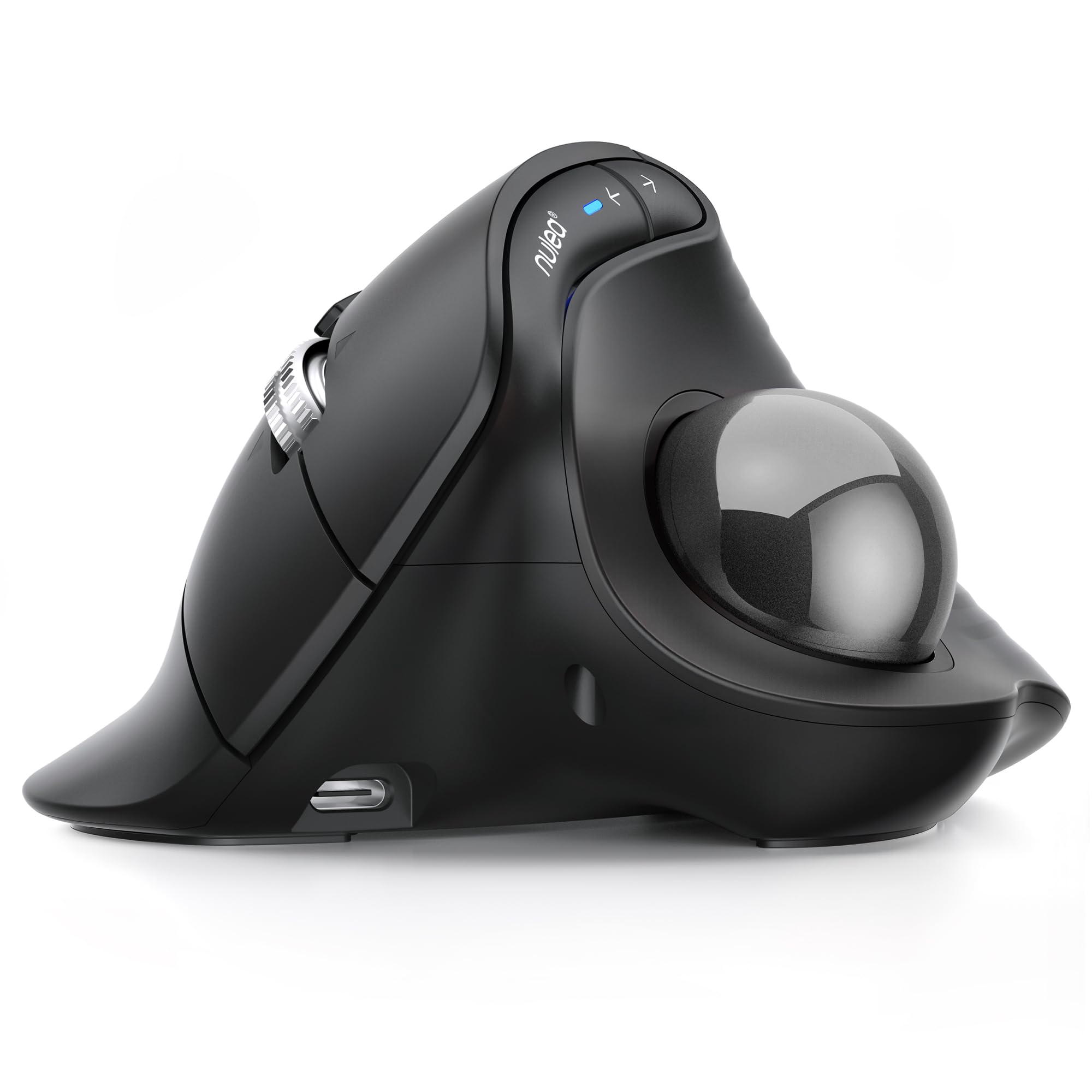
| Nulea Wireless TrackballBudget Champion | Budget vertical trackball | 6 | 3 (600–1000) | Battery Powered | Amazon |
| Rapoo MT760 PRO | Multi-device productivity | 11 | 7 (800–12000) | 120 days | Amazon |
| 3Dconnexion CadMouse | Dedicated CAD use | 7 | — | 2 months | Amazon |
| Logitech MX Master 3S | Any-surface precision | 7 | 8000 DPI sensor | 70 days | Amazon |
| Razer Pro Click V2 | Vertical with gaming-grade sensor | 6 | Adjustable (30K sensor) | 6 months | Amazon |
| ELECOM Huge Plus | Finger trackball precision | 10 | Adjustable | 5 months | Amazon |
| Contour RollerMouse Pro3 | Zero-reach centered control | 6 | 10 (800–2400) | Wired | Amazon |
In‑Depth Reviews
1. Logitech MX Ergo S Advanced Wireless Trackball
Our pick — 4.5★ from 800+ verified ratings; the strongest balance of quality and price.
The thumb-driven trackball that keeps your whole arm planted for hours of drafting.
The MX Ergo S is the pick for architects who want to stop moving their arm entirely. Instead of sliding a mouse across a pad, you roll the ball with your thumb, which lets your forearm stay relaxed on the desk. The body tilts at a 20-degree angle to improve your posture, and The 20-degree tilt is claimed to cut muscle strain by 27%, and the clicks are 80% quieter than the previous model..
What wins people over is the build quality and durability — the crowd favorite holds a strong 4.5-star average across 800+ owners. Buyers report the trackball lasts 2+ years of heavy use., and many note it helped resolve wrist and shoulder strain. The sculpted shape with a soft rubber grip is The sculpted shape is ergonomist-certified for comfort., so it is built for comfort, not just clever design.
The battery story is a standout for long workdays: a 1-minute USB-C charge gives up to 24 hours of use, and a full charge stretches to around 120 days. You can connect it to your workstation via Bluetooth or the included Logi Bolt USB receiver, and the Easy-Switch button lets you jump between two computers. The trade-off is that the tilt and button placement favor medium-to-large hands, so if your hand is on the smaller side, this may feel too spread out.
Why it wins the studio
- 20-degree tilt keeps the forearm in a healthier, more relaxed line.
- 8 buttons give you 6 fully customizable shortcuts via Logi Options+.
- Quick USB-C charging means a near-empty mouse is back for a full day in one minute.
Reality check
- The silicone coating attracts dust and can wear down over time.
- No USB-C cable is included, so you need your own to charge.
- Smaller hands may find the sculpted grip too large for comfort.
Your drafting partner: This suits architects logging long modeling hours who want a durable, tilt-adjusted trackball that keeps wrist pain at bay.
Look elsewhere if: you have small hands, since this sculpted shape clearly favors a medium-to-large grip.
2. Ergodriven Om Vertical Ergonomic Mouse
A handshake-style vertical mouse that trades a learning curve for fast wrist relief.
The Om is engineered for architects who feel the ache by Thursday afternoon. Its vertical, handshake-style grip rotates your wrist into a neutral position, and The vertical grip is said to ease wrist tendon stress and lower carpal tunnel risk.. Unlike the thumb-driven Logitech above, this keeps your fingers doing the work in a more familiar mouse motion, so the adjustment period is just a day or two for most people.
The thing everyone raves about is the ergonomics — it earns a 4.4-star average with strong praise for comfort. Owners mention it is effective for 8-10 hours of daily use, with noticeable wrist pain relief within a week. The onboard OLED screen is a rare, handy touch: it displays your DPI setting and battery level, so you always know your cursor sensitivity without guessing. You get 4 DPI presets (1200, 1600, 2000, 2400) to tune the speed for detailed CAD snapping or fast panning.
Productivity is the hook here. The 5 customizable buttons can be assigned to one-click copy/paste, undo, or mute in less than 10 seconds — all without installing any software. It connects via both Bluetooth and a 2.4GHz dongle, runs on a rechargeable Li-ion battery that ships with at least 50% charge, and is backed by a 2-year warranty. The catch is that button assignments are limited to firmware presets rather than full keyboard macros, so power users chasing specific key combos may feel boxed in.
Fastest wrist fix: If your wrist is complaining today, this is the budget-friendly way to get a handshake-position mouse with a helpful OLED readout for under the cost of the premium picks.
Watch the fit: It suits small-to-medium hands beautifully, but taller palms with a wide reach may find the grip a little short.
3. Nulea Wireless Trackball Mouse, 65° Vertical
The vertical trackball that delivers the ergonomics of a premium mouse without the premium bill.
The Nulea combines two comfort ideas into one shape: a vertical 65° ergonomic angle and a thumb-controlled trackball. That means your wrist stays in a relaxed handshake position while your arm stays completely still, using the ball instead of reaching. For architects flipping between Revit and Navisworks, customers note it stays comfortable through long BIM sessions and cuts down on fatigue.
Its defining trick is the smart infinite scroll wheel. It automatically switches between precise and fast modes based on how quickly you spin it, and it supports smooth 4-way scrolling for moving through long drawing sets. You get 3 adjustable DPI levels (600, 800, 1000) so you can slow the cursor down for fine line work or speed it up for big panning moves. The whole unit is silent too — the trackball, buttons, and wheel are all noise-free, which suits shared studio spaces.
Connectivity is genuinely flexible for the price: it pairs via Bluetooth or the included USB receiver, and you can link up to 3 devices and switch at the tap of a button. It also works on any surface, so you can draft from a café table or a plane seat tray without a mouse pad. The trade-off, as one owner puts it, is that there are no programmable buttons, which limits workflow efficiency for shortcut-dependent users. Responsiveness also gets mixed feedback, so the ball may feel too fast for some tastes until you tune the DPI.
Reach for this if: you want the dual comfort of a vertical grip plus a trackball for under half the price of the top-tier options.
Look elsewhere if: your workflow depends on reprogramming buttons, since this unit has none to assign.
4. Rapoo MT760 PRO Wireless Mouse
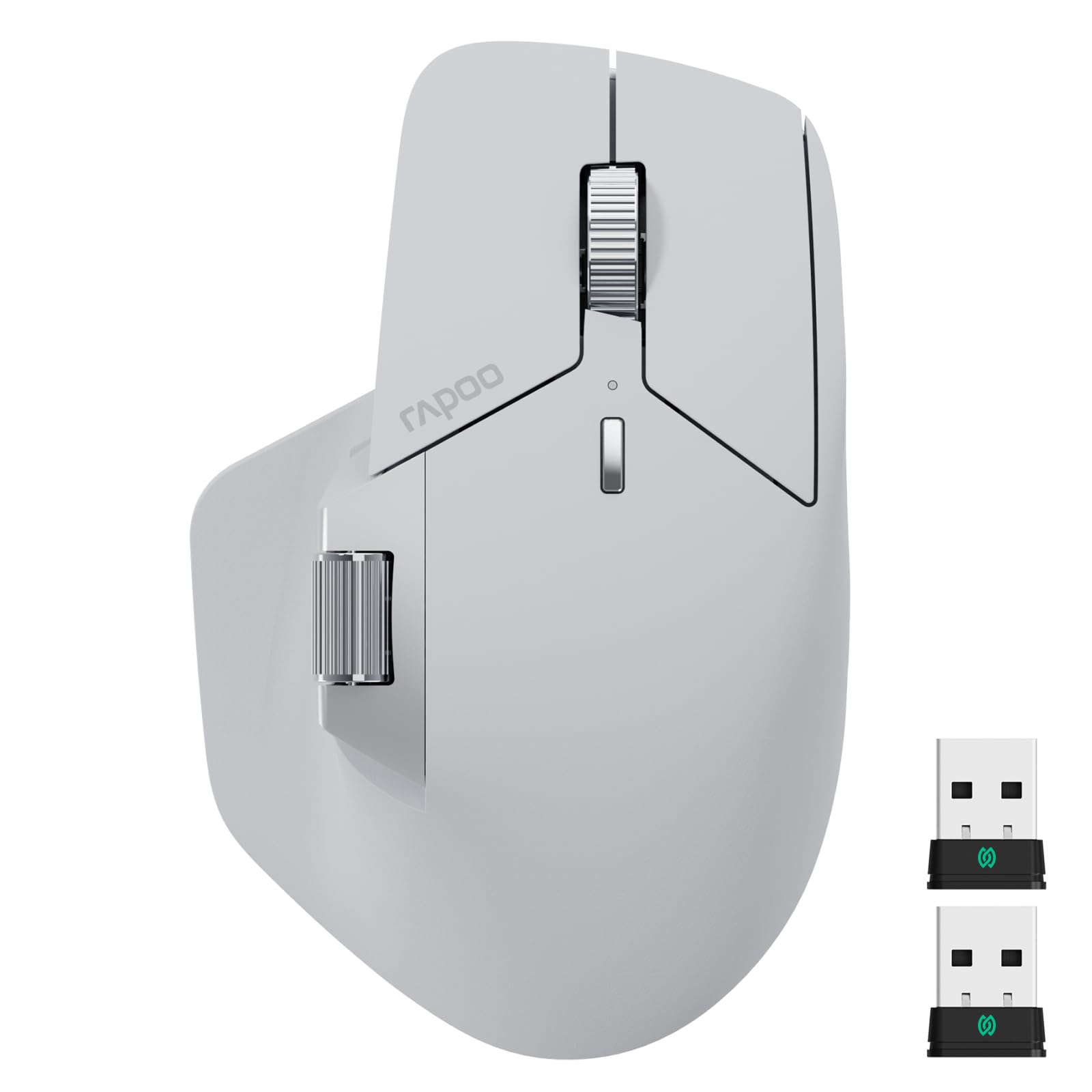
An 11-button productivity hub that mimics a flagship mouse at a fraction of the cost.
The MT760 PRO is for the architect who juggles a desktop, a laptop, and maybe a tablet in one workday. It connects with a next-gen wireless tech called NearLink that NearLink is claimed to use 60% less power and run 6x faster than standard Bluetooth., plus it can handle up to 7 devices. Its M+ Cross-Computer feature lets you slide the cursor between two screens and even copy files on one and paste them on the other — a real time-saver when you are comparing drawings across machines.
Precision is handled by a 12K DPI sensor with 2K polling, which gives near-real-time cursor response for detailed graphic design. You get 7 preset DPI levels from 800 up to 12000, adjustable in 50-step intervals via the driver, so you can fine-tune the exact sensitivity your CAD software needs. The 11 programmable buttons with onboard memory mean your custom shortcuts stay in the mouse, not the software, and they survive a reboot.
Battery life matches the top pick: up to 120 days on a charge, with USB-C giving you a full day of use from just a 5-minute quick charge. It is also Qi wireless-charging compatible if you have a charging mouse pad, though the P3 module is sold separately. Buyers coming from the Logitech MX Master 3 call it a serious alternative, praising the value, the quiet clicks, and the two NearLink dongles. The honest downside is software reliability on Macs, which a few owners found finicky, and the lack of an infinite scroll mode.
Studio workhorse
- 11 programmable buttons with onboard memory keep your workflow intact.
- 7 DPI levels up to 12000 give precise control for high-res monitors.
- Connects to 7 devices with NearLink, Bluetooth, and wired options.
Keep in mind
- The Mac software can be unreliable, with DPI not always saving.
- Side buttons sit low, which larger hands may find awkward.
- No infinite scroll, so long drawing sets need more wheel turns.
Multi-device upgrade: This is the choice for architects who switch between two or more computers daily and want their shortcuts to follow them.
Think twice if: you are on a Mac and depend on polished driver software, since this is the weak spot in owner reports.
5. 3Dconnexion CadMouse Compact Wireless

A dedicated CAD mouse built around the one button architects use the most: the middle click.
This one comes straight from a specialist in 3D navigation, and it shows. The CadMouse Compact is designed to fit your hand naturally to avoid painful positions, and its biggest selling point is the dedicated middle mouse button — essential for orbiting and panning in 3D CAD. As buyers put it: “For anyone doing 3D CAD work, having a mouse with a dedicated middle mouse button is a must, and CadMouse is probably the best available.”
You get 7 total buttons, all assignable, which covers the core CAD commands without cramming your hand. It connects via Bluetooth for a clean, wire-free desk and an energy-efficient data link. Optical movement detection keeps the cursor smooth, precise, and dependable, which is exactly what you need when snapping to a vertex or tracing a complex curve.
The trade-off is that this is a compact mouse, so it is not built for large palms looking for a full-hand rest. The battery runs about 2 months per charge, which is shorter than the 120-day champions on this list, so plan to charge it more often. It is a focused tool rather than a general-purpose multi-device hub, best for the architect who wants one excellent mouse that is genuinely dialed into CAD workflows.
Built for the software: When you spend 90% of your day in 3D modeling software, the dedicated middle button (a separate physical button for panning and rotating views) keeps your hand from cramping, and the sturdy build survives daily desk use—so this specialist earns its place on your desk.
Not for everyone: Large hands and multi-day battery marathons are better served by the bigger, longer-lasting options above.
6. Logitech MX Master 3S Bluetooth Mouse

The any-surface tracking master that lets you draft on glass, wood, or a café table.
The MX Master 3S is the crowd-pleasing flagship for a reason: it scores a strong 4.5-star average and is consistently called the best mouse people have used for heavy AutoCAD and graphics work. Its headline feature is the 8000 DPI sensor that tracks on any surface — even glass — so you never have to hunt for a mouse pad. The MagSpeed scroll wheel is legendary for flipping through a 200-page drawing set in seconds, with The MagSpeed wheel is claimed to scroll 90% faster than standard wheels..
Comfort is a big part of the appeal. The sculpted silhouette promotes a more natural wrist posture, with thumb controls placed right where they should be. The clicks are near-silent, Clicks are 90% quieter than a standard mouse., which keeps a shared studio quiet. Through the Logi Options+ app, you can assign app-specific profiles, so your buttons can do one thing in Revit and another in Photoshop automatically.
One catch: this is a Bluetooth-only model with no USB receiver and no charging cable in the box, so your computer needs Bluetooth built in. It connects to up to 3 devices and supports FLOW cross-computer control for moving files between Windows and macOS. Battery life is strong at around 70 days per charge. A few owners note the gesture button is less intuitive than older Logitech models, and the price is justified mainly for power users who will actually use the deep customization.
The flagship edge
- 8000 DPI sensor tracks perfectly on glass and other tricky surfaces.
- MagSpeed scroll is 90% faster for racing through long documents.
- App-specific profiles in Logi Options+ adapt buttons per software.
Before you buy
- Bluetooth-only means no dongle and no cable included.
- The gesture button placement is less intuitive than older models.
- Budget-conscious users with small hands may not use all its power.
The premium all-rounder: This is the pick for architects who want top-tier tracking and scrolling on any desk surface, with deep software customization.
skip it if: your computer lacks Bluetooth, since this model ships without a receiver.
7. Razer Pro Click V2 Vertical Wireless Mouse

A gaming-grade vertical mouse with a 6-month battery and a sensor that tracks on glass.
The Pro Click V2 is what happens when a gaming peripheral company builds an ergonomic workhorse. It uses the Focus Pro 30K Optical Sensor, which The Focus Pro 30K sensor is claimed to deliver 99.8% resolution accuracy. and tracks even on glass — a strong match for architects who need precise cursor control. The vertical handshake grip is angled to keep your wrist comfortable, and a base support improve the wrist to minimize friction while you move.
Quality and ergonomics are the most-praised traits here, with owners noting a solid build and natural hand support that helps prevent wrist strain. The battery is a standout: up to 6 months on a single charge under standard test conditions, and just 5 minutes of USB-C charging gives you 3 working days. That is the longest battery story on this list, so it handles weeks of drafting without the charger.
It also connects to up to 5 devices across 2.4GHz HyperSpeed Wireless, Bluetooth with 3 hosts, or a wired mode, which is flexible for a mixed desk setup. The 18-zone RGB underglow is a gamer flourish you can ignore, but the 60-million-click rated switches mean the buttons are built to last. The honest trade-off, in owner reports, is the buttons are a bit noisy and the mouse is heavy and hard to lift, and the fit leans toward larger hands. Button responsiveness also gets mixed feedback, so it is not a guaranteed fit for every grip.
Long-haul battery king: This is the vertical mouse to choose if you despise charging and want a sensor accurate enough for precision drafting.
Fit check: Large hands will feel at home, but the weight, click noise, and button placement divide smaller-handed owners.
8. ELECOM Huge Plus Wireless Trackball Mouse
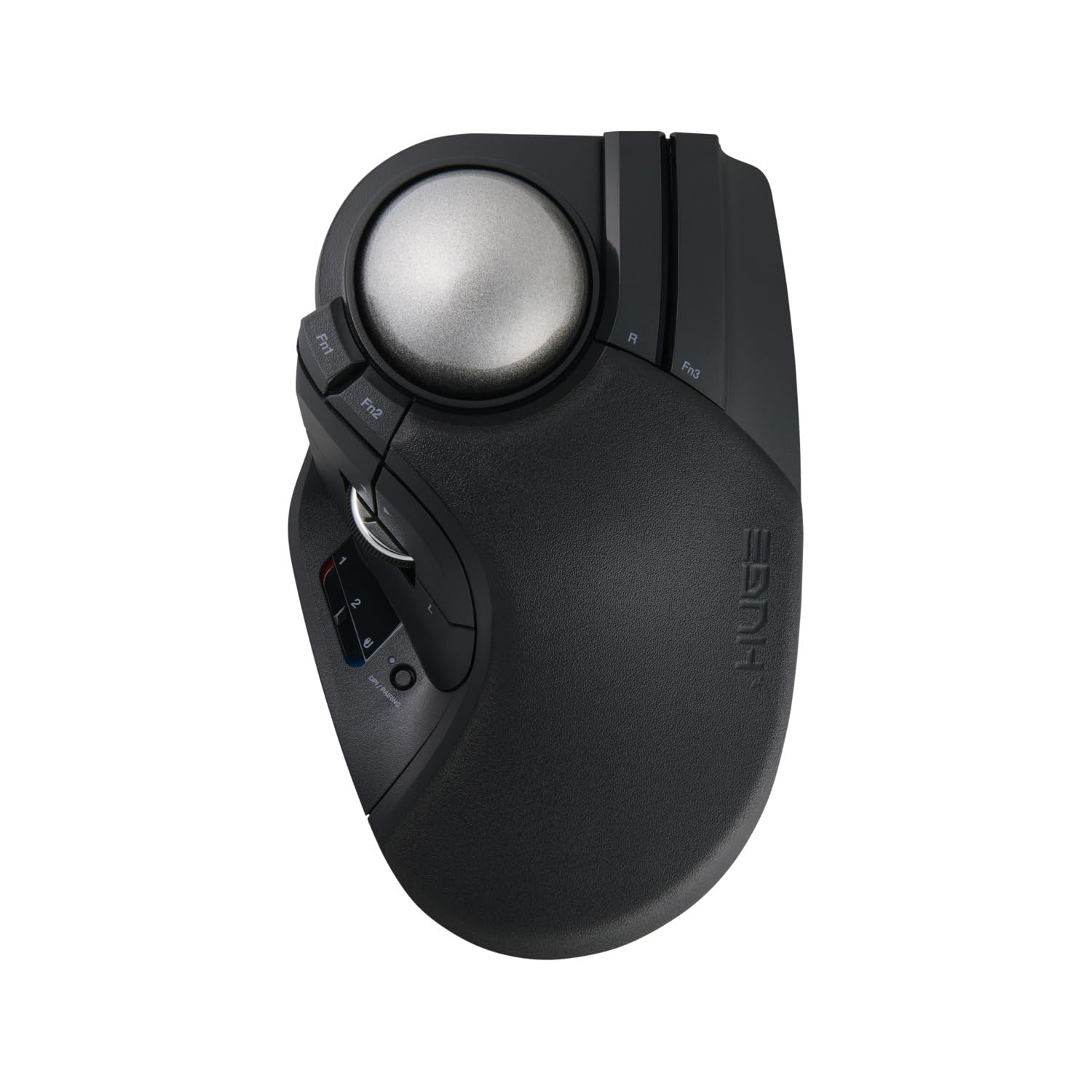
A finger-operated trackball with a giant 52mm ball for the most precise cursor control of all.
Unlike the thumb-driven trackballs on this list, the Huge Plus moves the cursor with your fingers across a large 52mm ball. This design is beloved by CAD users because finger control gives you exceptionally fine motor precision, which is exactly what architects need for detailed modeling. The maker calls it a huge upgrade in control, and buyers who switched from the original Huge say the roller bearings are a precision standout.
You get a generous 10 programmable buttons for shortcuts, which streamlines CAD workflows where repeated commands eat up your day. It connects three ways — Bluetooth, 2.4GHz wireless, or wired USB-C — so you can switch between up to three devices, including an iPad, without re-pairing. The rechargeable battery lasts up to 5 months per charge, and the clicks are silent to keep a shared workspace calm.
Here is the honest catch: despite the “Huge” name, it is designed around smaller hands. Buyers with large palms report their thumb overshoots the scroll wheel and their fingers extend past the right-side buttons. The bearings are also user-swappable, with the option to upgrade to ruby units, which tells you this is a tool built for long-term owners who tweak their setup. Overall it is a quality, precise instrument, but the fit is the deciding factor.
Precision tools
- 52mm finger-controlled ball gives outstanding fine-motor accuracy.
- 10 programmable buttons cover heavy shortcut workflows.
- Swappable premium bearings let you upgrade the feel over time.
Measure your hand
- Larger hands find the button layout awkward and hard to reach.
- Linux users can’t remap the scroll tilt until a future firmware update.
- Ergonomics are debated — some find it perfect, others odd.
For the precision purist: This is the trackball for architects with smaller-to-average hands who want finger-level control and a deep well of programmable buttons.
Not for big palms: If you have large hands, the button placement and reach will likely frustrate you no matter how good the ball feels.
9. Contour RollerMouse Pro3

A keyboard-front roller bar that eliminates reaching and gripping entirely.
The RollerMouse Pro3 is the most radical idea here, and for good reason. It sits directly in front of your keyboard, so your hands stay within shoulder width and never have to reach, grip, or drag a mouse. You control the cursor with a roller bar using any finger, tapping it to click. For architects with carpal tunnel, tendonitis, or shoulder pain, this design removes the repetitive reaching and gripping that cause the strain in the first place.
The standout feature is its adjustability. It has 10 cursor speed settings ranging from 800 to 2400 DPI, so you can switch from fast navigation to fine precision with a few clicks. Built-in Copy and Paste buttons plus 5 programmable buttons let you streamline data-heavy tasks. It is completely plug-and-play — no driver is needed — and works with any keyboard size, on both Windows and macOS.
The best part for architects is the health payoff. Owners with shoulder, wrist, and forearm pain report their symptoms subsided within a week to three weeks, and the device supports both right and left hands. The wrist rest uses leatherette-covered memory foam that is easy to disinfect. The honest trade-offs are the price tag and the learning curve: you have to unlearn years of mouse habits, and it may not work with your specific ergonomic keyboard. A few owners also note the padding cover can disintegrate over time.
The health-first option
- Keeps hands centered and within shoulder width, ending the reach.
- 10 speed settings (800–2400 DPI) cover fast pan and fine snap.
- Built-in copy/paste buttons speed up repetitive data entry.
The investment
- Sits at a premium price that is an investment, not a casual buy.
- Learning curve is real — it takes time to unlearn a regular mouse.
- Built-in wrist pads are stiff and may not suit an ergonomic keyboard.
The pain-eliminator: If wrist, shoulder, or carpal tunnel pain is forcing you out of the studio, this centered roller bar is the most effective alternative to a mouse on the market.
Try before you commit: The price and learning curve mean this is a serious investment; if your pain is mild, a vertical mouse may be enough.
Understanding the Specs
DPI and Sensitivity
DPI, or dots per inch, measures how far your cursor travels for a given movement of your hand or thumb. A higher DPI moves the cursor faster, which is useful for large monitors and rapid panning. A lower DPI gives you finer control for detailed line work. The best drafting mice offer multiple DPI levels you can switch on the fly, so you can zoom out fast and then slow down for precise snapping without changing your hand speed.
Trackball vs. Vertical vs. Centered
A trackball keeps your hand completely still and moves the cursor with your thumb or fingers, which is ideal for small desks and minimal arm movement. A vertical mouse, or handshake mouse, rotates your wrist into a neutral position to relieve tension. A centered roller bar sits in front of your keyboard, eliminating the need to reach for a mouse at all. Your choice depends on where your pain is — wrist, forearm, or shoulder.
FAQ
Is a trackball or a vertical mouse better for architects?
What DPI setting is best for CAD work?
Will an ergonomic mouse help with wrist pain from long CAD sessions?
How many programmable buttons do I need for drafting?
Can I use a vertical mouse for gaming or only for work?
How long does the battery last on a wireless architect mouse?
Does a trackball work on any surface, or do I need a mouse pad?
What is the difference between a wireless trackball and a standard wireless mouse?
Is the Contour RollerMouse Pro3 worth the price for architects?
Final Thoughts: The Verdict
For most architects, the computer mouse for architects winner is the Logitech MX Ergo S because it pairs a durable, ergonomist-certified tilt with a 120-day battery and 8 buttons, all backed by a 4.5-star crowd approval. If you want a quick and affordable way to relieve wrist tension, the Ergodriven Om Vertical is the one to reach for. And if pain is forcing you off the computer entirely, the Contour RollerMouse Pro3 is the most effective zero-reach solution you can buy.
How We Picked
We do not accept paid placement. Every pick is matched to a real buyer and a real use-case; we do not hands-on test units.
Sources & Methodology
Specifications: manufacturer listings and product documentation. Review insights: verified customer reviews, as of August 2026. Pricing: not shown on this page (it changes often); check the current price via the retailer link.
As an Amazon Associate, FitlyFast earns from qualifying purchases. This does not affect which products we feature.