
Our readers keep the lights on and the weekend projects moving. As an Amazon Associate, I earn from qualifying purchases.
A 40-inch monitor is not just a bigger screen—it is a fundamental shift in how you manage windows, edit timelines, and experience immersion. The jump from a standard 32-inch display to a 40-inch ultrawide or 4K panel adds roughly 56% more usable desktop area, but that extra space demands careful decisions about resolution, panel technology, curvature, and connectivity that cheaper, smaller displays simply do not require.
I’m Rikta — the co-founder and writer behind FitlyFast. I have spent hundreds of hours analyzing panel specifications, reading deep-dive customer experiences, and comparing the real-world tradeoffs between IPS, VA, and OLED technologies to build this guide for serious buyers.
Whether you are a creative professional needing color-accurate 5K2K real estate or a gamer chasing high refresh rates on a curved VA panel, finding the right display requires understanding specific specs that separate a productive workstation from an expensive mistake. This is the definitive guide to finding the best 40 inch monitor for your specific workflow and budget.
How To Choose The Best 40 Inch Monitor
Selecting a 40-inch monitor means deciding between extra screen real estate and potential pixel-density issues. The right choice depends on your primary use case—productivity work, creative color grading, or gaming—and understanding how resolution, panel type, curvature, and connectivity interact at this size class.
Resolution: 4K (3840 x 2160) vs. 5K2K (5120 x 2160)
At 40 inches, standard 4K gives you a 16:9 format with approximately 110 PPI—acceptable for general office work but noticeably less sharp for reading small text next to high-DPI MacBook screens. 5K2K (5120 x 2160) in a 21:9 ultrawide format delivers roughly 140 PPI, matching the Retina-class clarity that creative professionals expect. If you work with dense timelines, code editors, or design tools where every pixel counts, 5K2K is the clear choice. For pure gaming or basic office tasks, 4K remains viable and more affordable.
Panel Technology: IPS vs. VA vs. OLED
IPS panels offer the best viewing angles and color consistency, making them ideal for color-critical work. Newer Nano IPS Black panels achieve a 2000:1 contrast ratio, approaching VA levels without sacrificing color accuracy. VA panels deliver higher native contrast (3000:1 to 4000:1) and better black levels, which benefits HDR gaming and movie watching, but they suffer from narrow viewing angles and potential black crush. OLED panels provide perfect blacks, infinite contrast, and near-instant response times—but they carry burn-in risk for static UI elements and are significantly more expensive. For a mixed-use monitor that combines productivity with occasional gaming, a high-quality IPS or IPS Black panel is the most versatile option.
Curvature and Ergonomic Adjustments
At 40 inches, a flat panel can cause noticeable edge distortion and eye strain because your peripheral vision sees different angles than the center. Most 21:9 ultrawide monitors use a 2500R or 1800R curve. A tighter curve (1800R or 1000R) wraps the screen around your field of view, reducing eye movement and making the edges easier to read. For work involving straight lines—architectural CAD, spreadsheet grids, or graphic design—a gentler curve (2500R) or even a flat panel may be preferable to avoid visual distortion. Height adjustment, tilt, and swivel are essential at this size to maintain proper neck posture.
Connectivity and Hub Features
A 40-inch monitor often serves as the center of a workstation, so built-in connectivity matters. USB-C with power delivery (65W or 96W) lets you connect a laptop with a single cable for video, data, and charging. Thunderbolt 4 or 5 adds daisy-chaining for multiple monitors. Built-in KVM switching lets you control two PCs with a single keyboard and mouse, which is valuable for professionals who toggle between a work laptop and a desktop. Ethernet passthrough and multiple downstream USB-A ports reduce desk clutter by eliminating separate docks.
Quick Comparison
On smaller screens, swipe sideways to see the full table.
| Model | Category | Best For | Key Spec | Amazon |
|---|---|---|---|---|
| LG 40U990A-W | 5K2K IPS | Creative pros needing Thunderbolt 5 | 5120×2160 Nano IPS Black | Amazon |
| Samsung Odyssey G7 G75F | Curved Gaming | High-refresh ultrawide gaming | 5120×2160 VA 180Hz | Amazon |
| INNOCN 40C1U | 5K2K Budget | Value 5K ultrawide productivity | 5120×2160 IPS 100Hz | Amazon |
| Dell U4025QW | Pro Hub | Professional all-in-one hub monitor | 5120×2160 IPS Black 120Hz | Amazon |
| Dell U4323QE | 16:9 4K Hub | Multi-PC 4K productivity | 3840×2160 IPS 60Hz | Amazon |
| ASUS ProArt PA32QCV | 6K Color | Color-critical 6K professional work | 6016×3384 IPS 60Hz | Amazon |
| LG 39GX90SA-W | OLED Gaming | Immersive OLED gaming & streaming | 3440×1440 OLED 240Hz | Amazon |
| Samsung Odyssey OLED G9 | QD-OLED | Wide 32:9 OLED gaming | 5120×1440 QD-OLED 144Hz | Amazon |
| Dell U4924DW | 32:9 Hub | Max horizontal workspace for pros | 5120×1440 IPS 60Hz | Amazon |
| ASUS ROG Strix XG49VQ | Budget 32:9 | Budget super-ultrawide gaming | 3840×1080 VA 144Hz | Amazon |
| ergounion Quad Mount | Mount Arm | Holding four 40-inch monitors | 25 lb per arm VESA | Amazon |
In‑Depth Reviews
1. LG 40U990A-W 40-inch Ultrafine evo 5K2K
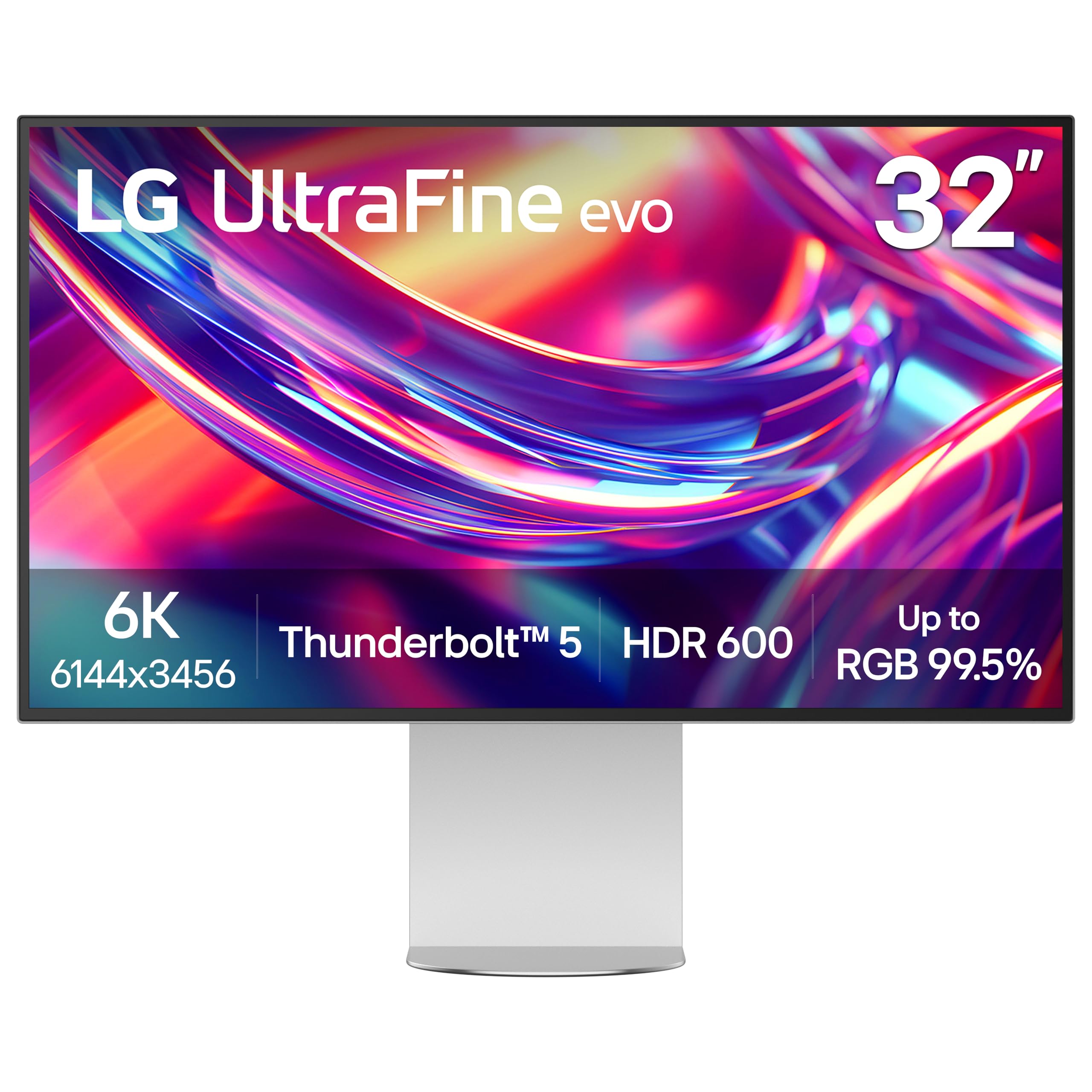
The LG 40U990A-W is the world’s first 5K2K monitor with Thunderbolt 5, delivering 96W charging and dual display support through a single cable. Its 40-inch Nano IPS Black panel achieves a 2000:1 contrast ratio—double that of standard IPS—while maintaining the wide viewing angles and color accuracy that creative professionals depend on.
With 5120×2160 resolution at 120Hz, this monitor bridges the gap between productivity and smooth motion. The 2500R curve is subtle enough to avoid distorting straight lines in design software but present enough to reduce edge glare. Color coverage reaches 99% DCI-P3, and VESA DisplayHDR 600 certification ensures highlights pop without blooming.
Connectivity is future-proof: Thunderbolt 5, two HDMI 2.1 ports, DisplayPort 2.1, and USB-C. The built-in KVM and daisy-chain support let you control a MacBook and PC from one keyboard. The dual speakers with Rich Bass are adequate for casual listening but not a replacement for dedicated monitors. Some users report the matte coating is aggressive, causing slight grain on white backgrounds.
Why it’s great
- First Thunderbolt 5 monitor at this resolution class
- Nano IPS Black delivers deep blacks without OLED burn-in risk
- 120Hz refresh rate smooths scrolling and video playback
Good to know
- Aggressive matte coating may cause grain on solid white backgrounds
- Built-in software for brightness/volume control hijacks function keys on Mac
- Large external power brick adds desk clutter
2. Samsung 40” Odyssey G7 G75F
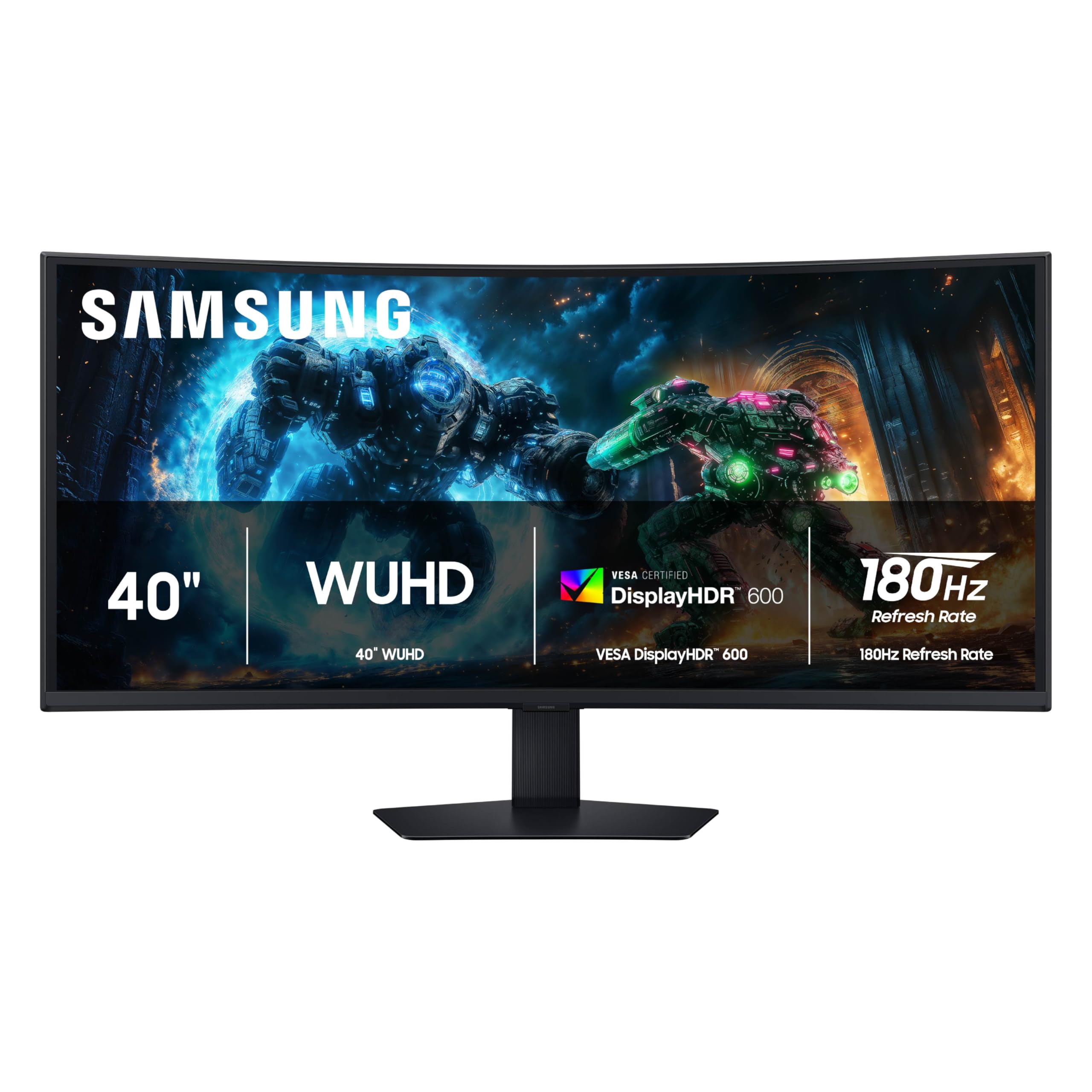
The Samsung Odyssey G7 G75F is a 40-inch ultrawide (21:9) gaming monitor that wraps tightly around your field of view with its aggressive 1000R curvature. The VA panel delivers a 3000:1 native contrast ratio, producing deep blacks that make HDR scenes in games and movies genuinely pop—especially with VESA DisplayHDR 600 certification.
At 5120×2160 (5K2K) resolution and 180Hz, this monitor demands serious graphics hardware—an RTX 4080 or better is recommended to push that many pixels at high frame rates. The 1ms GtG response time keeps motion clear, and AMD FreeSync Premium Pro eliminates tearing without adding input lag. For competitive shooters and racing sims, the combination of high refresh and tight curvature is transformative.
Color accuracy is good for a VA panel, covering 99% DCI-P3 out of the box, though some users note that factory calibration leans a bit cool. The stand offers height, tilt, and swivel adjustment, but the base is large and takes up considerable desk space. HDR requires manual tweaking in Windows to avoid washed-out highlights.
Why it’s great
- 180Hz at true 5K2K resolution with 1ms response
- 1000R curve provides maximum immersion for gaming
- VA panel delivers strong native contrast for HDR content
Good to know
- Requires a high-end GPU (RTX 4080 or better) to drive at high frame rates
- Stand base is large and occupies significant desk real estate
- HDR color accuracy needs manual adjustment out of box
3. INNOCN 40C1U 40 Inch 5K Ultrawide

The INNOCN 40C1U delivers a rare combination: a 40-inch 5K2K (5120×2160) IPS panel at a price point significantly below competitors. Factory-calibrated to Delta E < 2 and covering 135% sRGB and 106% DCI-P3, this monitor is a legitimate option for graphic designers and video editors who need wide color gamut without spending premium-tier money.
The 100Hz refresh rate is a welcome upgrade over standard 60Hz office panels, making cursor movement and scrolling feel noticeably smoother. Connectivity includes two HDMI 2.1 ports, DisplayPort 1.4, and USB-C with 65W power delivery—enough to charge most laptops. The 21:9 aspect ratio lets you tile three windows side by side without overlap, which is excellent for coding and research workflows.
Built-in 4Ω5W speakers are weak and lack bass, so external speakers are practically required. The IPS panel has a standard 1200:1 contrast ratio, meaning blacks appear gray in dark rooms—this monitor is not suitable for HDR movie watching or cinematic gaming. Some users report finicky USB-C sleep/wake behavior with MacBooks.
Why it’s great
- 5K2K resolution at a price well below competing models
- Factory-calibrated Delta E < 2 with excellent sRGB/DCI-P3 coverage
- USB-C with 65W PD charges most ultrabooks via single cable
Good to know
- Standard IPS contrast means blacks appear gray in dark rooms
- Built-in speakers are weak and lack low-end response
- USB-C sleep/wake behavior can be unreliable with some MacBook models
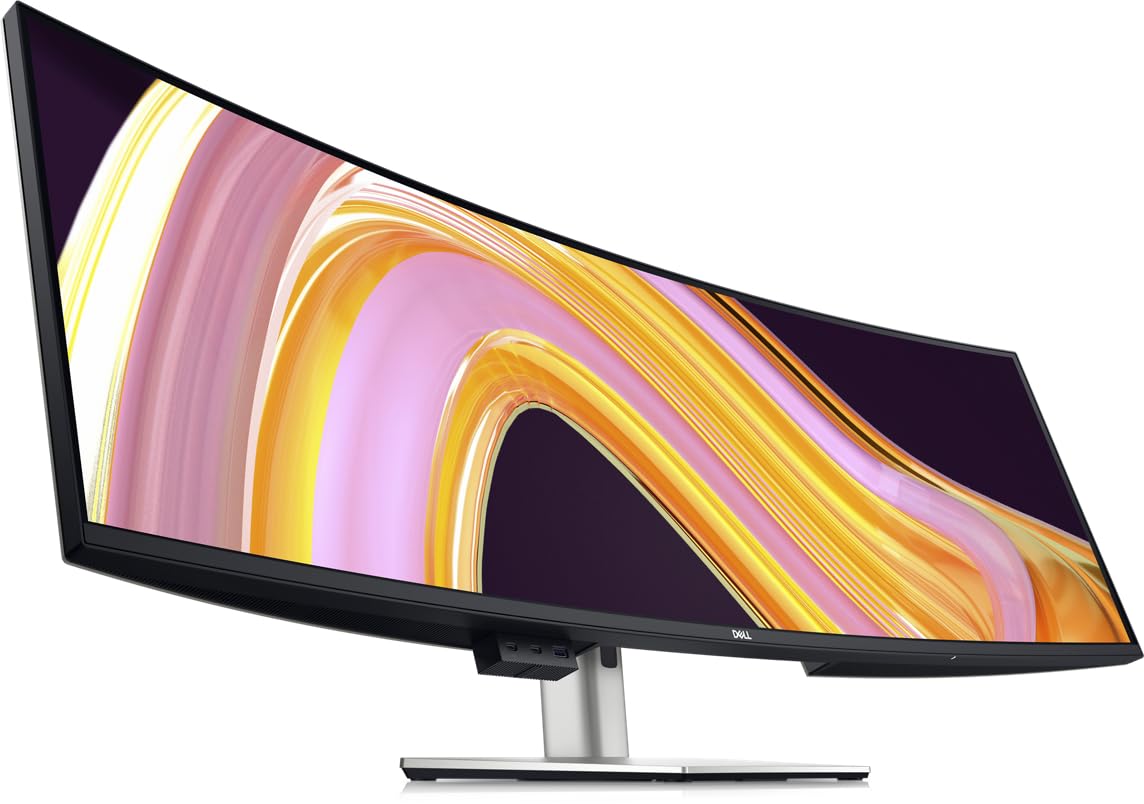
4. Dell UltraSharp U4025QW 40″ 5K2K

The Dell UltraSharp U4025QW combines a 39.7-inch 5K2K (5120×2160) IPS Black panel with a fully featured USB-C hub. The IPS Black technology pushes contrast to 2000:1, delivering noticeably deeper blacks than standard IPS while maintaining the wide viewing angles and color consistency that professional users need. VESA DisplayHDR 600 certification with 600 nits peak brightness makes it viable for HDR video preview.
At 120Hz, this monitor offers smooth scrolling and cursor movement without the motion blur of 60Hz panels, yet it is not marketed as a gaming display. The built-in KVM with Ethernet passthrough lets you switch between a MacBook and PC using a single keyboard and mouse—a major productivity boost. The 2500R curve is gentle enough to avoid distorting CAD drawings or spreadsheets.
The stand offers full height, tilt, swivel, and pivot adjustments. Ports include Thunderbolt 4 with 90W PD, HDMI 2.1, DisplayPort 1.4, and multiple USB-A downstream ports. Some users find the downward-facing ports difficult to access when the monitor is mounted. The monitor lacks a remote control, and the on-screen display menus can be cumbersome to navigate.
Why it’s great
- IPS Black panel delivers 2000:1 contrast for deep blacks
- Built-in KVM with Ethernet ideal for multi-computer workflows
- 120Hz refresh rate with Thunderbolt 4 connectivity
Good to know
- Downward-facing ports are hard to reach when wall-mounted
- No included remote control for input switching
- Premium price tag, even for the features offered
5. Dell UltraSharp 43 4K U4323QE

The Dell UltraSharp U4323QE is a 42.5-inch 16:9 4K (3840×2160) monitor built for professionals who manage multiple PCs. Its standout feature is Internal Multi-Stream Transport (iMST), which lets you partition the screen into four unique 1080p quadrants when connected to a single PC—no external software or splitter required. This is a game-changer for security camera monitoring, server dashboards, or financial trading setups.
The built-in KVM and Auto KVM let you control up to four different PCs from a single keyboard and mouse, switching inputs seamlessly. USB-C with 90W power delivery makes it a true hub monitor for laptop users. The IPS panel delivers 350 nits brightness and consistent colors across the wide 178-degree viewing angles, though contrast is standard at 1000:1.
ComfortView Plus (low blue light) is built in without affecting color accuracy. The stand offers height, tilt, and swivel adjustment. Some users report that the Dell Display Manager software can be buggy, especially with network KVM switching. The 60Hz refresh rate is fine for productivity but not suitable for gaming.
Why it’s great
- Native 4-screen partition via iMST for multi-window workflows
- Built-in KVM with Auto KVM handles up to four PCs
- USB-C with 90W PD serves as a complete laptop dock
Good to know
- 60Hz refresh rate limits smoothness for casual gaming
- Dell Display Manager software can be unstable with KVM features
- Standard IPS contrast ratio means blacks are not deep
6. ASUS ProArt Display PA32QCV 6K
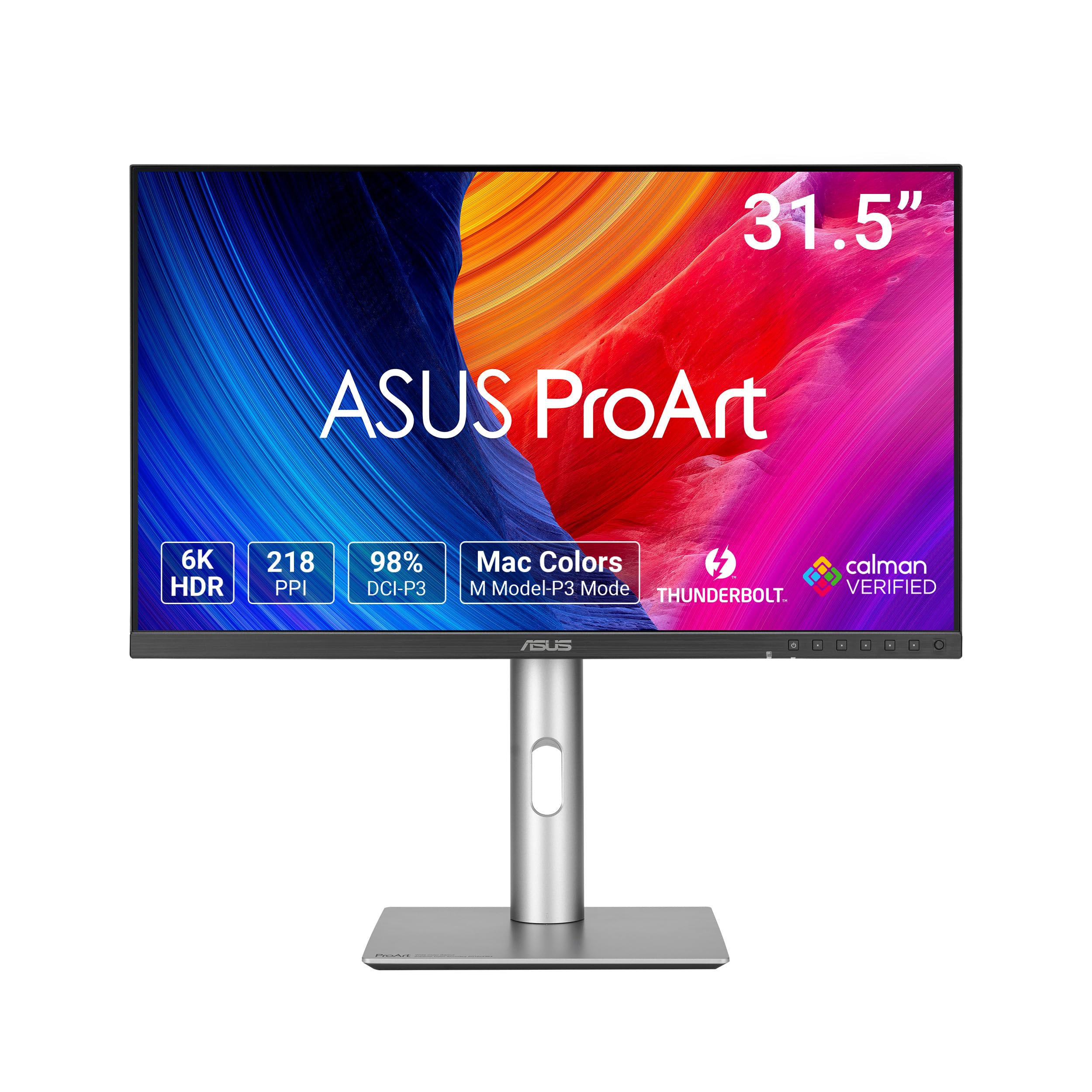
The ASUS ProArt PA32QCV is a 31.5-inch 6K (6016 x 3384) professional monitor designed for color-critical work. With 98% DCI-P3 coverage, factory calibration to Delta E < 2, and Calman Verification, this display delivers color accuracy that competes with reference monitors at a fraction of the cost. The LuxPixel anti-glare coating minimizes reflections without creating a hazy appearance.
Connectivity includes dual Thunderbolt 4 ports with 96W Power Delivery and daisy-chaining support, HDMI 2.1, and DisplayPort 1.4. The built-in Auto KVM lets you switch between two laptops with a single keyboard and mouse. The M Model-P3 preset mode matches the color performance of MacBook displays, making it ideal for creatives working across Apple and Windows ecosystems.
The 60Hz refresh rate is standard for professional monitors but may feel slow for users accustomed to high-refresh displays. Built-in speakers are weak, and some units exhibit quality-control issues like backlight bleed or dead pixels. The 3+2 year warranty (requires online registration) provides peace of mind for the investment.
Why it’s great
- 6K resolution delivers exceptional pixel density for detailed work
- Calman Verified with Delta E < 2 out of box
- Thunderbolt 4 with 96W PD and daisy-chain support
Good to know
- 60Hz refresh rate is not ideal for gaming or fast scrolling
- Some units may have backlight bleed or dead pixels (panel lottery)
- Built-in speakers are weak and unsuitable for media consumption
7. LG 39GX90SA-W Ultragear OLED
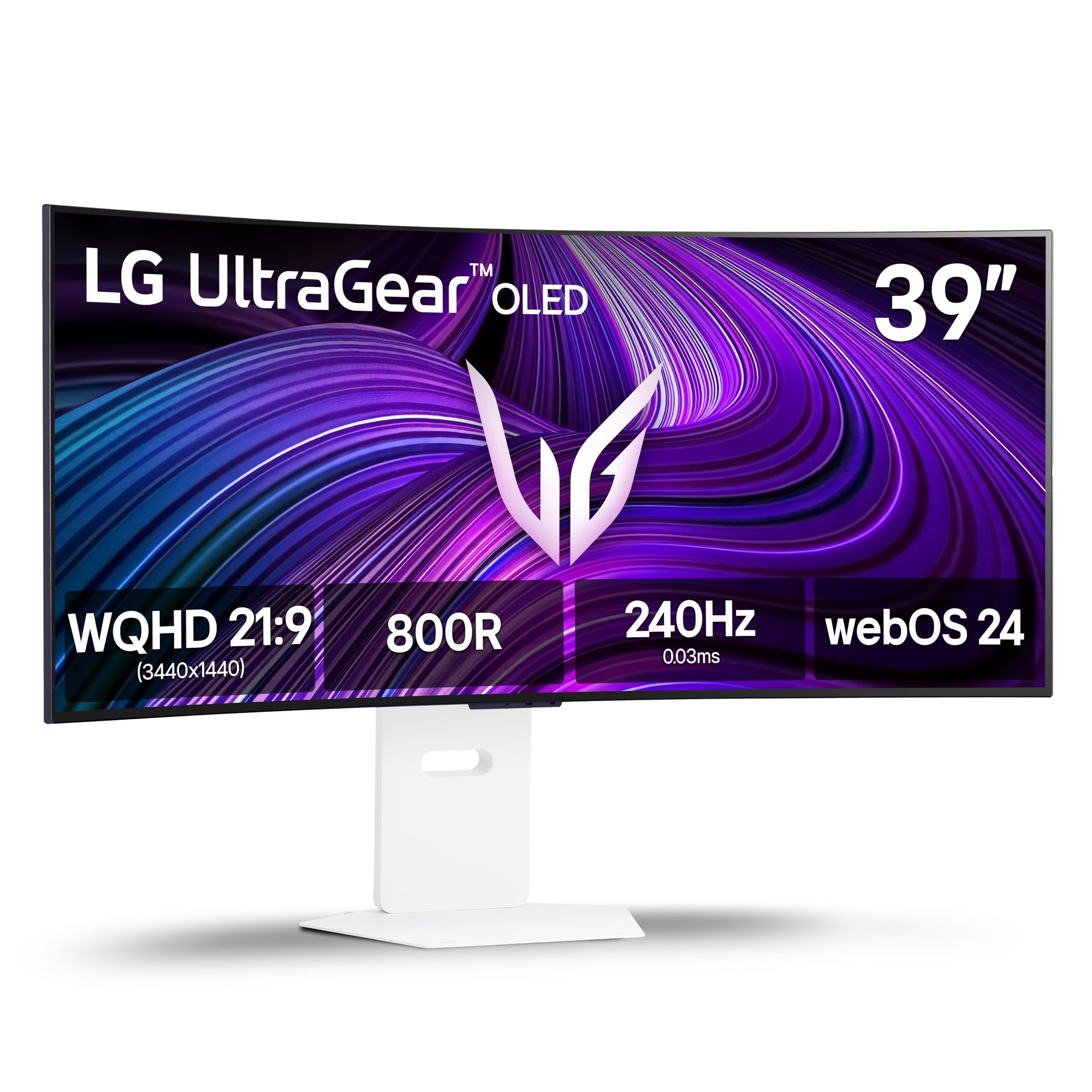
The LG 39GX90SA-W is a 39-inch WQHD (3440×1440) OLED gaming monitor with a dramatic 800R curvature that wraps deeply around your periphery. With a 240Hz refresh rate and 0.03ms GtG response time, motion clarity is essentially instantaneous—no ghosting, no blur. The OLED panel delivers perfect blacks and a 1.5M:1 contrast ratio that makes HDR content look spectacular.
Built-in webOS 24 provides access to Netflix, Prime Video, and cloud gaming services like NVIDIA GeForce NOW without needing a PC connected. The anti-glare surface reduces reflections effectively, and OLED Care tools (pixel cleaning, logo detection) help mitigate burn-in risk. Connectivity includes DisplayPort, HDMI, and USB-C ports.
The WQHD resolution at 39 inches gives approximately 95 PPI—noticeably less sharp than 5K2K alternatives for text-heavy work. Some users report input switching quirks and sleep/wake issues. The aggressive curvature can distort straight lines in productivity software, making this monitor best suited for gaming and media consumption rather than design work.
Why it’s great
- 240Hz OLED with 0.03ms response for lag-free gaming
- Perfect blacks and infinite contrast for stunning HDR
- Built-in webOS for streaming and cloud gaming without a PC
Good to know
- WQHD at 39 inches has lower pixel density than 5K2K alternatives
- Aggressive 800R curve distorts straight lines in productivity apps
- Sleep/wake and input switching can be finicky with some setups
8. Samsung 49″ Odyssey OLED G9 G91SD

The Samsung Odyssey OLED G9 G91SD is a 49-inch 32:9 super-ultrawide monitor using QD-OLED technology. With Dual QHD resolution (5120×1440) and 110 PPI, it effectively replaces two 27-inch 1440p monitors side by side without a bezel gap. The QD-OLED panel delivers vibrant colors covering 99% DCI-P3 with 1,000,000:1 contrast ratio for truly striking HDR.
The 144Hz refresh rate and 0.03ms response time make it excellent for fast-paced gaming. G-Sync compatibility and FreeSync Premium Pro ensure tear-free visuals. The built-in Picture-in-Picture feature lets you display two sources simultaneously, and the Thermal Modulation System prevents overheating. A 3-year warranty covers the OLED panel against burn-in.
Some users report VRR-related white flashes in certain browsers and a single DisplayPort input limitation (full resolution over HDMI is not supported). The 1800R curve helps with immersion but is less aggressive than dedicated gaming monitors. Customer service experiences have been mixed, with some users reporting difficulty accessing warranty support.
Why it’s great
- QD-OLED delivers vibrant colors and perfect blacks
- 32:9 aspect ratio replaces dual-monitor setups seamlessly
- 3-year burn-in warranty provides peace of mind
Good to know
- VRR-related white flashes reported in some applications
- Only one DisplayPort input; full resolution not available via HDMI
- Samsung customer service quality can be inconsistent
9. Dell UltraSharp U4924DW 49″ DQHD
The Dell UltraSharp U4924DW is a 49-inch 32:9 IPS monitor with Dual QHD resolution (5120×1440) and a gentle 3800R curve. It is designed for professionals who need a massive horizontal workspace without the bezel gap of dual monitors. The IPS panel delivers consistent color across the wide screen, and the built-in hub includes USB-C with power delivery, Ethernet, and multiple downstream USB ports.
The built-in KVM lets you control two PCs with a single keyboard and mouse, though some users find the switching takes about five seconds. The anti-glare coating works well in brightly lit offices. Picture-by-picture mode allows split-screen use from two different sources, and the 5ms GtG response is adequate for office productivity but not gaming.
At 3800R, the curvature is shallow—some users find it insufficient to prevent glare at the edges in a wide setup. The 60Hz refresh rate feels dated compared to newer 120Hz ultrawides. Several long-term reviews report USB-C port failures outside the warranty period, and the heavy weight (over 25 lbs) requires a sturdy desk or mount.
Why it’s great
- Massive 32:9 workspace replaces dual monitors seamlessly
- Comprehensive hub with USB-C PD, Ethernet, and KVM
- Reliable IPS color consistency across the entire panel
Good to know
- 3800R curve is very shallow and may not reduce edge glare effectively
- USB-C port failures reported in some units after extended use
- 60Hz refresh rate is not suitable for gaming or fast scrolling
10. ASUS ROG Strix XG49VQ

The ASUS ROG Strix XG49VQ is a 49-inch 32:9 super-ultrawide monitor with DFHD resolution (3840×1080) and a 144Hz VA panel. At 1080p vertical height stretched across 49 inches, pixel density is low—approximately 81 PPI—making individual pixels visible at normal viewing distances. This monitor is best suited for users who prioritize horizontal screen space and high refresh rates over sharpness.
The 1800R curvature and FreeSync 2 HDR support make it immersive for racing and flight simulation games. ASUS Eye Care technology reduces eye strain during long sessions, and the stand offers full ergonomic adjustments. The VA panel delivers 3000:1 contrast ratio, making HDR content (DisplayHDR 400) look more vibrant than IPS alternatives at this price point.
Text clarity is noticeably soft, making this a poor choice for coding or document work. G-Sync compatibility causes ghosting on some titles; FreeSync works better with AMD GPUs. The built-in speakers are basic, and the HDR implementation is entry-level—brightness peaks are modest. USB ports on the monitor are useful for peripherals but limited to 5Gbps.
Why it’s great
- Affordable entry into 49-inch super-ultrawide gaming
- 144Hz VA panel with FreeSync 2 HDR support
- Full ergonomic stand with height, tilt, and swivel adjustments
Good to know
- 1080p vertical resolution results in very low pixel density
- Text clarity is soft, making it unsuitable for productivity work
- G-Sync compatibility can cause ghosting in some games
11. ergounion Heavy Duty Quad Monitor Mount

The ergounion Heavy Duty Quad Monitor Mount is an accessory, not a monitor, but it is essential for anyone building a multi-monitor setup with large 40-inch displays. Each arm supports up to 25 pounds and fits screens from 13 to 40 inches with standard VESA 75x75mm or 100x100mm patterns. The mechanical spring system maintains tension over time better than gas springs that can lose pressure after a few years.
The mount offers +90°/-25° tilt, 180° swivel, and 360° rotation, allowing landscape-to-portrait switching. The aerospace-grade aluminum build provides rock-solid stability even with four heavy ultrawide monitors attached. Both a C-clamp (up to 2.4-inch desk) and a grommet mount are included, and the integrated cable management channels keep wires hidden inside the arms.
Assembly is straightforward but requires two people when mounting multiple large monitors simultaneously. Vertical stacking of 34-inch or larger monitors causes overlap—side-by-side arrangements work best for big screens. The plastic cable management caps are brittle and can crack if overtightened.
Why it’s great
- Supports four heavy 40-inch monitors up to 25 lbs each
- Mechanical spring system offers lifetime tension without sagging
- Premium aluminum build with integrated cable management
Good to know
- Vertical stacking may cause overlap with monitors over 34 inches
- Plastic cable management caps are brittle and prone to cracking
- Two-person installation recommended for large multi-monitor setups
FAQ
Is a 40-inch monitor too big for a standard desk?
Should I get a curved or flat 40-inch monitor?
What GPU do I need to drive a 5K2K 40-inch monitor?
Can I use a 40-inch monitor for competitive gaming?
What is the difference between USB-C, Thunderbolt 4, and Thunderbolt 5 on a monitor?
Final Thoughts: The Verdict
For most users, the best 40 inch monitor winner is the LG 40U990A-W because it combines 5K2K resolution, Thunderbolt 5 connectivity, and a Nano IPS Black panel that delivers deep blacks without OLED burn-in risk. If you want a high-refresh gaming experience with strong HDR, grab the Samsung Odyssey G7 G75F. And for a value-focused ultrawide that still offers 5K2K resolution and accurate color, nothing beats the INNOCN 40C1U.